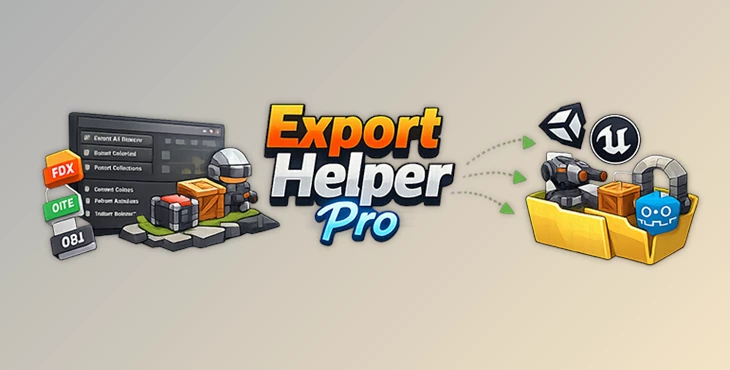
Downloadable Files
You can download Export Helper Pro for free from the end of this page.
Tired of Exporting Assets One by One?
If you work in Blender regularly, you've probably run into the same situation countless times: your models are ready, but exporting them is still a slow and repetitive process. You select an object, choose the export format, adjust settings, save the file, and then do it all over again for the next asset.
Now imagine doing that for dozens of objects or multiple collections in a large project.
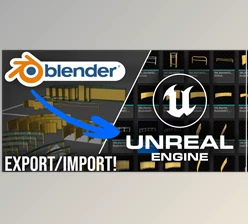
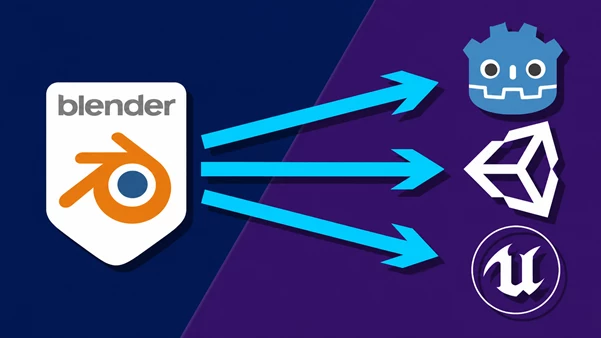
That's exactly the problem Export Helper Pro aims to solve. This Blender add-on makes exporting assets much faster by automating repetitive tasks and providing ready-made export presets for popular engines like Unity, Unreal Engine, and Godot.
Whether you're building a game, creating an asset pack, or preparing models for clients, this tool can save a surprising amount of time.
Why Batch Exporting Is Such a Big Deal
As projects grow, so does the number of assets that need to be exported. What starts as a few simple models can quickly turn into dozens of props, environment pieces, characters, and collections.
Exporting everything manually isn't just slow—it also increases the chances of mistakes. Maybe one object gets exported with the wrong settings, or a collection gets forgotten entirely.
Batch exporting solves this by handling multiple assets at once while keeping export settings consistent across the entire project.
For example, if you're creating a collection of game props for Unity, you can export them all in one go instead of repeating the same process over and over. The result is a cleaner workflow, fewer errors, and more time spent creating instead of managing files.
Meet Export Helper Pro
Export Helper Pro is a Blender add-on designed to simplify the export process for artists, game developers, and 3D creators.
Instead of constantly switching export settings or manually organizing files, the add-on provides a dedicated export panel directly inside Blender. From there, you can export individual objects, selected assets, or entire collections using optimized presets.
Support for Multiple Export Formats
One of the strongest aspects of Export Helper Pro is its flexibility.
You can export assets in several widely used formats depending on your workflow:
FBX for Unity
Includes export settings optimized specifically for Unity projects, helping assets import correctly with minimal adjustments.
FBX for Unreal Engine
Uses settings tailored for Unreal Engine workflows, making it easier to move assets from Blender into UE projects.
Generic FBX
Perfect for users who need standard FBX files for various 3D applications.
glTF and GLB
Ideal for Godot projects, web-based applications, and modern real-time workflows.
OBJ
A classic and reliable format that remains useful for many modeling and rendering pipelines.
Different Ways to Export
Not every project requires the same workflow, and Export Helper Pro gives you several options.
Export All Objects
Need every mesh in the scene exported as separate files? One click is all it takes.
Export Selected Objects
Only want to export a few assets? Simply select them and export just those objects.
Quick Collection Export
Choose a collection and export everything inside it as a single file.
Multi-Collection Export
Working with larger scenes? You can export multiple collections at once, with each collection saved as its own file.
This is especially useful when preparing large asset libraries or environment packs.
Smart Features That Save Time
Convert Viewport Colors Into Real Materials
Many artists use simple viewport colors while modeling because they're quick and easy to manage.
The problem appears when those colors don't transfer correctly into the target engine.
Export Helper Pro can automatically convert viewport display colors into Principled BSDF materials during export. This helps preserve the look of your assets without requiring extra setup.
For simple stylized assets and game prototypes, this can be a huge time saver.
Preserve Sharp Edges
Hard-surface models often rely on sharp edges to create clean mechanical shapes.
Normally, those edges can sometimes behave differently after export.
With the Preserve Sharp Edges option enabled, the add-on temporarily applies an Edge Split modifier during export and removes it afterward. The result is more consistent shading in formats such as glTF and OBJ.
If you create vehicles, weapons, architecture, or industrial assets, you'll appreciate this feature.
Export From World Origin
Some game engines and external tools work better when exported objects are positioned at the world origin.
Export Helper Pro can temporarily move objects to the center of the scene, perform the export, and then restore everything exactly where it was.
You get clean exports without disrupting your Blender project.
Automatic Armature Support
When exporting rigged characters or animated assets, forgetting to include the armature can create unnecessary headaches.
The add-on automatically detects and includes armatures when exporting FBX files, helping ensure that characters arrive correctly inside your target engine.
Embedded Textures
If portability is important, textures can be embedded directly into FBX files.
This makes sharing assets with teammates, clients, or other computers much easier because fewer external files need to be managed.
A Cleaner Project Structure
Anyone who has worked on large projects knows how messy export folders can become.
Export Helper Pro automatically creates dedicated folders for each export type, including:
FBX Unity
FBX Unreal
Generic FBX
GLB
glTF
OBJ
Everything stays organized, making it easier to locate files later.
Practical Examples
Let's say you're creating a medieval asset pack for a game.
Your project contains:
Barrels
Crates
Weapons
Furniture
Decorative props
Without a batch exporter, each object would need individual attention.
With Export Helper Pro, you can export entire collections at once and generate ready-to-use files for your chosen game engine.
The same applies to modular building kits, environment packs, character libraries, and marketplace products.
The larger the project becomes, the more valuable this kind of automation feels.
Tips for Getting Better Results
Organize Assets Into Collections
Keeping assets grouped in collections makes exporting much faster and easier to manage.
Mark Important Sharp Edges
If you're creating hard-surface models, spend a little time marking sharp edges properly before exporting.
Pick the Right Export Preset
Unity, Unreal Engine, and other platforms have different requirements. Using the correct preset helps avoid unnecessary adjustments later.
Use Viewport Colors During Early Development
Viewport colors are perfect for quickly blocking out assets. The automatic conversion feature allows you to maintain that speed while still exporting usable materials.
Export Collections Instead of Individual Objects
For larger projects, collection-based exports are often cleaner and easier to manage than exporting every object separately.
Final Thoughts
Exporting assets may not be the most exciting part of working in Blender, but it's a task every artist deals with regularly. The more efficient that process becomes, the more time you can spend on modeling, texturing, and creating.
Export Helper Pro takes a lot of the repetitive work out of exporting by offering batch processing, engine-specific presets, collection management, material conversion, and several workflow improvements that genuinely make day-to-day work easier.
If your projects involve frequent exports to Unity, Unreal Engine, Godot, or other 3D applications, this add-on is a simple way to make your Blender workflow smoother and more efficient.

Files Password : gfxplugin.com OR 123456