Downloadable Files
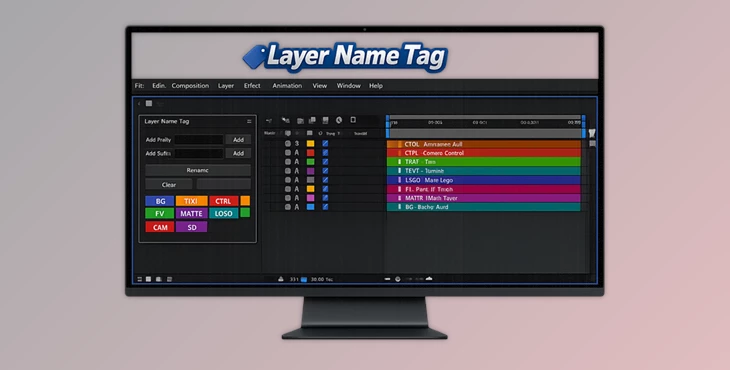
You can download Layer Name Tag for free at the end of this page.
Stop Guessing Which Pre-Comp Is Which
After Effects projects can quickly become confusing when dealing with many pre-comps.
The Layer Name Tag will help you to quickly find the right layer within your composition. It will automatically arrange all of your pre-comps and display labels directly within your composition for improved project overview.
Whether you are working on a project that features motion graphics toolkits or modular animations, this plugin will make it easier for you to manage your projects.
What Is a Layer Name Tag and Why Is It Useful?
At its core, Layer Name Tag is an After Effects script that helps motion designers visually identify pre-composition layers without constantly checking the timeline.
Normally, when working with many pre-comps, every layer can appear nearly identical inside the composition window. This creates unnecessary friction because designers must repeatedly search through layer names to locate specific elements.
Layer Name Tag solves this challenge by automatically generating visible labels that display each layer’s name directly above the corresponding pre-comp.
Imagine a toolkit containing 30 different animation modules. Instead of opening each composition one by one to find the correct element, you immediately see every component clearly labeled and arranged in an organized layout.
This visual clarity leads to:
- Faster project navigation
- Reduced mistakes when selecting layers
- Better organization in large compositions
- Improved efficiency during revisions
- Easier collaboration between team members
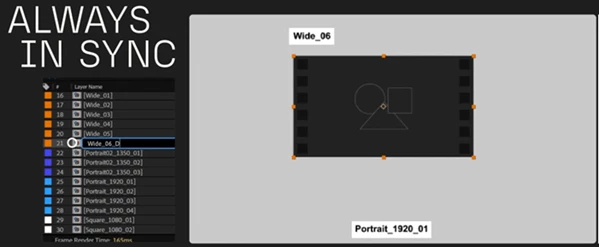
Because labels remain linked to their source layers, any layer rename is instantly reflected in the composition view, ensuring your project always stays organized.
Layer Name Tag – A Smart Workflow Assistant for After Effects
Layer Name Tag focuses on improving project management and visual clarity inside After Effects. Rather than adding animation effects or design tools, it enhances how you interact with complex compositions.
For motion designers who regularly work with modular systems, templates, toolkits, or large-scale projects, this script removes much of the frustration associated with navigating crowded timelines.
Features
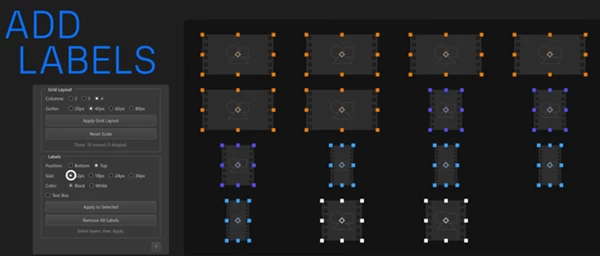
Auto Grid Layout
One of the most useful features is the Auto Grid system.
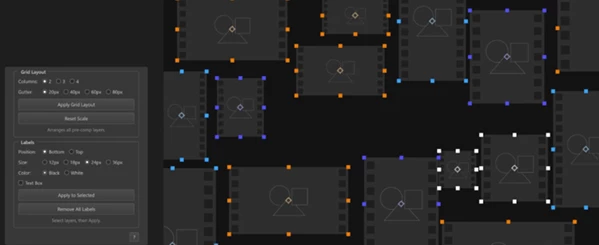
The script automatically arranges all selected pre-comp layers into a clean and structured grid. Users can customize:
- 2, 3, or 4 column layouts
- Adjustable spacing options
- Multiple gutter sizes
- Consistent visual organization
Instead of manually repositioning layers, everything becomes neatly arranged in seconds.
Automatic Layer Labels Layer Name Tag can generate text labels directly above each pre-comp layer. These labels automatically display:
- The current layer name
- Custom positioning
- Adjustable text size
- Custom color settings
This creates an instant visual overview of your entire composition.
Live Name Synchronization
Perhaps the most powerful feature is the live connection between labels and source layers. If a layer name changes:
- In the timeline
- Inside the Project Panel
- During project revisions
The displayed label updates automatically.
This eliminates the need to manually maintain naming systems and ensures that composition maps remain accurate throughout production.
Cleaner Project Overviews
Large projects often become difficult to navigate after multiple revisions.
By combining grid organization with live labels, Layer Name Tag creates a clear visual dashboard that allows designers to understand project structure at a glance.
Real-World Examples
A motion designer creating a social media toolkit may have dozens of reusable title animations, badges, transitions, and graphic elements stored as separate pre-comps.
Without a Layer Name Tag, locating the correct module may require opening numerous compositions.
With the Layer Name Tag, every module is clearly labeled and arranged in an organized grid, making selection almost instantaneous.
Similarly, template creators can use it to build cleaner project structures that are easier for clients and collaborators to understand.
Professional Tips for Better Results
Create Dedicated Overview Compositions
Use Layer Name Tag inside dedicated overview comps where all major modules are displayed together. This creates a visual control center for complex projects.
Establish Consistent Naming Conventions
Since labels reflect layer names automatically, clear naming practices make your project significantly easier to manage. Use descriptive names such as:
- Intro_Title
- Product_Showcase
- Lower_Third_01
- CTA_Endscreen
instead of generic names like Comp 1 or Precomp 12.
Combine with Modular Design Systems
Layer Name Tag works especially well alongside modular animation workflows. Organize reusable components into categories and use grid layouts to create highly efficient project structures.
Customize Label Appearance
Adjust label colors and sizes based on project categories. Different visual groups can help you identify specific sections even faster.
Final Thoughts
Regardless of the size of your projects, After Effects can often become challenging to navigate.
However, the Layer Name Tag will help you to find the correct layer and will make your projects more organized.
With automatic grid layouts for your pre-comps, live labels for your elements, and an efficient two-click workflow to deploy the script, you will be able to reduce the confusion caused by numerous pre-comps and elements within your projects.
For motion designers who work on modular projects, this script may save you time every single day and make your projects significantly easier to manage.

Files Password : gfxplugin.com OR 123456