Downloadable Files
You can download the product Copy Paste DWG for free at the end of this page.
Move Your CAD Drawings to 3ds Max Faster
If you work daily with CAD files and 3D visualization, you already know how annoying it can be to repeatedly import, clean, and separate DWG files before starting the real work inside Autodesk 3ds Max.
That is exactly where Copy Paste DWG becomes incredibly useful. This lightweight tool is designed to speed up one of the most repetitive parts of architectural and modeling workflows: transferring selected drawings directly from AutoCAD, DraftSight, or nanoCAD into 3ds Max with a simple copy and paste process.
Instead of importing entire DWG files and wasting time organizing layers and deleting unwanted geometry, you can instantly paste only the exact parts you need. That means cleaner scenes, faster setup, and a much smoother workflow for architects, visualization artists, and 3D designers.
Why This Workflow Matters
In many real-world projects, CAD drawings contain a huge amount of unnecessary information. Full floor plans, construction notes, hidden layers, dimensions, and technical details often slow down the modeling process.
With Copy Paste DWG, you can simply:
- Select only the required geometry
- Copy it from your CAD software
- Paste it directly into 3ds Max
- Continue modeling immediately
This is especially useful when working on:
- Architectural elevations
- Interior floor plans
- Furniture layouts
- Site plans
- Technical drafting references
- Visualization preparation
Because only selected elements are transferred, it becomes much easier to separate scenes into organized objects and keep projects lightweight and manageable. The new Crop Copy/Paste feature in version 2.00 also adds even more flexibility by allowing users to trim imported drawings during the process.
Meet the Tool
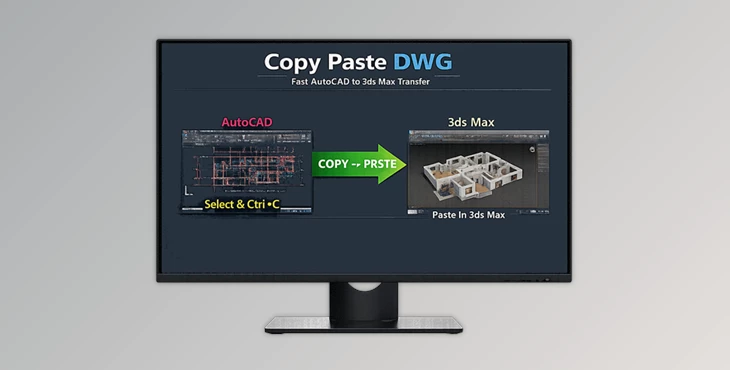
A Simple but Powerful Productivity Booster Copy Paste DWG v2.00 is a practical utility script created to improve communication between CAD software and 3ds Max. Instead of relying on traditional import workflows, the tool reads clipboard data directly from CAD applications and imports it into 3ds Max automatically. The process feels natural and extremely fast.
How It Works
- Select your drawing inside AutoCAD, DraftSight, or nanoCAD
- Press Ctrl + C
- Open 3ds Max
- Run the script and press Paste
- Done
The tool reads the CAD clipboard data and instantly transfers the selected geometry into your Max scene.
Features
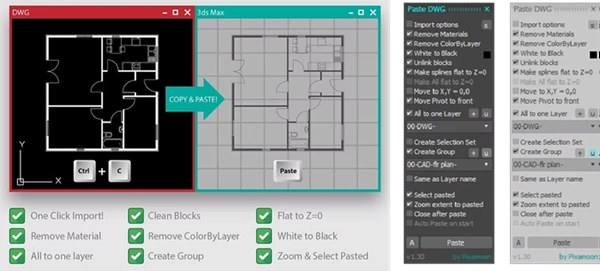
Direct Clipboard Import
The script directly reads DWG clipboard data from supported CAD software and imports it into 3ds Max without manual exporting.
Copy Only What You Need
One of the best advantages is selective transfer. You only copy selected geometry instead of importing entire CAD files. This helps keep scenes optimized and organized.
Crop Support in v2.00
The new version introduces crop support for pasted drawings, making it easier to isolate important parts of large CAD files.
Multiple Detection Methods
The tool includes two different methods for detecting DWG clipboard data. Users can switch methods easily by right-clicking the CopyPasteDWG taskbar icon and selecting another mode.
Supports Multiple CAD Software
Compatible with:
- AutoCAD
- DraftSight
- nanoCAD
3ds Max 2026+ Support
Version 2.00 now supports newer versions of 3ds Max, including 2026 and above.
Real Workflow Advantages
Better Scene Organization
Instead of importing huge CAD files, artists can separate plans, elevations, and details into individual objects from the beginning. This leads to:
- Cleaner viewport performance
- Easier object management
- Faster rendering preparation
- More efficient modeling
Faster Architectural Visualization
Architectural visualization artists often spend unnecessary time cleaning DWG imports before modeling starts. With Copy Paste DWG, that preparation stage becomes dramatically shorter. For example:
- Import only a room layout instead of the whole building
- Paste only facade elevations for exterior modeling
- Separate technical plans into individual modeling references
This saves valuable production time during client projects.
Professional Tips
Clean CAD Files Before Copying
Although the tool works quickly, cleaning unnecessary layers and blocks in CAD software first will give much cleaner results inside 3ds Max.
Separate Large Drawings into Sections
Instead of copying huge plans all at once, split drawings into smaller logical sections like walls, furniture, or facade details. This keeps the Max scene easier to manage.
Test Both Clipboard Methods
If clipboard detection behaves differently depending on software versions, simply switch between the two available methods from the taskbar menu.
Match Software Versions
One important note: Your AutoCAD version should be older than or equal to the installed version of 3ds Max for best compatibility.
Final Thoughts
As with many useful tools, the simpler the tool, the better. Copy Paste DWG removes the unnecessary steps in the process of transferring files from AutoCAD to 3ds Max.
The fact that it allows for the selection of only the objects needed for the 3ds Max project, direct clipboard import, the new crop feature for drawings, and support for the latest 3ds Max versions makes this a very useful tool for architectural visualization and CAD professionals.
Copy Paste DWG can help anyone who works on architectural visualizations, interior projects, or technical CAD drawings to significantly improve their project workflows. Therefore, it is a tool that anyone in the visualization or CAD field should consider using for their projects.

Files Password : gfxplugin.com OR 123456