Downloadable Files
You can download Path Selection Mode for free at the end of this page.
Make Path Editing Faster and More Comfortable
Working with shape paths in After Effects can sometimes feel repetitive and slow, especially when selecting individual path points during animation or motion design work. Small actions repeated hundreds of times can interrupt creative flow and reduce productivity.
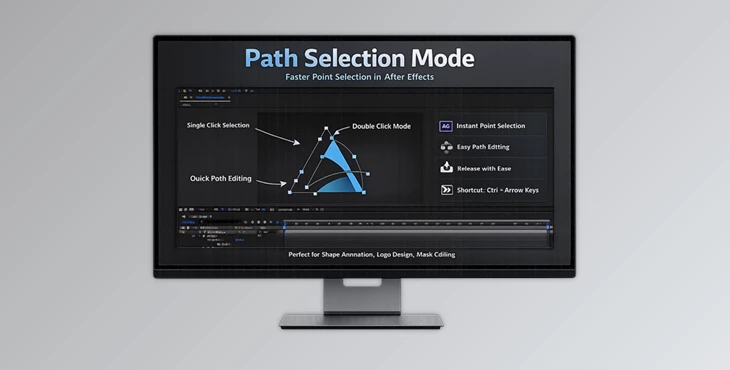
Path Selection Mode is designed to solve exactly that problem. This smart utility gives artists a much faster and smoother way to select path points using either single-click or double-click actions. Instead of fighting with selections, you can stay focused on designing and animating.
Whether you are creating motion graphics, logo animations, UI transitions, or complex vector shapes, this tool helps simplify one of the most common editing tasks inside After Effects.
What Is Path Selection Mode?
Path Selection Mode 2 is a productivity plugin for Adobe After Effects that improves how users interact with shape path points.
Normally, selecting and deselecting points inside complex shapes can take multiple clicks and unnecessary steps. This plugin introduces a smarter selection workflow that feels more natural and efficient.
For example:
- You can select path points with a simple single click.
- Or switch to double-click mode for more controlled editing.
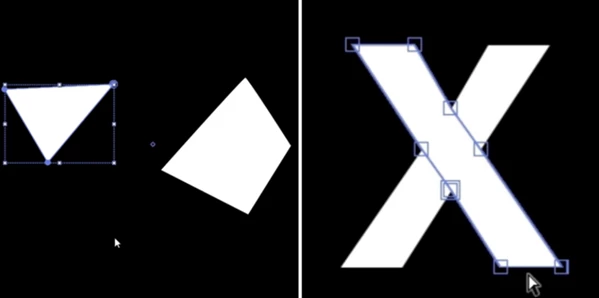
- You can deselect points without automatically selecting the entire shape group.
- You can combine the plugin with existing After Effects shortcuts for even faster editing.
These improvements may sound small at first, but during real-world projects, they can save a huge amount of time and reduce frustration.
Motion designers working on detailed vector animations or shape morphing sequences will especially notice how much smoother the workflow becomes.
Why This Tool Improves Workflow
Editing paths manually can take some time and effort. Path Selection Mode 2 improves the After Effects editing workflow for the following reasons:
It reduces the number of clicks necessary to perform common editing tasks
- Path point selection is much more intuitive
- It keeps the user focused on their editing tasks
- It speeds up the editing of complex shapes
It creates a much more enjoyable experience editing shapes, regardless of the experience level of the After Effects user.
For those who are working on deadline projects, even a slight improvement to the editing process will pay dividends over time.
Features
Single-Click and Double-Click Selection
Path Selection Mode 2 allows the user to enable two selection modes: single-click and double-click mode.
Single-click selection mode is helpful for fast editing of projects.
Double-click mode offers more control over path points, which is useful for complex edits.
Both modes allow the user to adjust the editing workflow to their preference.
Smart Release Function
Normally, in After Effects, when you deselect path points, the entire shape group becomes selected automatically.
With the new Release Function, you can deselect the path points without selecting the shape group.
This creates a cleaner editing process and prevents unnecessary interruptions while working on detailed vector shapes.
For complex animation projects, this feature can save a surprising amount of time.
Works With Existing After Effects Shortcuts
The plugin also integrates nicely with existing After Effects keyboard shortcuts.
Using:
- Ctrl + Up Arrow
- Ctrl + Down Arrow
Makes point selection even faster and easier.
Because it works naturally with familiar shortcuts, users can adapt quickly without learning an entirely new workflow.
Quick Toggle System
You can enable or disable the plugin directly from the menu without opening the Script UI every time.
This means you can:
- Assign custom keyboard shortcuts.
- Toggle the feature instantly while working.
- Switch workflows depending on project needs.
There is also a Startup option that automatically activates the plugin when After Effects launches.
Real Creative Uses
Motion Graphics Projects
When building animated shapes or infographic elements, selecting path points quickly can dramatically improve workflow speed.
Path Selection Mode helps motion designers stay focused on animation timing and design instead of technical clicking.
Logo Animation
Logos reveal, and vector-based animations often require detailed path adjustments.
This plugin makes editing curves and anchor points much faster and more comfortable during refinement stages.
UI and HUD Design
Designers creating futuristic interfaces or complex HUD animations frequently work with many shape layers and path points.
The improved selection system reduces editing fatigue and speeds up iteration.
Pro Tips for Better Results
Use Double-Click Mode for Precision
If you often accidentally select the wrong points, Double-click mode can give you more control during detailed editing sessions.
This is especially useful for dense vector artwork.
Combine With Keyboard Shortcuts
Try combining the plugin with your favorite After Effects shortcuts to build a faster workflow habit.
Small speed improvements become very noticeable during long projects.
Enable Startup Mode
If you use shape editing frequently, enabling Startup mode saves time by automatically activating the plugin whenever After Effects opens.
This keeps your workflow consistent every day.
Final Thoughts
Path Selection Mode may seem like a small plugin to After Effects, but one that ultimately works to improve the editing experience for users.
Rather than attempting to change After Effects itself, Path Selection Mode 2 works to eliminate a few frustrations that come with working with the software every single day.
In a world where time is money, any tool that can significantly improve the editing experience for professionals and amateurs alike is of great value. For those who work with After Effects shape layers, Path Selection Mode is a plugin that could significantly add to the value of your software investments.

Files Password : gfxplugin.com OR 123456