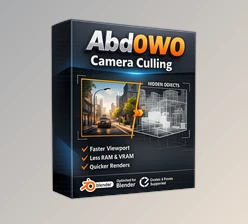
Downloadable Files
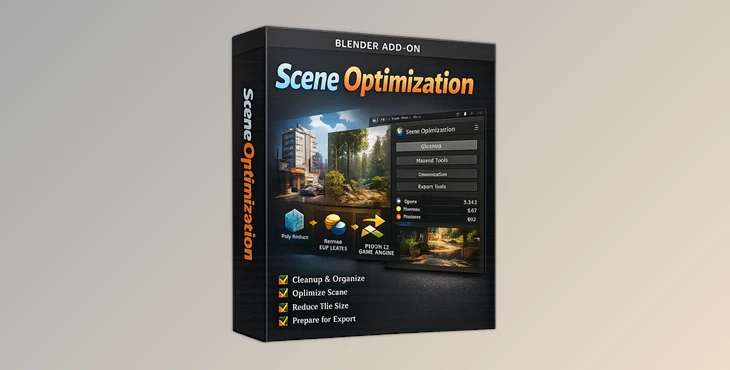
You can download the Scene Optimization product for free from the end of this page.
✨ A Smoother Way to Create
If you’ve ever struggled with scenes lagging or models being too heavy to work with in your project, then Scene Optimization might be the perfect tool to give you a smoother, more efficient experience while creating.
With Scene Optimization, you no longer have to worry about your scene slowing down or having performance issues. This tool will work to keep your scene smooth and responsive to your creations.
🎯 What Is Scene Optimization & Why It Matters
Scene Optimization works to improve the performance and efficiency of your 3D scenes by reducing the load that your system has to bear while creating these projects in Blender. For instance, when you have a detailed Blender project, the complexity of the project can often create issues with performance. Scene Optimization will solve that problem for you.
Real Impact
- Hiding unseen elements reduces GPU and CPU strain
- Simplifying models improves viewport speed
- Detecting heavy geometry helps you clean your scene
These improvements don’t just make things faster—they allow you to work more freely, experiment more, and achieve better final results without technical frustration.
🚀 Meet the Tool: Scene Optimization
Scene Optimization is a powerful tool that will give you an enhanced experience using Blender. Scene Optimization will simplify complex tasks for you in Blender and maintain your scene’s performance and efficiency.
⚙️ Features
🔹 One-Click Optimization
Quickly optimize your entire scene with a single click. Perfect for fast cleanup before rendering or previewing.
🔹 Multiple Optimization Modes
Four different modes handle everything from automatic hiding to geometry simplification, giving you flexibility based on your needs.
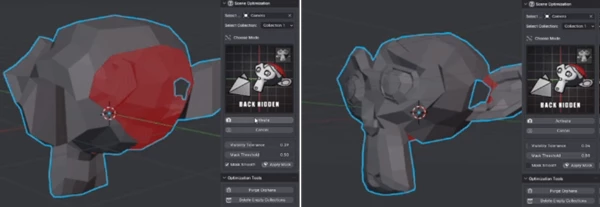
🔹 Backface Culling
Intelligently hides unseen backfaces, reducing unnecessary calculations and speeding up rendering performance.
🔹 View-Based Object Hiding
Automatically hides objects outside the camera’s view, helping you focus only on what matters while boosting speed.
🔹 Model Simplification in Viewport
Displays simplified versions of models in the 3D viewport without affecting final render quality—ideal for smoother navigation.
🔹 Polygon Count Detection & Color Coding
Visually identifies high-poly models using color indicators, making it easy to spot and fix performance bottlenecks.
🔹 Cancelable Effects
All changes are reversible at any time with a simple cancel button, without affecting original animations or keyframes.
🎬 Real-World Example
Imagine working on a detailed architectural scene:
- Thousands of objects
- Complex reflections
- Heavy geometry
With Scene Optimization, you can:
- Hide unnecessary elements instantly
- Detect overly complex models
- Work smoothly in the viewport while keeping full render quality
The result? Faster iteration and a more enjoyable workflow.

💡 Pro Tips for Better Results
- Organize your collections: Avoid putting all objects in one collection to prevent long computation times or crashes.
- Use color detection wisely: After analyzing polygon density, always cancel the effect before closing Blender to avoid material loss.
- Combine auto + manual tweaks: Start with automatic optimization, then fine-tune manually for best results.
- Watch reflective objects: In some modes, lighting and shadows may be affected—always preview before final render.
These small habits can make a big difference in achieving professional-quality scenes.
🎉 Final Thoughts
Scene Optimization gives you the freedom to create your scenes as you wish without any interruptions or lags in the editing process. This tool will change the way that you edit scenes in Blender. Once you start using Scene Optimization, you will find it impossible to go back to the previous editing process. If you want to improve the efficiency of your scenes, your editing process, and have cleaner projects, then Scene Optimization is a tool that you should explore as soon as possible.

Files Password : gfxplugin.com OR 123456