Downloadable Files
You can download SnapToPath for free at the end of this page.
🎯 A Smarter Way to Animate Paths in After Effects
If you’ve ever found yourself struggling with aligning layers to a path or animating grids in After Effects, you might not know that SnapToPath was waiting for you. This script helps to simplify a process that could take you several steps to complete. Instead of manually positioning your layers, SnapToPath lets you focus on your creative efforts.
🔍 What Is SnapToPath and Why It Matters
This tool is an After Effects script that allows you to connect your layers to a path in your composition. This means that your layers will automatically follow that path.
💡 Why this is useful:
- Animating text or other graphics along a curved path
- Creating grids for your motion graphics
- Animating UI elements or infographics
By connecting your layers to a path, SnapToPath allows you to create more accurate animations. Additionally, the workflow is significantly faster when using this tool.
🚀 Meet SnapToPath: Your Animation Assistant
This tool transforms complex motion setups into a single-controller system. It’s especially powerful when working with multiple elements that need to behave consistently.
✨ Features
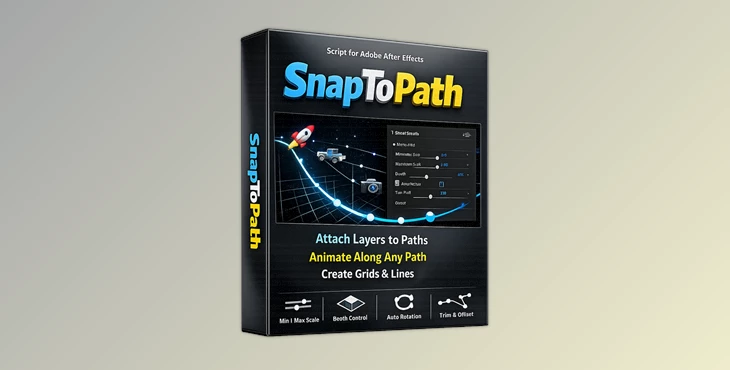
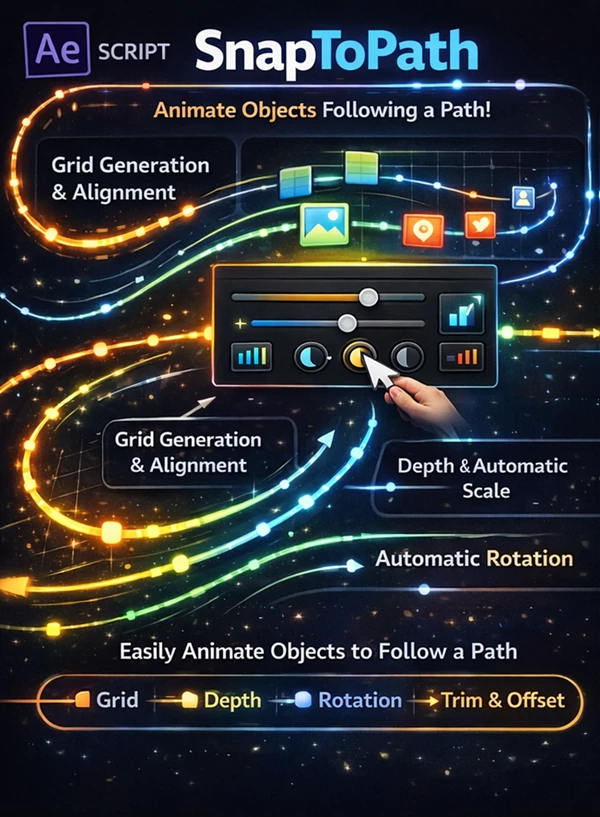
- Minimum and Maximum Scale Controller: Control how elements scale along the path. This adds depth and visual hierarchy, making animations feel more dynamic and less flat.
- Depth: Simulate a sense of distance or layering. This helps your composition feel more cinematic and less like a 2D layout.
- Automatic Rotation: Layers automatically align to the direction of the path. No need to manually rotate objects—everything flows naturally.
- TrimPath: Control how much of the path is visible or active. Great for reveal animations or progressive motion effects.
- Offset: Shift elements along the path with precision. Perfect for staggered animations or looping motion setups.
🎬 Real-World Example
Think about animating a series of dots moving along a wave:
- Without SnapToPath → manual positioning, rotation, timing adjustments
- With SnapToPath → draw the path, link layers, tweak controllers
You instantly get smooth, consistent motion with far less effort.
🎯 Pro Tips for Better Results
- Use subtle scaling instead of dramatic differences in size between elements.
- Combine Offset and TrimPath for smooth looping animations.
- Use the Automatic Rotation feature when working with directional elements.
- Play with the Depth parameter to add dimension to your composition.
- Ensure your paths are as clean and simple as possible before animating.
Final Thoughts: Why SnapToPath Is Worth Trying
Aside from the time savings SnapToPath can deliver for animation projects, this feature also allows you to improve the quality of your projects. By automating the alignment, rotation, and scaling of your elements, you can focus on creating visually interesting and impactful animations. This product is perfect for any type of graphics or motion project. This plugin will make you more efficient in your work and allow you to create more visually appealing projects. Give it a try—SnapToPath is likely to become a part of your regular animation workflow.

Files Password : gfxplugin.com OR 123456