Downloadable Files
You can download Sprite Sheet From Comp for free from the end of this page.
Turn Your Composition into a Perfect Sprite Sheet
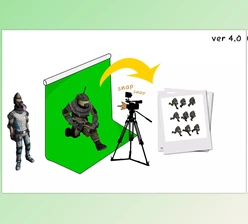
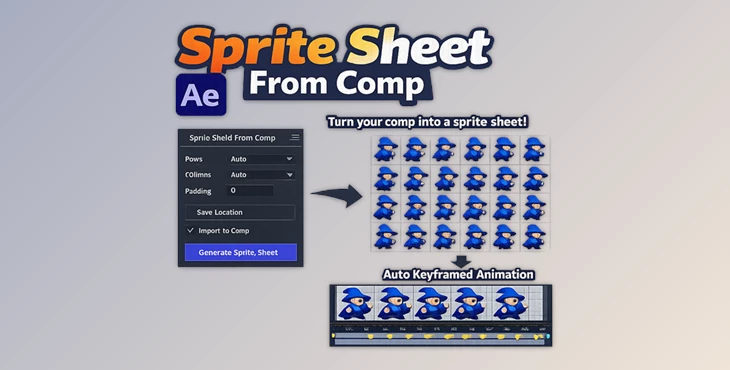
If you have ever tried to manually convert an animation into a sprite sheet, you already know how time-consuming it can be. Adjusting frames, organizing rows and columns, and making sure nothing is missing often turns a simple task into a frustrating process. Sprite Sheet From Comp removes that hassle. With this tool, you can render any composition directly as a sprite sheet with automatic frame placement and animation setup. Instead of manually arranging frames or setting keyframes one by one, the tool handles everything for you. The result? A faster workflow, cleaner sprite sheets, and more time to focus on creativity instead of technical setup.
What Is a Sprite Sheet and Why Is It Useful?
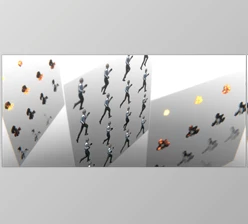
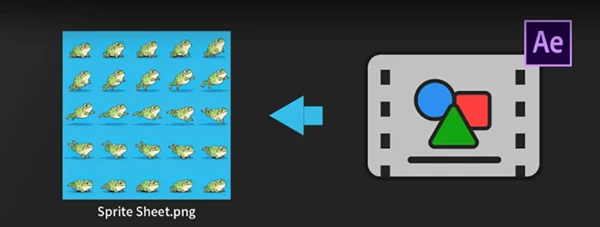
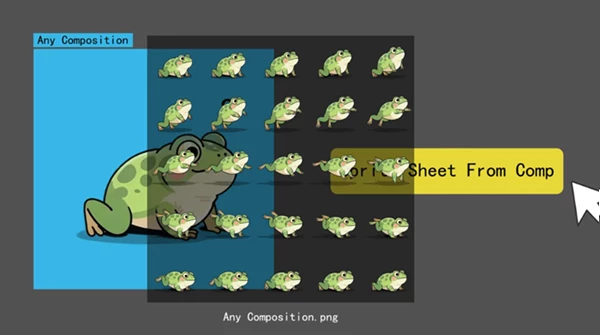
A sprite sheet is a single image that contains multiple frames of an animation arranged in rows and columns. Instead of rendering each frame as a separate image, all frames are packed into one file.
This method is widely used in:
- Game development for character and object animations
- UI animations in apps and websites
- Motion graphics previews
- Interactive media and web animations
Using a sprite sheet improves performance and organization because everything is stored in a single image file. It also makes importing animations into engines or interactive platforms much easier.
For example, instead of importing 60 separate PNG frames, a game engine can read one sprite sheet and quickly cycle through the frames to create the animation. This makes the workflow cleaner and significantly reduces file management complexity.
Tools like Sprite Sheet From Comp streamline this process by automatically converting your composition frames into a structured sprite sheet layout.
A Professional Tool for Faster Sprite Sheet Creation
Sprite Sheet From Comp is designed to quickly transform your composition into a fully organized sprite sheet without manual setup. It automatically handles frame placement, layout calculations, and optional animation recreation in a composition. This makes it a powerful helper for motion designers, animators, and developers who frequently work with frame-based animations.
Features
Automatic Sprite Sheet Generation
The tool renders the entire composition as a sprite sheet automatically. There is no need to manually create frame sequences or arrange images. Every frame is placed in the correct order for you.
Custom Rows and Columns
You can manually define how many frames appear horizontally and vertically.
- If the row × column count is smaller than the total number of frames, the last frames will be missing.
- If the row × column count is larger, empty cells will appear in the sprite sheet.
This flexibility allows you to design layouts that match your project requirements, especially for game engines or web animation systems that expect specific grid structures.
Auto Layout Mode
The Auto option helps determine the most suitable number of rows and columns automatically. It calculates a layout where:
- The sprite sheet remains fully covered with frames
- The final image ratio stays close to 1:1
This is extremely helpful when you want a balanced sprite sheet without manually calculating frame grids.
Custom Output Location
You can choose where the sprite sheet image will be saved. By default, the file will be exported to the same folder where the project file is located. However, you can easily set a different destination depending on your workflow or asset organization. Import to Composition Option One of the most powerful features is the
Import to Composition option.
When enabled, the tool will:
- Automatically import the generated sprite sheet
- Place it in the timeline
- Insert keyframes for each frame
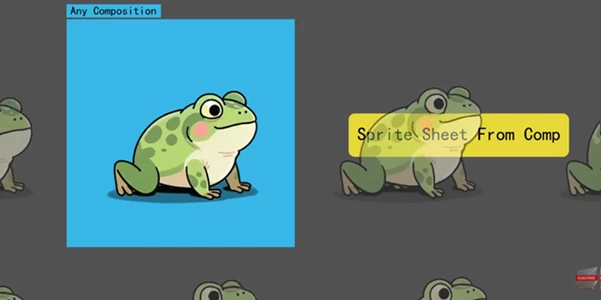
This recreates an animation that looks almost identical to the original composition, but now based on the sprite sheet. If the option is disabled, you will simply receive the sprite sheet image without automatic animation reconstruction.
Pro Tips for Better Results
Even though Sprite Sheet From Comp automates most of the work, a few simple tips can help you achieve cleaner and more professional results.
Plan the Frame Count First
Before generating the sprite sheet, check how many frames your composition contains. This helps you choose rows and columns that perfectly fit the animation without leaving empty spaces.
Use Auto Mode for Balanced Layouts
If you are unsure about the grid structure, the Auto option is usually the best choice. It calculates a layout that keeps the sprite sheet compact and visually balanced.
Match Sprite Sheets to Engine Requirements
Different engines or platforms may expect sprite sheets with specific grid structures. When working on games or interactive projects, try matching your rows and columns to the expected format.
Keep Your Composition Clean
Make sure your composition contains only the frames you want exported. Removing unnecessary layers or extra frames ensures the sprite sheet stays organized and efficient.
final Thoughts
Creating sprite sheets manually can be slow, even for experienced motion designers. The Sprite Sheet From Comp feature automatically renders your composition into a sprite sheet that you can customize to your liking. From automatic frame arrangement to optional animation reconstruction inside a composition, this tool helps reduce technical friction and speeds up production workflows. Whether you are building game assets, UI animations, or interactive graphics, Sprite Sheet From Comp offers a clean and efficient way to turn your animations into ready-to-use sprite sheets.

Files Password : gfxplugin.com OR 123456