Downloadable Files
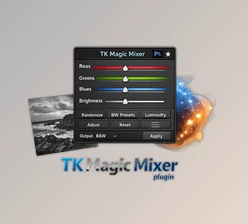
You can download the TK Grayscale Plugin for Photoshop for free at the end of this page.
Discover a New Way to See Black & White
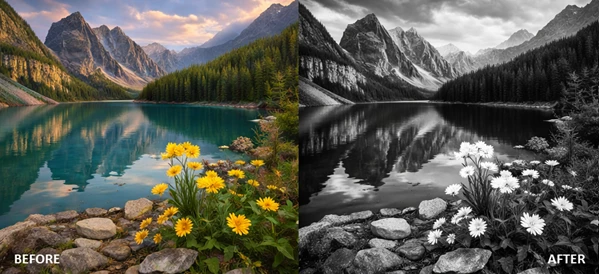
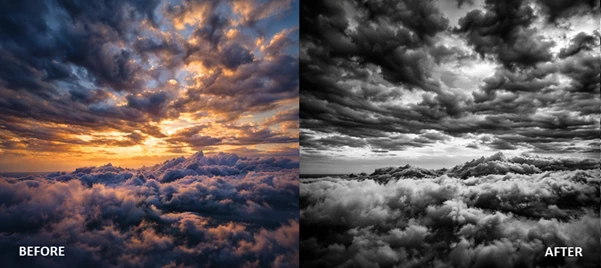
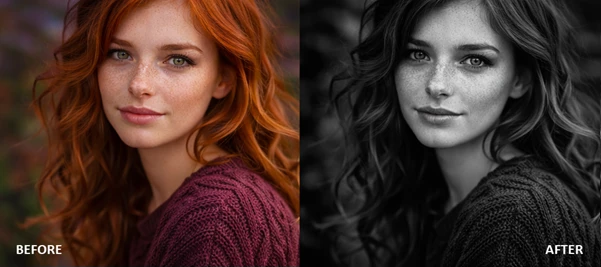
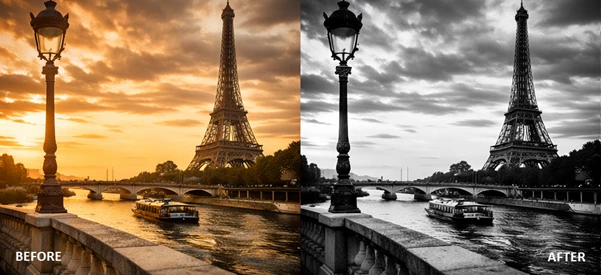
Black and white photography has a timeless magic. It removes distractions, highlights emotion, and brings pure light and contrast to the forefront. But achieving the perfect monochrome look in Photoshop can sometimes feel repetitive or limiting. That’s where the TK Grayscale Plugin for Photoshop changes everything. With just a single click, you can transform a color image into a powerful black and white masterpiece — and not just in one predictable way, but in endless creative variations. Curious what your photo would look like with stronger reds? Softer blues? More dramatic contrast? TK Grayscale Plugin for Photoshop lets you explore all of that instantly and intuitively.
What Is TK Grayscale Plugin and Why It Matters?
At its core, the TK Grayscale Plugin for Photoshop is a professional tool designed to convert color images into stunning black and white versions using advanced tonal control. Unlike basic desaturation or simple Black & White adjustments, this plugin:
- Uses color channel data intelligently
- Allows randomized creative variations
- Enhances tonal contrast based on original colors
- Helps monitor clipped highlights and shadows
Why Is This Important?
When converting to black and white, colors don’t disappear — they transform into tones. A red dress might become light gray in one conversion and dark charcoal in another. Having control over how each color translates into grayscale gives you full creative authority. For example:
- Portrait photographers can brighten skin tones while deepening backgrounds.
- Landscape photographers can dramatically darken skies using channel adjustments.
- Street photographers can experiment quickly with mood and contrast variations.
The result? More expressive, more professional, and more intentional black and white images.
Meet the Tool: TK Grayscale Plugin for Photoshop
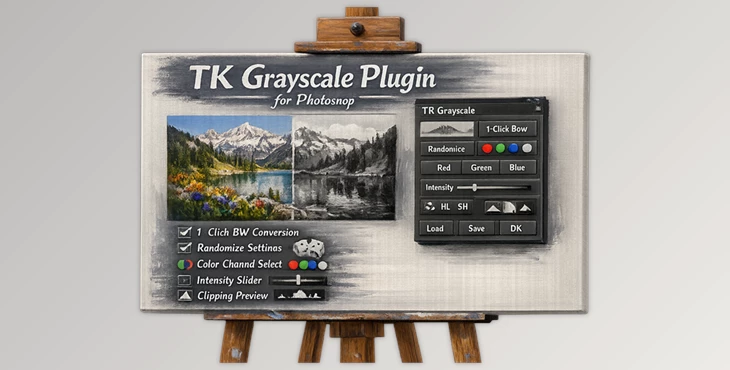
TK Grayscale Plugin for Photoshop works seamlessly on both Mac and Windows and installs easily into Photoshop (version 24.7.0 / 2023 or later required). It integrates directly with Photoshop’s Black & White adjustment layer system while adding powerful creative controls. Below is a structured breakdown of its capabilities.
Features
One-Click Black & White Conversion
Generate a new “Grayscale” Black & White adjustment layer instantly. It sits at the top of the Layers panel, ready for refinement. Right-click the button to delete the active Grayscale layer — quick and efficient workflow control.
Randomize for Unlimited Creativity
The Randomize button creates a continuous stream of unique Black & White adjustment settings. Each click generates a new variation.
Increase the Intensity slider to amplify tonal contrast and make variations more dramatic. Perfect for:
- Finding unexpected artistic results
- Breaking creative blocks
- Exploring new tonal directions quickly
Step Forward / Step Back Navigation
Easily cycle through previous variations using Photoshop history. This makes comparing options effortless — no need to manually undo and redo adjustments.
Advanced Intensity Slider
The Intensity slider increases tonal contrast based on the original image colors. Higher values:
- Increase contrast between different color-based tones
- Enhance separation between elements
- Create more dramatic black and white results
It also affects results from:
- Randomize
- Channel buttons
This ensures consistent contrast control across all methods.
Channel-Based Conversions (Including Virtual Channels)
Generate black and white images based on:
- Red
- Green
- Blue
- Cyan
- Magenta
- Yellow
These channel options allow very specific tonal control. For example:
- The red channel can brighten skin in portraits.
- The blue channel can darken skies in landscapes.
- Cyan/Magenta/Yellow provides additional creative flexibility beyond traditional RGB.
If the intensity is above 100, the results will have even stronger contrast than the original channel.
Live Clipping Monitor
The Toggle Live Clipping feature adds a preview layer that:
- Shows clipped highlights in red
- Shows clipped shadows in blue
Click again to remove it. This helps protect detail in high-contrast images — especially useful for fine art prints.
Color Toning Option
With one click, apply a sepia tone and open the Hue/Saturation panel for quick adjustments. Ideal for:
- Vintage-style portraits
- Warm fine art prints
- Creative monochrome projects
Preset Management
Save and reuse your favorite conversion settings. You can:
- Load presets
- Add new presets
- Delete unwanted presets
Perfect for maintaining a consistent style across projects.
Reset, Backup & Restore
- One-click reset to start over
- Right-click Reset to use Photoshop’s File > Revert
- Backup and restore user settings
- Reload the plugin manually if needed
These features ensure workflow safety and flexibility.
Embedded Tooltips & Easy Refinement
Hold ALT (Windows) or Option (Mac) and hover over controls to see tooltips. You can also jump directly to Photoshop’s Properties panel for fine-tuning adjustments after initial conversion.
Professional Tips for Better Results
1. Start with Randomize, Then Refine
Use Randomize to explore ideas quickly.
Once you find a promising look, open the Properties panel to fine-tune sliders manually.
2. Use Channel Buttons for Intentional Control
If you know what you want:
- Portrait? Try Red or Magenta.
- Dramatic sky? Try Blue.
- Nature scenes? Experiment with Green and Yellow.
Then increase Intensity slightly for extra separation.
3. Always Check Live Clipping
Before finalizing your image:
Turn on Live Clipping to ensure you’re not losing detail in highlights or shadows — especially for print work.
4. Save Your Signature Look
If you find a conversion style you love, save it as a preset.
This is especially useful for photographers building a consistent brand aesthetic.
Final Thoughts: Why This Plugin Is Worth Exploring
Black and white photography is not about removing color — it’s about controlling light, tone, and emotion. The TK Grayscale Plugin for Photoshop makes that control faster, more creative, and more precise. It transforms a technical process into an intuitive and inspiring experience. Whether you're a professional photographer, a retoucher, or simply someone who loves the timeless beauty of monochrome images, TK Grayscale Plugin for Photoshop opens new creative doors. If you enjoy exploring variations, refining contrast, and crafting expressive black and white images with confidence, this plugin is definitely worth trying. Give it a test — you might discover a completely new way of seeing your photos.

Files Password : gfxplugin.com OR 123456