Downloadable Files
You can download Batchr for free at the bottom of this very page.
Meet Your New ArchViz Superpower
If you’ve ever imported an FBX or OBJ model into Blender and found yourself stuck fixing broken meshes, correcting normals, rebuilding materials, or organizing messy assets… you’re not alone. Architectural visualization artists often rely on high-quality models from various marketplaces. The problem? Most of them aren’t native Blender files. The import process can be slow, repetitive, and, honestly, creativity draining. That’s exactly where Batchr steps in. It transforms the way you import, organize, repair, and enhance your 3D assets — automatically and in seconds. Curious? You should be.
What Is Batchr and Why Does It Matter?
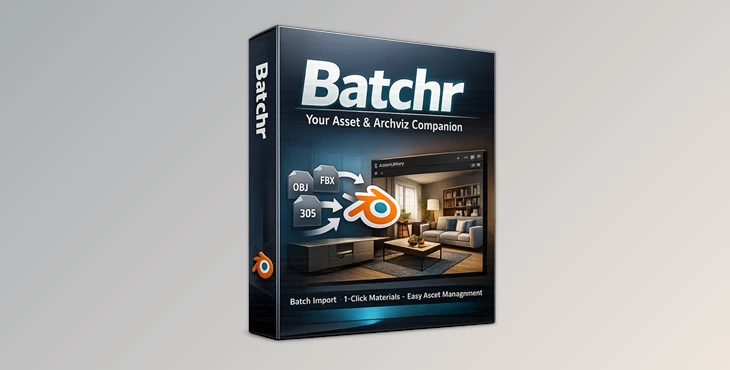
At its core, Batchr is a powerful Blender add-on designed to batch import non-native 3D models (like OBJ and FBX), optimize them, and resave them as clean, ready-to-use native .blend assets. But it’s not just about importing files. It’s about:
- Fixing bad geometry automatically
- Cleaning up mesh issues like wrong normals or hard edges
- Applying intelligent material setups
- Enhancing realism instantly
- Organizing your entire asset library
Imagine downloading 20 furniture models from different websites, importing them all at once, and having them automatically cleaned, repaired, converted into Blender Assets, and ready for drag & drop use. That’s the kind of workflow upgrade we’re talking about. And why does this improve your results? Because less technical cleanup means:
- More time for design and composition
- More consistent materials across your scenes
- Faster project turnaround
- Higher realism with minimal effort
The Professional Tool: Batchr - Your Asset & Archviz Companion
Batchr is specifically built for ArchViz artists who want speed, automation, and visual quality — without the repetitive technical headache. Instead of manually importing, fixing, and rebuilding every model, you simply organize your folders properly, choose your directory, and hit the famous button: “Batch Me Baby!” The last imported file opens automatically, your assets are registered in Blender’s Asset Browser, and you’re ready to drag & drop them into any scene.
Features
⚡ Massive Batch Import & Asset Creation
- Import large amounts of OBJ and FBX files at once
- Automatically resave them as native .blend files
- Register them as Blender Assets
- Store preview images for Asset Browser display
Perfect for building a personal, organized ArchViz library in minutes instead of days.
🛠 Mesh Repair & Optimization Wizards
Many marketplace models come with:
- Broken normals
- Incorrect scale
- Bad shading
- Hard edges
Batchr provides automated repair tools and single-function buttons to quickly clean and optimize geometry — even across entire collections. Result? Cleaner shading, better light interaction, and more realistic renders.
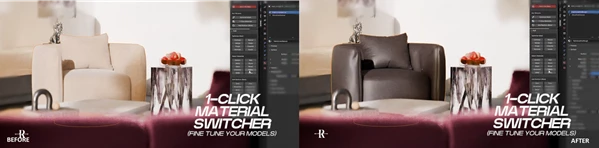
🎨 1-Click Materials Wizard
One of Batchr’s smartest features. You can:
- Assign properly named placeholder materials (like Wood, Leather, Concrete)
- Select your mesh
- Click once
- Instantly swap in high-quality shaders
With over 30 CC0 textures included, you get immediate visual feedback and fast material experimentation. This dramatically improves workflow speed and lets you focus on creative decisions instead of node editing.
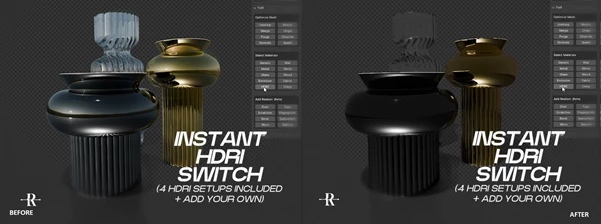
🌍 HDRI Toggle & Scene Enhancement
Switch between HDRIs instantly and evaluate lighting setups within seconds. Add:
- Fuzz
- Scratches
- Fingerprints
- Surface imperfections
These small details massively increase realism, especially in close-up ArchViz renders.
🧠 Smart Scene-Wide Shader Application
Batchr also introduces a clever way to apply shaders across your entire scene with minimal tweaking. Just name materials properly (Wood, Leather, Metal, etc.), and let the system handle intelligent assignment. This avoids getting lost in endless micro-adjustments — something every ArchViz artist knows too well.

Pro Techniques & Workflow Tips
Want to get the most out of Batchr? Here are a few practical suggestions:
📂 Organize Like a Pro
Place:
- Preview image in the main model folder
- All model files and textures are inside a subfolder
This ensures Batchr correctly assigns preview thumbnails in the Asset Browser.
🏷 Use Clear Material Names
Name your empty shaders clearly:
- Wood
- Leather
- Concrete
- Gold
- Copper
Even though the wizard isn’t perfect yet, proper naming increases assignment accuracy and speeds up adjustments.
🖥 Avoid Undo in Render Mode
If you’re browsing materials or using Batchr functions in Render Mode, avoid pressing CTRL + Z frequently — especially on low VRAM systems. Switch to solid view while testing to reduce crash risk.
✨ Add Micro-Details for Realism
Use scratches, fingerprints, and subtle fuzz sparingly. Too much makes surfaces look dirty. Just enough makes them believable.
Final Thoughts: Work Faster. Create Better.
Batchr - Your Asset & Archviz Companion isn’t some lightweight Blender add-on. It’s a powerful workflow booster for ArchViz artists using 3rd-party models. It allows you to: - Gain back hours of tedious cleanup
- Maintain a tidy asset library
- Instantly up the realism
- Keep your focus on design, not fixes
Sure, it’s in development — but it already transforms your workflow with imported assets. Check it out. Organize smarter. Render faster. Build better.

Files Password : gfxplugin.com OR 123456