Downloadable Files
You can download Project Font Pro for free at the end of this page.
🎬 Tired of Manually Replacing Fonts in After Effects?
If you’ve ever opened an After Effects project only to discover missing fonts, inconsistent styles, or dozens of compositions using the wrong typeface, you know how frustrating and time-consuming font management can be. That’s exactly where Project Font Pro steps in. Instead of manually digging through compositions and text layers, this smart tool allows you to search, filter, and replace fonts across your entire project in just a few clicks. Whether you’re cleaning up a client project, updating branding, or fixing missing fonts, it makes the process smooth, fast, and surprisingly satisfying. Curious how much time you could save? Let’s dive in.
✍️ What Is Project Font Pro and Why Does It Matter?
At its core, Project Font Pro is a professional font management and replacement tool for Adobe After Effects. It gives you full control over how fonts are searched, filtered, and replaced — across an active composition, selected compositions, or the entire project.
Why is this important?
In real-world motion design projects:
- Clients often change brand fonts mid-project.
- Templates come with missing fonts.
- Different designers use inconsistent font weights or sizes.
- Projects grow large and complex with dozens of comps.
Without a smart system, fixing typography can take hours. With Project Font Pro, you can:
- Replace all instances of “Impact” with “Helvetica” instantly.
- Change only the font weight to Bold without touching the font family.
- Replace fonts only in layers containing specific words like “movie”.
- Fix all missing fonts in one go.
This level of control ensures:
- Better consistency
- Faster revisions
- Cleaner project organization
- More professional results
Typography is one of the strongest visual elements in motion design — and this tool helps you control it with precision.
🚀 Meet Project Font Pro – Your Smart Font Manager in AE
Project Font Pro by aescripts transforms the way you manage fonts inside After Effects. It doesn’t just replace fonts — it gives you intelligent filtering, style control, and full visibility over your typography across the project. Instead of guessing where fonts are used, the tool shows you exactly:
- How many layers use each font
- Which compositions contain them
- How many layers will be affected after filtering
You can even open the exact composition with one click.
🔧 Features
🔎 Smart Font Search
Search fonts in:
- Active composition
- Selected compositions
- Entire project
- Detect missing fonts instantly.
- View how many layers each font uses.
- See which comps contain them and open them with one click.
This makes troubleshooting and cleanup incredibly fast.
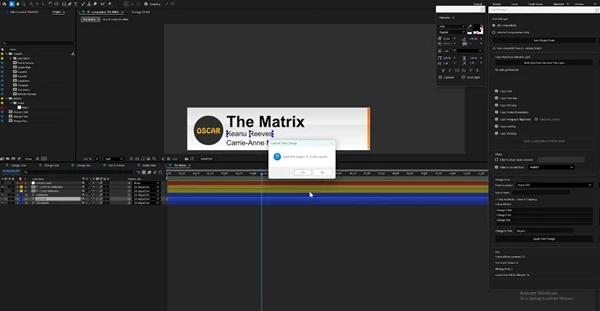
🔁 Replace Font by Font
- Select a specific font to replace.
- Filter layers by name (e.g., only layers containing “movie”).
Replace:
- Font family
- Only font weight
- Only size
- Only color
- Only alignment
For example:
Replace all “Impact” fonts with “Helvetica”, or simply convert all weights to Bold without changing the font family. This targeted approach prevents unwanted changes and keeps your design consistent.
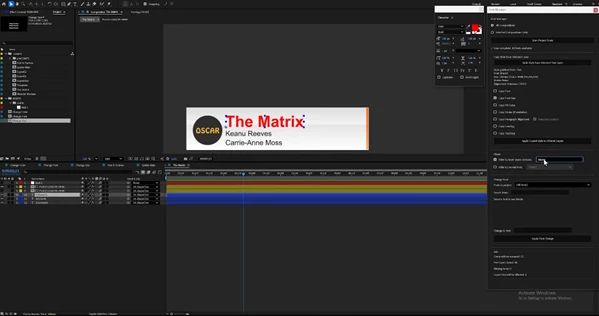
🏷 Replace Font by Layer Name
Want to update typography only in specific types of layers? You can search for fonts used in layers that contain specific keywords in their names. The tool counts exactly how many layers will be affected before you apply the change. This is perfect for:
- Lower thirds
- Titles
- Subtitle layers
- Branded segments inside a larger project
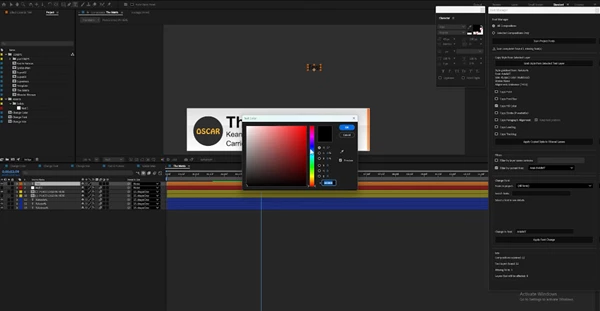
🎨 Grab Layer Style
See a text layer you love? You can grab its style — including:
- Font
- Size
- Color
- Stroke
- Alignment
- Leading
- Tracking
Then apply that style to any selected font across your project. You can choose to apply all properties or only specific ones. This is incredibly useful for brand consistency. Instead of recreating text styles manually, you apply them instantly across multiple comps.
⚠️ Replace Missing Fonts Instantly
Missing fonts can break a project’s look and slow down delivery. Project Font Pro finds all missing fonts and lets you replace them at once with a new font of your choice. No more opening compositions one by one.
💡 Pro Tips for Better Results
Here are some practical ways to get even more out of Project Font Pro:
1️⃣ Filter Before You Replace
Always use layer name filters when working in large projects. This prevents accidental global changes.
2️⃣ Change Weight First
Sometimes you don’t need a new font — just a heavier or lighter weight. Try adjusting only font weight before switching families.
3️⃣ Use “Grab Layer Style” for Branding
If your client updates their brand style guide, grab the new approved text style and apply it across the project. This keeps everything visually unified.
4️⃣ Check Affected Layer Count
Before applying changes, review how many layers will be affected. This adds a layer of safety and professionalism to your workflow.
5️⃣ Work by Composition for Complex Projects
When dealing with broadcast packages or long-form content, replace fonts comp-by-comp instead of globally.
🎯 Why It Makes Your Work Better
Typography consistency directly affects:
- Visual hierarchy
- Brand identity
- Professional polish
- Readability
By giving you surgical control over font replacement, Project Font Pro eliminates human error, speeds up revisions, and ensures your final output looks intentional and clean. Instead of spending hours fixing text layers, you focus on animation and creativity — where your real value lies.
🔥 Final Thoughts
Project Font Pro isn’t just a utility — it’s a workflow upgrade. If you regularly work with templates, client revisions, brand updates, or large After Effects projects, this tool can save you an incredible amount of time. More importantly, it gives you confidence that your typography is consistent and under control. Clean fonts. Fast replacements. Smart filtering.
That’s the power of Project Font Pro. If you care about speed, precision, and professional typography in After Effects, this is definitely a tool worth exploring.