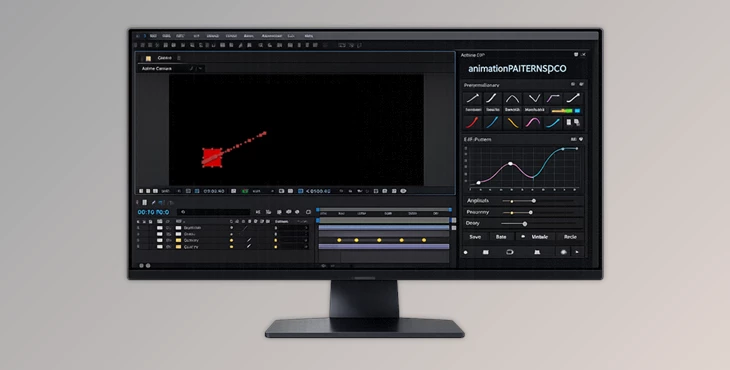
Downloadable Files
You can download animationPATTERNSpro for free at the bottom of this page
If You Hate Tweaking Easing… This Is for You
Let’s be honest: in After Effects, the difference between “okay animation” and “wow animation” is usually easing. But easing can also be the most annoying part of the process—especially when you’re stuck adjusting curves, redoing the same smooth motion again and again, or trying to keep consistency across a full project. animationPATTERNSpro is a keyframe-based easing assistant that helps you apply professional easing styles with one click, while still letting you work with your keyframes normally. It’s fast, flexible, and built for motion designers who want cleaner animation without wasting time.
What Is animationPATTERNSpro and What Is It Used For?
animationPATTERNSpro is an After Effects tool that lets you apply different easing types—called animation patterns—to selected keyframes instantly.
The Core Idea (Simple Explanation)
You select keyframes and apply a pattern.
That pattern changes the interpolation of your animation (the easing curve) automatically. The tool keeps everything flexible:
- You can still move keyframes.
- You can still change their values.
- Every change instantly updates the easing interpolation.
Practical Examples You Can Picture
You can use animationPATTERNSpro for things like:
- Logo animations (smooth and controlled movement)
- Text animations (rhythmic kinetic typography)
- UI transitions (clean and consistent motion)
- Object movement (natural acceleration and deceleration)
Why This Improves Your Results
Because good easing makes motion feel:
- more natural
- more intentional
- more professional
- less “robotic”
Instead of manually building the same motion curve again and again, you apply a pattern in one click and keep moving forward.
A Professional Tool That Makes Easing Faster and More Organized
animationPATTERNSpro is the Pro version of animationPATTERNS, designed to speed up motion workflows and keep easing consistent across your entire project. It focuses mostly on motion, but it can be used on almost all properties—except:
- properties that don’t allow expressions
- shape-properties like masks
- and properties that already use expressions (they get replaced when you apply a pattern)
Features
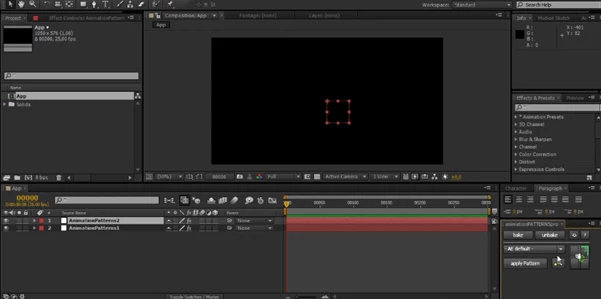
1) One-Click Pattern Apply
The workflow feels familiar:
- Select keyframes
- Choose a pattern
- Apply it with one click
Instantly, your animation gets a new easing interpolation—without you needing to build curves manually.
2) Fully Editable Patterns (And They Update Everything)
One of the most powerful features is that patterns are editable. If you edit a pattern, it directly affects all animations that use it.
So instead of fixing shot-by-shot, you can adjust your motion style globally.
3) Multiple Pattern Layers for Better Organization
The Pro version adds multiple pattern layers, which help you organize your easing styles. For example, you can keep:
- smooth cinematic patterns in one layer
- snappy UI patterns in another
- bouncy, playful patterns in another
This makes your workflow cleaner and easier to manage.
4) Project-Wide Pattern Layers (Clean Projects, Easy Changes)
Pattern layers can be used across the whole project. That means your easing system stays consistent and adaptable—especially useful for:
- long videos
- brand motion systems
- multi-scene animations
- client projects that need revisions
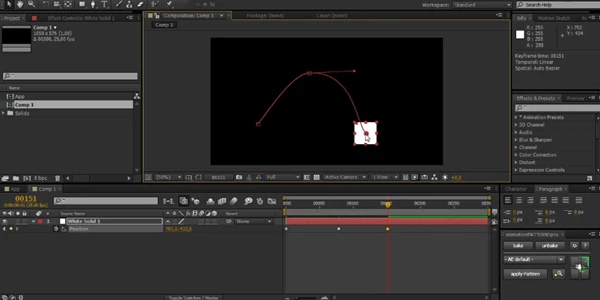
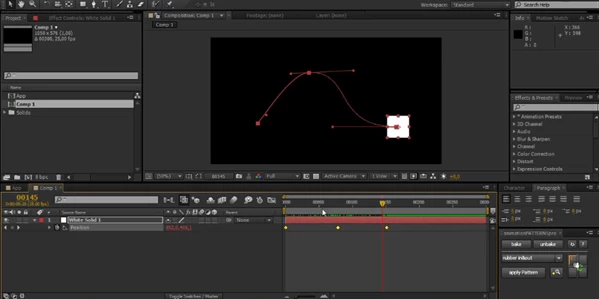
5) Full Support for Curved Motion Paths
Curved motion paths are fully supported, which is important because smooth easing often gets harder when motion is not a straight line. This feature makes motion paths look cleaner and more natural.
6) Copy & Paste Patterns (Create Patterns from Real Motion)
You can copy and paste patterns, which makes it easy to create new custom patterns based on motions you already made. This is great for:
- Building your own easing library
- reusing motion styles across projects
- turning successful animation into reusable presets
7) Bake and Unbake (Speed Up Renders Without Losing Flexibility)
Expressions can slow down previews and render times. With bake and unbake, you can:
- Bake your motion for faster rendering
- Unbake later if you want to edit again
So you get performance without losing creative freedom.
8) Fast and Easy Saving
Saving patterns is quick, which helps you avoid the classic problem:
“I made a perfect ease… and forgot to save it.”
This makes it easier to build a long-term easing collection.
Pro Tips to Get More Natural and Professional Motion
Tip 1: Build a Consistent Motion Style
Instead of using random easing each time, create a small set of patterns you reuse often.
This makes your animation style feel more professional and consistent.
Tip 2: Create Your Own Signature Patterns
Use copy & paste patterns to extract motion from your best work. This is one of the fastest ways to build a personal motion library.
Tip 3: Edit Patterns at the End for Global Polish
A smart workflow is:
- animate normally
- apply patterns
- Adjust patterns near the end
This gives you a “final polish” stage where you can improve the motion across the entire project in minutes.
Tip 4: Bake Before Final Export
If your project gets heavy, bake patterns before final rendering.
You’ll get faster exports without sacrificing the look of your motion.
Final Thoughts
animationPATTERNSpro is a simple idea done the right way:
one-click easing that stays editable, reusable, and consistent across your project. It saves time, improves motion quality, and helps you build a clean workflow—especially if you work on professional motion design projects where easing consistency matters. If you want a faster motion workflow in After Effects, this tool is definitely worth trying. And remember: you can download animationPATTERNSpro for free at the bottom of this page.

Files Password : gfxplugin.com OR 123456