Downloadable Files
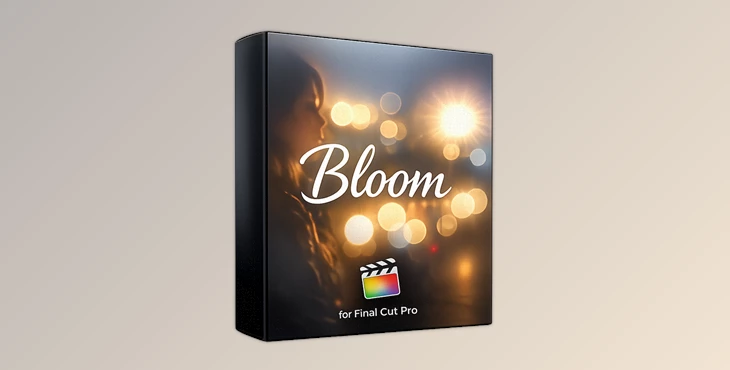
You can download Bloom for free at the bottom of this page.
That Cinematic Glow You’ve Been Missing
You’ve definitely seen it before: soft, dreamy highlights, gentle light spill, and that “filmic” glow that instantly makes footage feel more expensive. The problem is… achieving a natural bloom effect in post-production is usually annoying.
You either buy expensive Pro Mist filters or you spend time trying complex plugins that never quite look right. That’s exactly why Bloom for Final Cut Pro exists:
A drag-and-drop plugin that creates a beautiful highlight bloom effect — quickly, cleanly, and consistently.
What Bloom Is (And Why It Makes Footage Look Better)
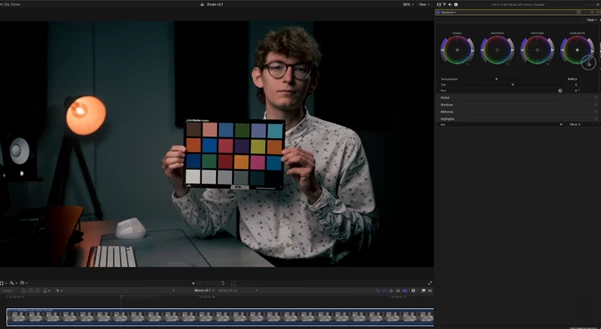
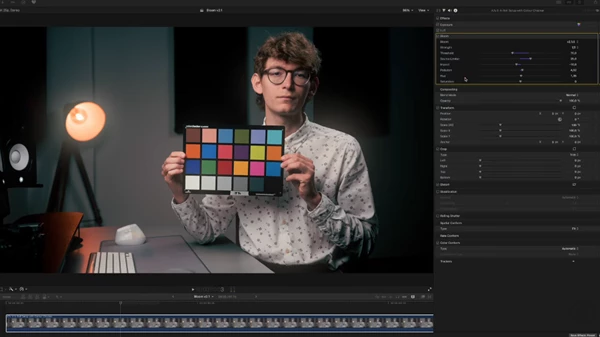
Bloom is a visual effect where bright highlights softly spread into nearby areas, creating a gentle glow.
It mimics how real lenses and film react to strong light sources. Instead of sharp digital highlights, you get something smoother, softer, and more cinematic.
Real-World Uses
Bloom improves footage in many situations, for example:
- Night scenes with streetlights, neon signs, and headlights
→ make lights look atmospheric instead of harsh. - Portraits with backlight (sun behind hair, window light)
→ adds a soft, cinematic glow without ruining skin detail. - Weddings and events with candles and fairy lights
→ give highlights a romantic, film-like diffusion. - Music videos and fashion edits
→ instantly create a premium, stylized look.
Why These Results Look More Professional
Bloom works because it:
- reduces the “digital” sharpness of highlights
- creates depth and softness
- adds atmosphere without heavy color grading
- makes light sources feel more realistic
Introducing Bloom for Final Cut Pro
Bloom is a professional plugin for Final Cut Pro that recreates the aesthetic blooming effect of mist filters — without the cost and hassle of physical filters. It’s designed to be simple:
Drag, drop, and adjust. No complicated setup. No confusing controls. Just filmic results.
Features
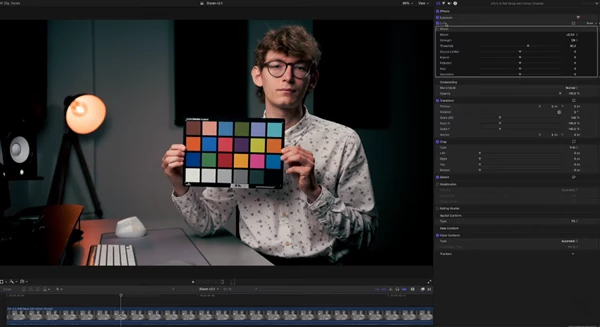
Here are the key features that make Bloom powerful and easy to use:
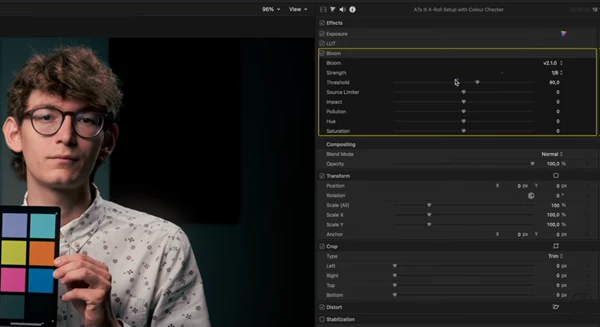
1) Threshold (IRE-Based Highlight Selection)
Threshold lets you choose which brightness level counts as a light source. The slider values match IRE levels.
For example:
- 70 means highlights around 70 IRE will be treated as bloom sources.
2) Source Limiter (Control Highlight Brightness)
Source Limiter decides whether highlights stay stable or get brighter as bloom builds.
- Drag right → highlights stay controlled.
- Drag left → bloom amplifies the light source.
Why it improves your result:
It prevents highlights from becoming blown out and ugly.
3) Strength (Mist Filter Presets)
Select a realistic filter strength from a dropdown menu:
- 1/8
- 1/4
- 1/2
- 1/1
Why it improves your result:
You get consistent, film-style strength levels without guessing.
4) Impact (Bloom Projection Control)
Impact controls how strongly the bloom spreads.
- Drag right → stronger bloom.
- Drag left → softer bloom.
5) Pollution (Mist Filter Atmosphere)
Real mist filters don’t only bloom highlights — they also reduce contrast, sharpness, and make shadows slightly foggy. Pollution controls exactly that.
- Default applies the recommended amount.
- Increase for more foggy softness.
- Reduce for cleaner contrast.
6) Hue (Warm Highlight Tint)
Many mist filters add warmth in the highlights. Hue lets you decide whether the warmth leans:
- more yellow (left)
- more red (right)
7) Saturation (Highlight Color Strength)
This controls how much your highlights are colorized.
- Increase → more warm tint.
- Decrease → neutral bloom.
Important Note
Bloom is not a Halation plugin.
If you want the reddish-orange halo around light sources, you’ll need a separate halation effect.
4) Pro Tips for a Natural, Cinematic Look
Bloom is easy — but these tips will help you get professional results:
Tip 1: Start Subtle
For most cinematic edits, start with:
- Strength: 1/8 or 1/4
- Low Impact
- Moderate Threshold
Subtle bloom looks expensive. Overdone bloom looks like a filter.
Tip 2: Use Threshold to Avoid “Everything Glowing”
If bloom affects skin tones or midtones too much:
- raise Threshold slightly
This keeps the glow limited to true highlights.
Tip 3: Use Pollution Like a Mood Control
- Want a clean, modern film look? → lower Pollution
- Want dreamy vintage softness? → raise Pollution
Tip 4: Warm Highlights Without Overdoing Color
A great cinematic combo is:
- slight Hue warmth
- low Saturation
This gives a film vibe without turning highlights orange.
Tip 5: Control Glow Size With Impact
If bloom looks too wide or blurry:
- reduce Impact
- Increase the threshold a little
This usually fixes the look immediately.
5) Final Thoughts
Bloom is one of those tools that doesn’t feel like an “effect” — it feels like you shot with a better lens. It gives you the soft diffusion and highlight bloom of mist filters, directly inside Final Cut Pro, with a fast drag-and-drop workflow. If you want your footage to feel more cinematic, emotional, and film-like, Bloom is absolutely worth trying.

Files Password : gfxplugin.com OR 123456