Downloadable Files
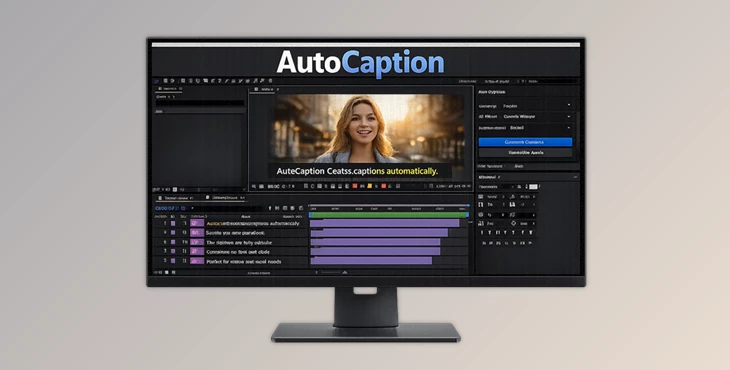
You can download AutoCaption for free at the bottom of this page.
A Quick Hook: Captions Shouldn’t Take Longer Than Editing
Let’s be real: making captions manually in After Effects is one of the most time-consuming and boring parts of video production. You have to type everything, split text, adjust timing, fix line breaks, and repeat the process over and over. AutoCaption solves this problem by automatically generating captions from any audio or video — directly inside Adobe After Effects — in just a few minutes. And the best part?
Your captions are not burned in. They are real After Effects text layers, so you can edit and animate them like any other text in your project.
What Is AutoCaption?
AutoCaption is a professional caption generator for Adobe After Effects that converts speech (and even clear vocals in songs) into editable captions. Instead of using external subtitle tools or importing SRT files, AutoCaption keeps everything inside After Effects — where your design and animation work already happens.
Real and practical use cases
- TikTok / Reels / Shorts captions with fast pacing
- YouTube subtitles for talking-head videos
- Explainer videos where clarity is critical
- Motion graphics projects where captions need animation
- Music videos / lyric captions when vocals are clear
Why these features improve your results
Because captions aren’t just “text on screen” anymore. They become part of your design. With AutoCaption, you get:
- better pacing → better storytelling
- better readability → higher retention
- better styling → more professional visuals
- full control → no compromises after generation
AutoCaption: A Professional Tool Built for Motion Designers
AutoCaption is designed specifically for creators who work inside After Effects and want captions that look clean, modern, and professional — without spending hours on manual work. It is powered by Deepgram Nova-3 and OpenAI Whisper Large v3, two of the strongest speech recognition models available today. This means your transcription quality is high, and the amount of correction you need is minimal. AutoCaption also removes two major headaches:
- No usage limits
- No API keys
You install it, activate it, and it works.
Features
AutoCaption generates captions as real AE text layers. That means you can edit them like normal text:
- fonts, colors, tracking
- line breaks and spacing
- animations and keyframes
- expressions and motion presets
This is a huge advantage compared to subtitle tools that bake captions into a video.
🤖 Powered by Deepgram Nova-3 / OpenAI Whisper Large v3
AutoCaption uses industry-leading speech recognition to produce accurate captions with minimal mistakes. In most projects, this saves you hours because you spend less time fixing text and more time designing.
⏱️ From Zero to Polished Captions in Minutes
AutoCaption turns raw audio into clean captions quickly.
You don’t need extra software, exports, or complicated workflows.
🎨 18+ Ready-to-Use Caption Styles
AutoCaption includes 18+ caption style presets designed for:
- social media content
- explainers
- reels and short videos
- YouTube and long-form projects
- motion-driven typography
These styles are not locked templates — they are fully editable, so you can customize them freely.
∞ No Usage Limits
There are no credits, minutes, or per-caption restrictions. You can generate captions for unlimited projects — the only cost is the license.
✨ Nothing Is Baked In
AutoCaption keeps everything editable. Even after captions are generated, you can still:
- adjust timing
- change wording
- modify layout
- redesign typography
- animate every line
This gives you full creative control.
🔑 No API Key Needed
You don’t need to create accounts or connect your own API key. AutoCaption works immediately after activation.
🎵 Song / Lyrics Recognition
AutoCaption can detect sung vocals and generate captions for songs when lyrics are clearly audible. This is useful for:
- lyric videos
- music reels
- clips with singing
🌍 Multi-Language Support
AutoCaption supports multiple languages, especially when speech is clear and the audio is clean. If you’re unsure about your language quality, you can test it using a short sample.
Caption Modes (Pacing Options)
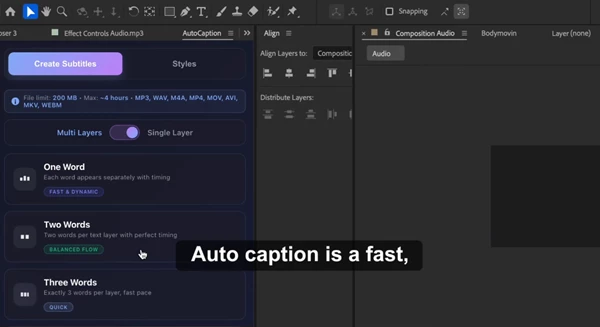
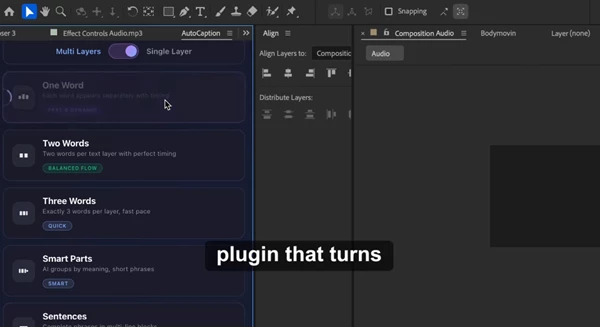
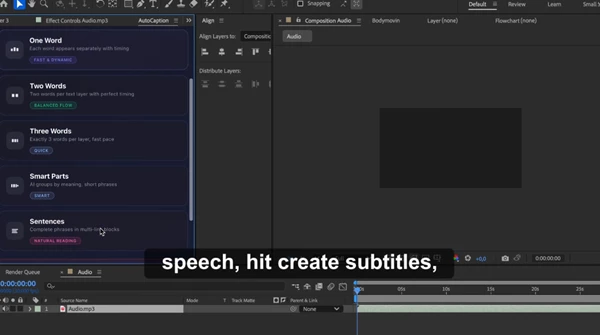
AutoCaption includes 5 pacing modes so you can match captions to the rhythm of your content.
1) One Word
- One word per text layer.
- Best for high-energy edits and maximum impact.
2) Two Words
- Two words per layer.
- A great balance between readability and rhythm.
3) Three Words
Three words per layer.
Smoother pacing with fewer cuts.
4) Smart Parts (2–5 Words)
AutoCaption intelligently groups 2–5 words based on:
- speech rhythm
- pauses
- meaning
This creates natural-looking captions that feel professional.
5) Sentences
- Full sentences split naturally based on pauses and structure.
- Best for storytelling, explainers, and YouTube.
Text Layer Mode (Single Layer or Multiple Layers)
AutoCaption lets you choose between:
- generating captions as a single text layer
- generating captions as multiple text layers
This gives you full control depending on:
- performance needs
- animation complexity
- design style
Pro Tips & Techniques
Keep captions readable first
- Even stylish captions should be easy to read.
- Use clean fonts and avoid extreme spacing unless it matches the style.
Choose pacing based on your content type
- Fast edits → One Word / Two Words
- Educational content → Smart Parts / Sentences
Use the included styles as a starting point
The presets are meant to save time, not limit you.
Customize them to match your brand.
Don’t be afraid to adjust timing
AutoCaption gives you a strong first draft, but small timing tweaks can make captions feel more natural.
Animate with subtle motion
Since captions are AE text layers, you can add:
- scale pops
- opacity fades
- motion blur
- bounce animations
- tracking changes
Small animation details can massively increase perceived quality.
Final Thoughts: Why AutoCaption Is Worth Trying
AutoCaption makes captions faster, cleaner, and far more flexible than traditional subtitle workflows. Instead of wasting hours on manual text work, you can generate captions in minutes and focus on what actually matters:
design, motion, storytelling, and polish. If you create content regularly in After Effects — especially for social media or YouTube — AutoCaption can easily become one of the most useful tools in your workflow. And because there are no usage limits, no credits, and no API keys, you can simply install it and keep creating.

Files Password : gfxplugin.com OR 123456