Downloadable Files
You can download ReColor for free from the bottom of this page and start managing colors in your After Effects projects with ease.
ReColor: Take Full Control of Colors in After Effects
If you’ve ever worked on a complex After Effects project, you know how messy color management can get. One small brand update can turn into a time-consuming hunt across layers, shapes, text, and effects. ReColor changes that experience completely.
It brings a clean, visual, and centralized way to reveal and update all colors in your project—without breaking your workflow or adding unnecessary effects. Simple, fast, and surprisingly satisfying to use.
What Is ReColor and What Can You Use It For?
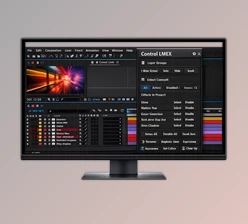
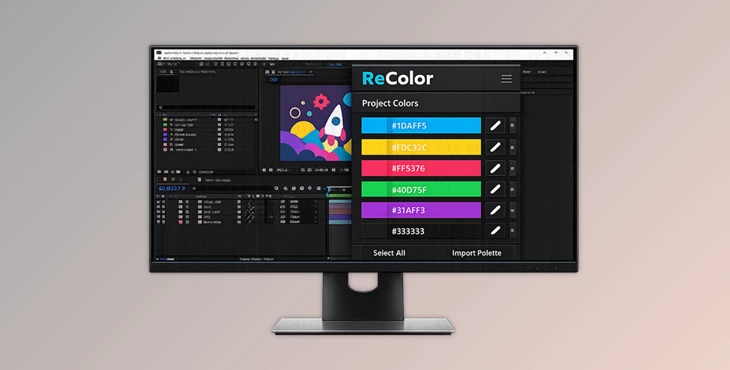
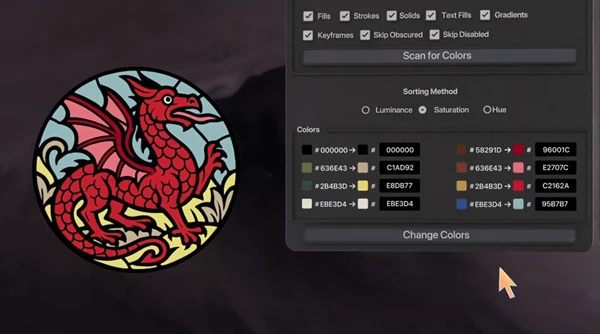
At its core, ReColor is a professional color management tool for After Effects. It scans your project, finds every color used across layers and effects, and lets you update them instantly using hex values or the native AE color picker. Real-world uses include:
- Updating brand colors across an entire motion project in seconds.
- Finding inconsistent or incorrect colors before delivery.
- Quickly creating light and dark mode versions of the same animation.
- Cleaning up projects received from other designers.
These capabilities directly improve workflow speed, consistency, and visual quality—especially in brand-driven motion design.
Professional Tool Overview – What Makes ReColor Special
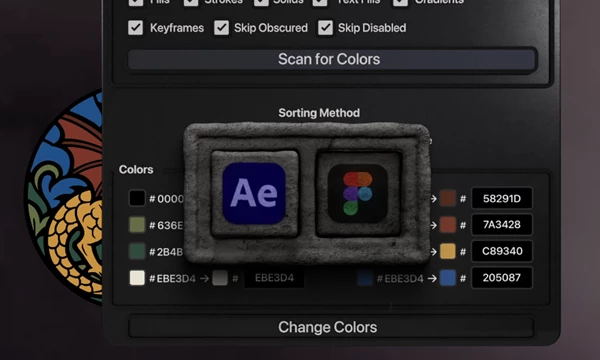
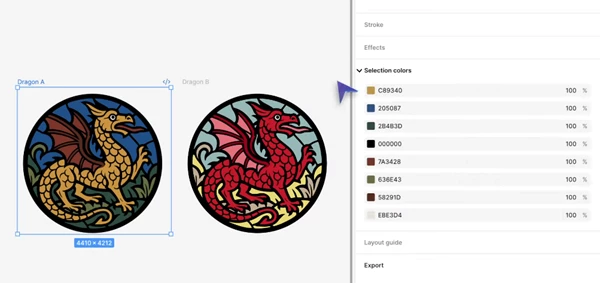
ReColor is designed to feel native to After Effects while offering the color control you’d expect from tools like Figma or Sketch.
Features
Flexible Scan Options:
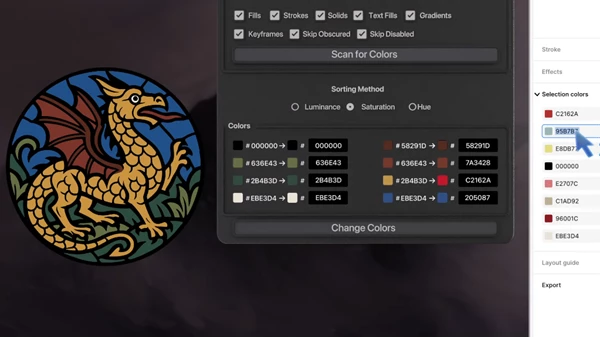
- Scan All Comps, the Active Comp (including nested precomps), or only Selected Comps
Precise Targeting
- Fills (shapes, effects, layer styles)
- Solids
- Gradients (Gradient plugin supported)
- Strokes
- Text & text strokes
Keyframe Awareness
- Choose whether to affect all keyframes or only the current time.
Smart Skipping
- Ignore obscured fills or disabled layers and effects.
Visual Search Results
- Colors displayed with hex values and live previews.
- Sort results by Hue, Saturation, or Luminance
Non-Destructive Workflow
- No extra scripts or effects added—your original layers stay untouched.
Pro Tips & Practical Techniques
- Use Active Comp mode when working on large projects to avoid unnecessary scans.
- Enable Skip Disabled to keep drafts and hidden layers untouched.
- Sort by Luminance to quickly spot unwanted contrast issues.
- When animating colors, enable Keyframes for full consistency across time.
- Pair this with brand color systems to maintain visual identity across multiple projects.
These small habits make your animations feel cleaner, more consistent, and more professional.
Final Thoughts – A Smarter Way to Handle Color
ReColor doesn’t try to reinvent After Effects—it simply makes one of its most frustrating tasks effortless. From quality control to large-scale reskinning, it saves time while keeping your creative process intact. If color consistency matters in your workflow (and it should), it is one of those tools you’ll wonder how you ever worked without. Give it a try and let your colors finally stay under control. 🎨✨

Files Password : gfxplugin.com OR 123456