Downloadable Files
You can download the Keys product for free at the bottom of this page.
Introduction: When the Graph Editor Slows You Down
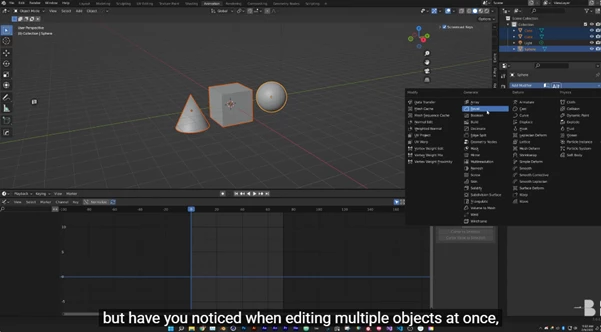
If you’re somewhat aware of Blender’s animation scene, you might be aware of the Graph Editor’s capabilities—and challenges. Editing one keyframe? No problem. Selecting multiple keyframes and editing them? The intuitive way of editing keyframes goes out the window. It seems that several keyframes confuse Blender’s user interface more than help. This is exactly the problem that Keys aims to solve, giving you the power to take control of multiple keyframes without any challenges.
What are Keys and Why They Matter
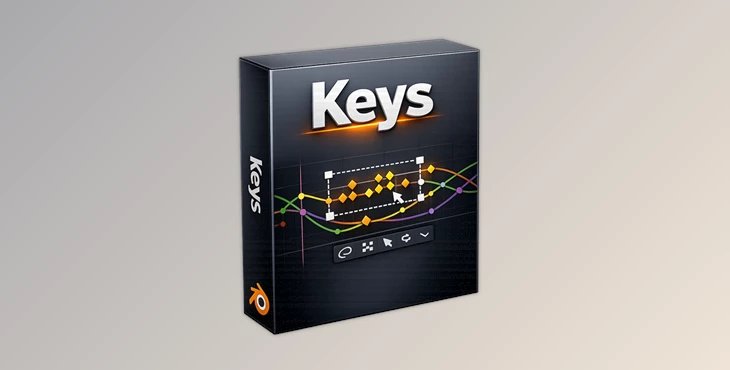
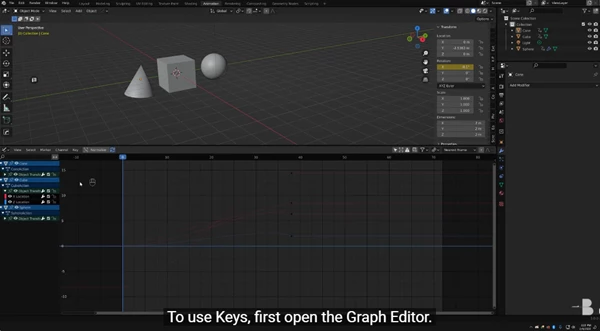
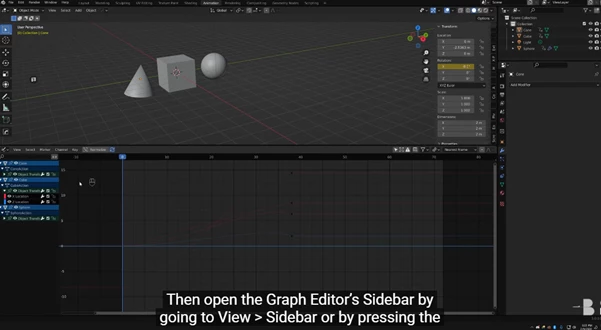
Keys is an add-on for Blender, and it allows for editing multiple selected keyframes and their handles via a clean user interface inside the otherwise confusing (for some) Graph Editor. Instead of adjusting each keyframe one by one, Keys lets you fine‑tune values, interpolation modes, and handle behavior in bulk. This means:
- More consistent animation curves
- Faster iteration on motion
- Better control over timing and spacing
Imagine refining a walk cycle, polishing camera movement, or smoothing facial animation—all without repetitive manual edits. These features don’t just save time; they noticeably improve the final animation quality.
Meet the Keys Add‑on: Professional Control Made Simple
Keys turns a common limitation of Blender’s Graph Editor into a powerful advantage. Once you box‑select keyframes, the Keys panel gives you full access to essential parameters that are normally hidden or inaccessible.
Features
- Interpolation Control: Switch between Constant, Linear, and Bezier interpolation for multiple keyframes at once, ensuring uniform motion behavior.
- Keyframe Timing: Edit keyframes on whole frames or subframes to achieve precise timing, especially useful for fast or subtle animations.
- Key Values Editing: Adjust the value of several keyframes together for perfectly balanced motion curves.
Left Handle Controls
- Handle Type: Free, Aligned, Vector, Automatic, Auto Clamped
- Handle Frame
- Handle Value
- Handle Length
Right Handle Controls
- Handle Type: Free, Aligned, Vector, Automatic, Auto Clamped
- Handle Frame
- Handle Value
- Handle Length
With these tools, animators can maintain clean curves across complex animations such as camera rigs, mechanical motion, or character performances.
Pro Tips for Better Results with Keys
- Start with Bezier Interpolation: Set all the selected keyframes to Bezier before making any handle length adjustments.
- Use Handle Length to Achieve Smooth Transition: Sometimes, a small change in the length of the Bezier handles can make a huge difference in how smooth the transition will be between the selected keyframes.
- Use with Box Select Carefully: Select only those keyframes that belong to the same phase of motion.
- Consider Auto Clamped Handles When Editing in a Hurry: These handles maintain smooth curves automatically, but may not give you the maximum control that you may want to exercise on the animation curve.
All these techniques are easy to apply and will make a big difference, even if you are not an advanced animator.
Final Thoughts: A Small Tool with Big Impact
If you value your animation workflow, Keys is a feature you need to explore. Once you experience editing multiple keyframes more intuitively and with precise control, going back to editing them one by one will be a thing of the past. For such a simple feature, its impact on the animator's workflow in Blender is huge. Give it a try.

Files Password : gfxplugin.com OR 123456
![Blender - Download Lazy Shapekeys [Shape Keys Folder & Utility] v1.072](https://dls4.gfxplugin.ir/Download_Files/27522/SearchSmall/banner.jpg)