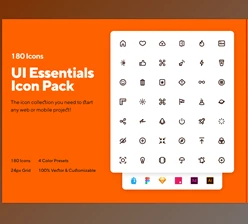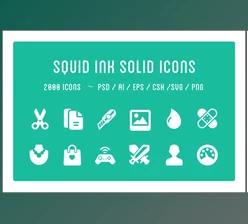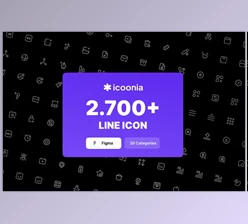
Downloadable Files
You can download Icon Library for free from the link at the bottom of this page.
Discover Thousands of Icons at Your Fingertips
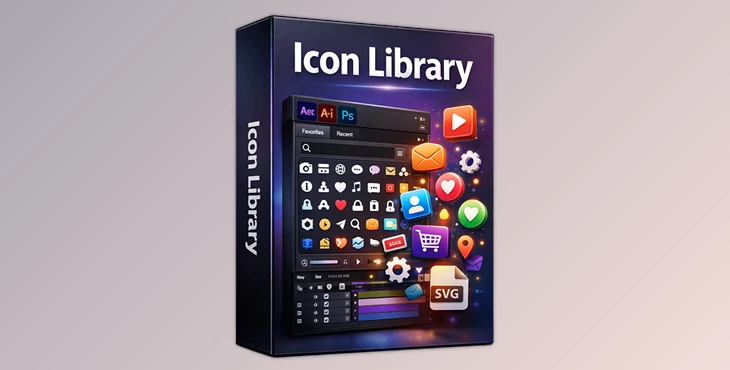
If you’ve ever spent hours hunting for the perfect icon for your project, Icon Library is about to make your life much easier. This tool puts 47,543 icons from popular open source libraries right inside your favorite Adobe apps—After Effects, Illustrator, and Photoshop. Whether you’re designing a sleek UI, animating a scene, or creating marketing visuals, you’ll always have the right icon ready to go.
What is Icon Library & Why You’ll Love It
The Icon Library plugin is a powerful tool that will convert thousands of vector icons into fully editable shape layers in Adobe software—so they’ll always be vector and you can edit the color, stroke, and opacity values without any performance overhead.
Main Benefits:
- Access thousands of icons instantly.
- Keep your icons organized with Favorites and Recently Used lists.
- The ability to import a custom SVG to make your own icons
- Works with After Effects, Photoshop, and Illustrator
It’s more than a time-saver; it’s a means of making your work consistent and reducing the moments when you search for an asset so you can devote all of your time to creating.
Features That Make Icon Library Shine
1. Massive Icon Collection
47,543 icons from popular open source libraries like Bootstrap Icons, Font Awesome, Material Design, Phosphor, and more.
Includes new libraries in version 1.2: Tabler Icons, Iconoir, Carbon, and Phosphor Duotone.
2. Favorites & Recently Used
Right-click any icon to add it to your Favorites library.
Quickly access your last 100 icons in Recently Used—perfect for repetitive tasks.
3. Fully Customizable Shape Layers
Import icons as native shape layers.
Adjust size, color, stroke, and opacity directly inside your Adobe project.
4. Experimental SVG Import
Paste SVG code to create a shape layer from any icon.
Note: Some advanced SVG features like gradients, text, and clipping paths may not be supported yet.
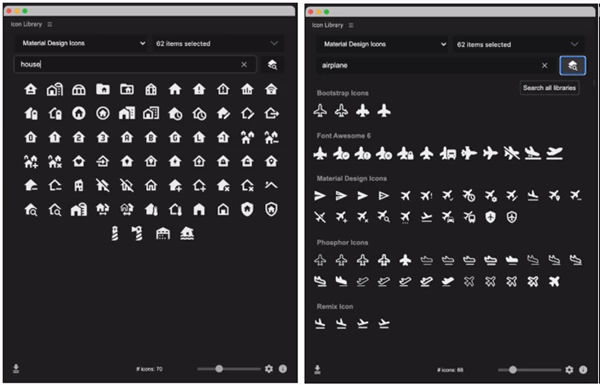
5. Fast and Smart Search
Search as you type to find icons quickly, even if you don’t know the exact name.
Global search option covers all libraries for maximum results.
6. User-Friendly Interface
Resize the UI to fit your workspace.
Import multiple icons at once for batch workflows.
Keep track of library updates, licenses, and sources directly from the plugin.
Pro Tips for Icon Library
Use Favorites Wisely: Organize frequently used icons by project type or client to save time.
Leverage Shape Layer Customization: Adjust stroke width and colors dynamically for animation projects in After Effects.
Combine Multiple Libraries: Mix icons from different sources to create a consistent style without leaving your Adobe app.
Resize UI: Make the plugin interface bigger for easier browsing during intense design sessions.
These small tweaks can make your workflow smoother and your results look more polished.
Why You’ll Keep Coming Back
Icon Library isn’t just a plugin—it is a great productivity tool. With thousands of icons, easy categorization and it feels native to all Adobe programs, it changes the game of graphic and motion design work. Why waste time searching for icons online when you can gain speed and precision in your designs?
You will try it once and be hooked.

Files Password : gfxplugin.com OR 123456