The Day Skin Retouching Is No Longer a Hassle!
Are you aware of the Skin Fairy Plugin for Photoshop? Have you ever had an amazing photoshoot, but when it came time to edit the images, you ended up spending hours smoothing the skin—only to still not get the result you were hoping for? Or maybe you have portrait photos where acne, blemishes, wrinkles, or even uneven skin tones make the final image look artificial or inconsistent?
We all want the skin in our images to look natural, soft, and even. But achieving that is usually time-consuming, complex, and sometimes downright exhausting. Using standard Photoshop tools like the Clone Stamp or Healing Brush takes a lot of time and precision—and that’s assuming the result still looks natural.
Now imagine if there were a tool that could mask the skin with just a few clicks, automatically fix blemishes and wrinkles, and still give you room for customization. You wouldn’t need to spend hours on tiny details anymore, and you could focus more on creativity and image design. That’s exactly what many designers and photographers have always been looking for: fast, easy, and controllable skin retouching—without sacrificing quality or natural results.
Photoshop Without Shortcuts
Before smart tools came along, skin retouching was truly a manual and time-consuming task. Every pimple, every blemish, wrinkle, had to be addressed individually—there was no blending, feathering or smudging to make up for repeated imperfections. Photographers and designers often labored for hours over a single image and even came up with less-than-realistic, perfect results.
So let’s take a look at what people usually did back then:
Common Skin Retouching Methods
- Healing Brush: Fixes blemishes and pimples by sampling from healthy areas of the skin.
- Clone Stamp: Copies clean skin onto problem areas to create a more even texture.
- Dodge & Burn: Lightens and darkens different areas of the skin to create more natural volume and texture.
- Layer Masking: Applies edits only to the skin without affecting the rest of the image.
- Color & Light Adjustment Layers: Used to balance skin tone and brightness for a more natural look.
Problems and Limitations
All of these steps were extremely time-consuming and tiring. One small wrong move could make the entire skin look artificial. Maintaining consistent color and texture was a major challenge, and even professionals sometimes didn’t achieve the desired result after hours of work. In short, this traditional workflow involved a lot of trial and error and significantly reduced focus on creativity and design.
Skin Fairy: Skin Magic in One Click
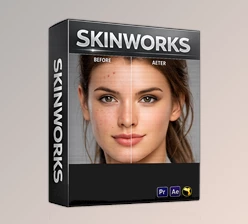
It’s like having a Photoshop plugin that automatically detects and masks skin areas at the same time—saving you the time of constantly clicking with your Healing Brush or Clone Stamp. It’s called **Skin Fairy**, and within minimal clicks, your photo is edited, skin is smooth, clean, and naturally polished to professional standards.
The Skin Fairy Features
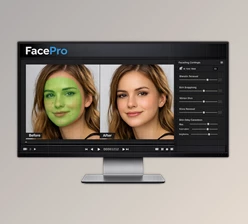
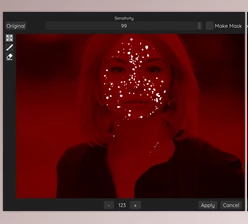
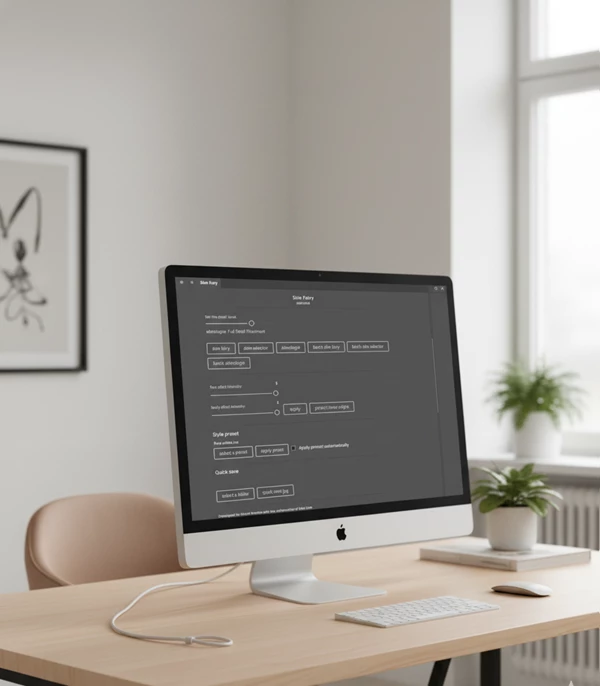
Automatically Mask Skin Areas: After a few clicks, the plugin masks the skin areas for editing. There’s no need to constantly click and select different areas of skin.
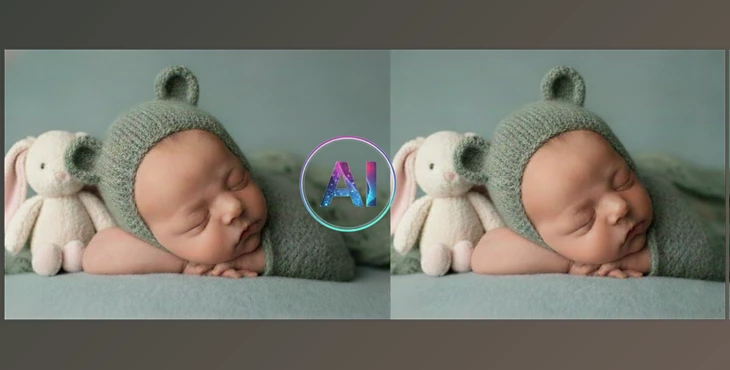
Automatically Retouch Skin: Retouches skin by smoothing, removing acne/blemishes, adjusting brightness/texture with just the plugin, not third-party software.
Four Levels of Edits: Choose from the lightest (natural) to the most intense edit for retouching of problem skin.
Separate Face and Body Effect Intensity: Adjust the intensity effects for face and body separately.
Presets & Styles: Use presets and/or blend your style with theirs for a unique finish.
Batch Processing: Edit in bulk; save time.
In other words, it’s like having a professional assistant do all the boring, problem-creating, time-wasting things while you get to do the creative, design-focused aspects. Skin Fairy can transform any portrait, even in the worst lighting or skin conditions into something natural
Tips for Natural and Professional Skin
Skin retouching with Skin Fairy is fast and easy, but a few simple tips can make the results look incredibly natural and professional:
Practical Tips
- Good lighting is always the foundation: The better and more even the lighting, the easier it is for the AI to detect skin and produce natural results. Always start with a high-quality image.
- Use layer masks: After applying Skin Fairy, you can refine specific areas using layer masks. This gives you full control over fine details.
- Choose the right editing level for the skin type: Acne-prone or blemished skin may need the Full Detail level, while healthy skin usually looks best with Lite. Choosing the right level leads to more natural results.
- Apply effects gradually: For a more realistic look, adjust effect intensity step by step instead of applying everything at once.
- Experiment with presets and styles: Mixing presets with your personal style can make your images stand out. Even a few seconds spent here can create a noticeable difference.
By following these tips, your skin retouching will not only look natural and beautiful, but you’ll also maintain full control over every detail—allowing you to achieve results that perfectly match your own style.
Skin Retouching Fast, Easy, and Professional
Ultimately, Skin Fairy isn’t just a game-changer; it’s a blessing for those who don’t want to make the same adjustment 25 times on the same shoot. When you remove the worst parts of the skin-masking and general starting-edit workflows, your brain can focus on what really matters—artistic expression and flair.
With Skin Fairy, you edit less, get more natural cuts, and maintain total control over your editing in the end, as if nothing was ever too automated. Nothing becomes overly artificial, and you never lose control over your work.
So if you're going for a realistic, good-looking skin effect for your photography, designs, composites, motion graphics, and even character creation, this will cut down the time you need to achieve the desired result. You probably won't get the one-click magic to perfection. But you'll get a much faster, enjoyable process to get you there.

Files Password : gfxplugin.com OR 123456