Downloadable Files
You can download AE ToothPaste for free at the bottom of this very page.
Paste Your SVGs in Seconds – No More Rebuilding Shapes
If you’ve ever designed something beautiful in Figma or Illustrator and then tried to rebuild it inside After Effects… you know the pain. Recreating shapes, fixing paths, adjusting fills—it eats up time and energy.
That’s exactly where AE ToothPaste comes in.
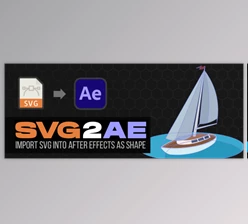
It lets you copy SVG files from your favorite design tools and paste them directly into After Effects as fully functional shape layers. One click. Done.
Simple idea. Massive time saver.
What Is AE Toothpaste and Why Does It Matter?
AE ToothPaste is an After Effects tool that allows you to paste SVG files directly from your clipboard into your composition as shape layers. That means:- Copy an SVG from Figma, Affinity Designer, Sketch, or similar tools.
- Click a button inside After Effects.
- Instantly get editable shape layers.
Meet the Tool: AE ToothPaste
AE ToothPaste is a professional After Effects extension designed to streamline SVG-to-shape workflows. Its interface is minimal, dockable, and incredibly easy to use—perfect for both beginners and experienced motion designers.
Instead of juggling exports and conversions, you just paste.
Features
Editable Text
When you paste SVG content, your text layers remain editable inside After Effects.
That means:
You can adjust wording.
Change fonts.
Animate characters.
Apply text animators.
This is especially useful for UI animations, explainer videos, or branding projects where text changes are common.
Gradient Support
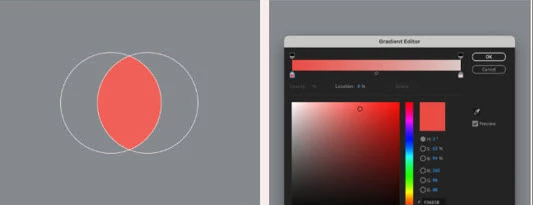
Gradients are fully supported.
So your designs don’t get flattened into boring solid fills. You keep:
Linear gradients
Complex color blends
Visual depth from your original artwork
Perfect for modern UI animations, app promos, and social media visuals.
Clip-Paths and Masks
Complex shapes stay under control with proper mask and clip-path support.
This is essential when working with:
Logo animations
Custom icons
Layered illustrations
You don’t have to manually rebuild compound paths anymore.
Raster Image Support
ToothPaste now supports embedded raster images inside SVGs.
This is incredibly helpful when:
Your SVG contains image textures.
You're importing hybrid vector/image layouts.
You're animating product mockups or UI previews.
Improved Layer Structure
The new version keeps your layer hierarchy closer to your original design app structure.
Why this matters:
Cleaner timeline
Easier animation control
Better organization for complex projects
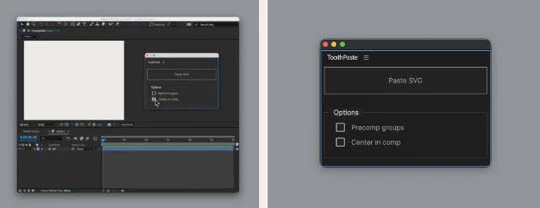
Paste Groups as Precomps
You can now paste groups as pre-compositions.
This is a huge workflow boost when:
Animating modular UI components
Working with icon sets
Building reusable motion systems
It keeps your project structured and scalable.
Center in Comp
One simple but practical feature: paste your SVG directly in the center of your composition.
No manual repositioning. No alignment fixes.
Just clean placement, ready to animate.
Pro Tips for Better Results
Let’s make your workflow even smoother:
1. Clean Your SVG Before Copying
Remove unnecessary layers or hidden objects in your design file. Cleaner SVG = cleaner shape layers.
2. Use Groups Strategically
Organize your elements into logical groups before copying. Then use the “Paste Groups as Precomps” feature to keep things structured in AE.
3. Plan Your Animation Early
Think about how you’ll animate the shapes. Naming layers clearly in your design app will help you move faster in After Effects.
4. Take Advantage of Editable Text
Instead of converting text to outlines in your design tool, keep it live. That flexibility is powerful during revisions.
5. Dock the Panel Smartly
Keep ToothPaste docked near your essential tools so it becomes a natural part of your workflow.
These small habits can dramatically improve how professional and efficient your projects feel.
Final Thoughts – Small Tool, Big Workflow Upgrade
AE ToothPaste may look simple, but it solves one of the most frustrating gaps between design and motion.
It removes friction.
It protects your design integrity.
It saves hours of manual rebuilding.
If you regularly move assets from Figma, Sketch, or other vector-based apps into After Effects, this tool can completely change your workflow rhythm.
Give it a try, explore its features, and see how much smoother your next animation project feels.
 AE ToothPaste SVG to Editable Shape Layers in After Effects by aescripts (v1.3.0).rar (Size: 37.3 MB - Date: 2/22/2026 2:03:08 PM)
- Aescripts - ToothPaste v1.3.0.rar (Size: 37.3 MB - Date: 2/21/2026 10:54:03 AM)
- Aescripts - ToothPaste v1.2.5.rar (Size: 4.5 MB - Date: 2/20/2025 12:06:05 PM)
- Aescripts ToothPaste v1.2.4.rar (Size: 37.4 MB - Date: 10/17/2024 6:36:41 PM)
- Aescripts ToothPaste 1.2.3.rar (Size: 3.3 MB - Date: 10/17/2024 6:36:40 PM)
Files Password : gfxplugin.com OR 123456