Downloadable Files
You can download Keystone for free at the end of this page.
Tired of Fighting the Timeline?
If you work in After Effects regularly, you already know the struggle.
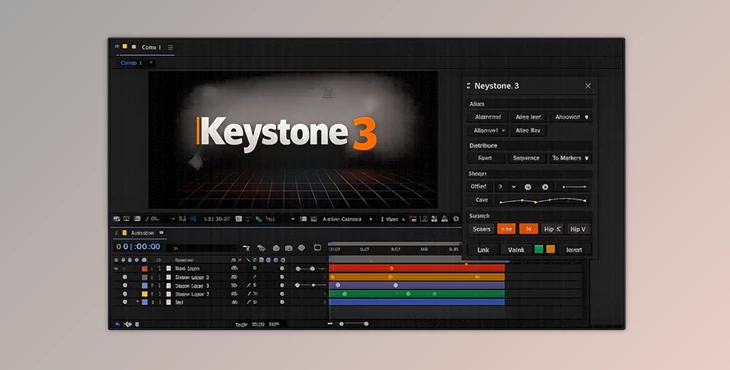
Moving keyframes breaks your easing. Organizing layers takes forever. Creating clean staggers feels repetitive and mechanical. The more complex your animation gets, the more time you spend just managing the timeline instead of actually designing motion. That’s where Keystone 3 changes everything. It’s a professional toolkit built specifically to make timeline work faster, smarter, and dramatically more efficient — without gimmicks.
What Is Keystone and Why Does It Matter?
At heart, Keystone is the ultimate timeline editor for After Effects. It lets you manage:
- Keyframes
- Layers
- Timing & gaps
- Staggers & Distribution
- Motion curves & Easing
- Layer order
Why This Leads to Better Results
Let’s say you have 30 elements in a UI animation to animate:
- Icons scaling
- Text fading and sliding.
- Buttons bouncing
- The works - all needing a nice stagger
It can take hours to tweak this stuff manually — and keyframe moves can wreck your easing curves. Keystone solves all of these problems:
- Keeps the easing when you move keyframes
- Handles the boring stuff for you
- Puts you in complete control of timing
Cleaner motion. More speed. Higher consistency.
Keystone 3 — A Professional Upgrade for Serious Animators
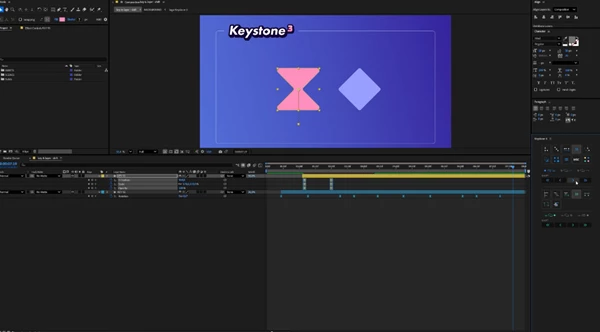
Keystone 3 is a major release that completely enhances timeline control in After Effects.
Its interface is simple, modular, and built for speed — with most actions accessible in just one click.
Features
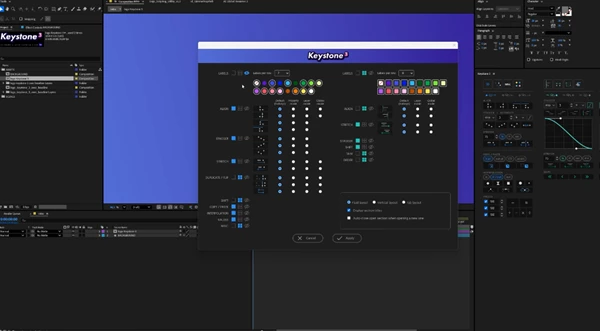
Keyframe Values (New in Version 3)
You can now directly modify selected keyframe values by:
- Adding values
- Multiplying values
- Rounding values
This works across all selected keyframes at once.
Impact: Perfect for large-scale adjustments and cleanup passes without manually editing each value.
Layer Order (New Section)
- Organize your layers with multiple sorting methods.
Impact: Clean layer structures improve readability and speed up large project workflows.
Section Shortcuts (New Interface Upgrade)
- Toggle sections on and off instantly to keep your workspace clean.
- CTRL / ⌘ + Click closes all sections at once.
Impact: Less visual clutter. More focus.
Completely Revamped Stagger & Distribute System
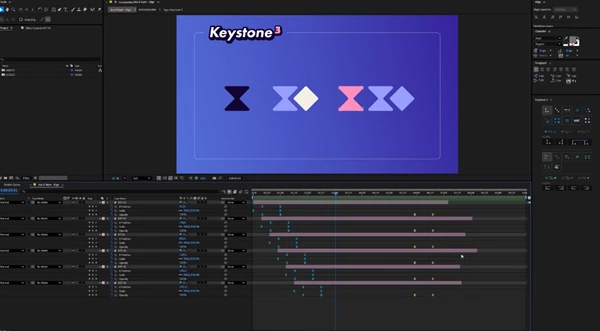
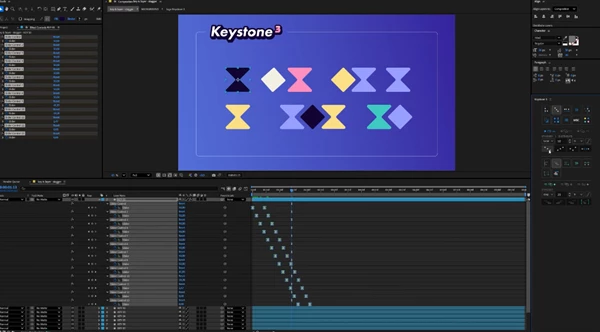
Staggering is essential in motion design — and Keystone 3 takes it to another level. New additions include:
- Bezier controllers for more dynamic staggers
- 3 new stagger calculation methods
- Cumulative mode (ALT + Click to activate)
Impact: No more boring linear stagger. You can now create organic, cinematic timing with precision.
Easing Preservation
- Unlike many tools, Keystone performs the calculations necessary to preserve your motion curves when moving keyframes.
Impact: Your animation quality remains intact — even after heavy timeline edits.
Constant Speed (Fan Favorite)
- Align tangents automatically and keep them aligned effortlessly.
- Even better: constant speeds are preserved when using other Keystone functions.
Impact: Cleaner motion and professional consistency without manual handle adjustments.
Link / Unlink Keyframes and Layers
- Unlock manipulation options that are impossible natively in After Effects.
Impact: Move grouped elements while maintaining relationships between them.
Up to 3 Modes per Function
- Quickly switch grouping behaviors using shared hotkeys.
Impact: Flexible control without complicated menus.
Pro Tips for Better Results
Use Bezier Stagger for Natural Motion
Linear stagger feels robotic.
Bezier-based timing creates smoother, more dynamic animation. Perfect for:
- Text reveals
- Logo builds
- UI animations
- Character rigs
Combine Constant Speed with Stagger
First, align tangents using Constant Speed.
Then apply stagger timing. This combination produces high-end studio-quality motion.
Use Keyframe Values for Final Polish
During the final animation pass:
- Adjust overshoots
- Normalize bounce values
- Refine spacing
It’s an excellent cleanup and refinement tool.
Keep Your Interface Clean
Use Section Shortcuts to hide tools you don’t need. A focused workspace = faster workflow.
Final Thoughts
Keystone 3 isn’t flashy — it’s powerful. It focuses on solving real After Effects problems:
- Broken easing
- Manual timeline adjustments
- Slow layer organization
- Repetitive keyframe editing
If you animate frequently, Keystone will quickly become part of your daily workflow. The more keyframes and layers you use, the more time it saves. Instead of wrestling with the timeline, you can focus on what really matters:
Creating beautiful motion.
 Keystone (3) by Aescripts (v3.1.4 - Win, Mac).rar (Size: 2.2 MB - Date: 5/2/2026 12:29:47 PM)
- Keystone (3) Ultimate Animation Toolkit for AE by Aescripts (v3.1.3 - Win, Mac).rar (Size: 46.5 MB - Date: 4/18/2026 12:58:21 PM)
- Keystone (3) - Ultimate Animation Toolkit for AE by Aescripts (v3.1.1 - Win, Mac).rar (Size: 46.6 MB - Date: 4/6/2026 11:55:58 AM)
- Keystone (3) Ultimate Animation Toolkit for AE by Aescripts (v3.0.7 - Win, Mac).rar (Size: 47.8 MB - Date: 3/14/2026 12:13:17 PM)
- Aescripts - Keystone 3 v3.0.6 (Win, Mac).rar (Size: 48.0 MB - Date: 2/16/2026 10:21:51 AM)
- Aescripts - Keystone 3 v3.0.5 (Win, Mac).rar (Size: 48.0 MB - Date: 1/31/2026 11:57:06 AM)
- Aescripts - Keystone 3 v3.0.4 (Win, Mac).rar (Size: 48.0 MB - Date: 1/26/2026 12:13:51 PM)
- Aescripts - Keystone 3 v3.0.3 (Win, Mac).rar (Size: 3.6 MB - Date: 12/6/2025 11:38:01 PM)
- Aescripts - Keystone 3 v1.00.01 (Win, Mac).rar (Size: 3.6 MB - Date: 11/15/2025 2:06:23 PM)
- AeScripts - Keystone v2.0.9 (Win, Mac).rar (Size: 3.8 MB - Date: 8/23/2025 11:45:10 AM)
- AeScripts - Keystone v2.0.6.rar (Size: 3.8 MB - Date: 5/13/2025 1:41:04 PM)
- AeScripts - Keystone v2.0.5.rar (Size: 4.0 MB - Date: 3/11/2025 3:03:54 PM)
- AeScripts Keystone v2.0.3 (Win).rar (Size: 75.4 MB - Date: 11/6/2024 10:39:30 AM)
- Aescripts Keystone v2.0.2.rar (Size: 4.4 MB - Date: 10/17/2024 4:59:04 AM)
- Aescripts Keystone v1.0.8 (WIN, MAC).rar (Size: 52.6 MB - Date: 10/17/2024 4:59:04 AM)
- Aescripts Keystone v1.1.6 (Win, Mac).rar (Size: 3.5 MB - Date: 10/17/2024 4:59:04 AM)
- Aescripts Keystone v1.1.1 (WIN, MAC).rar (Size: 53.4 MB - Date: 10/17/2024 4:59:04 AM)
Files Password : gfxplugin.com OR 123456