Downloadable Files
You can download Morph Animator for free from the bottom of this page.
Bring Blender Mesh Animations into Daz Studio
Morph Animator is a tool that transfers animated mesh deformations from Blender to Daz Studio without replacing existing bone animations. It consists of a Daz Studio plugin and a Blender add-on that work together to move surface animations between the two programs.
A standard Daz morph stores a single mesh shape. Morph Animator records a series of shapes, with one morph for each animation frame. Daz Studio plays these morphs along with the original bone animation.
The surface of a character can move even when its skeleton stays still. This is particularly useful for breathing effects, soft body movements, surface waves, and other deformations that are difficult to produce with bones alone.
Mesh Animation and Simulation Transfer
Morph Animator separates surface deformation from skeletal movement. The animation created in Blender is added on top of the existing bone animation in Daz Studio.
The mesh motion in Blender can come from several sources:
Shape Keys: Animate changes to the shape of a character's mesh.
Modifiers: Transfer animated surface deformations produced by Blender modifiers.
Soft Body Simulations: Bring soft body movements into Daz Studio.
Cloth Simulations: Transfer mesh movements calculated through cloth simulations.
Other Vertex Deformations: Record changes to individual mesh vertices that are independent of bone movement.
The Blender add-on measures the difference between the animated surface and the movement produced by the skeleton. It records that difference as morph data rather than replacing the entire character animation.
How Morph Animator Works
The workflow involves three main stages:
Daz Studio → Blender → Daz Studio
1. Export the Character from Daz Studio
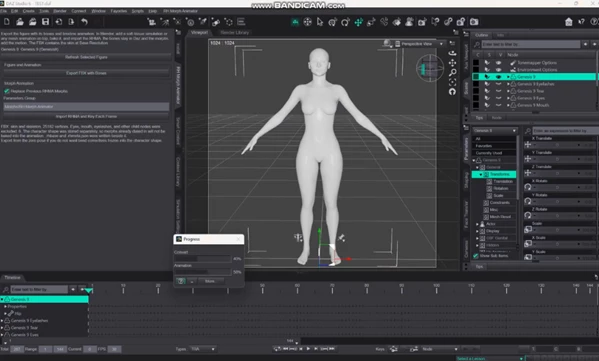
Start with the RH Morph Animator plugin inside Daz Studio. The Export FBX with Bones option exports the character's mesh, skeleton, and existing timeline animation.
The figure is exported at Base resolution. Child nodes such as the eyes, mouth, and eyelashes are excluded from the export.
Alongside the FBX file, the plugin generates two additional files:
.rhbase.rhmeta.json
These files preserve the vertex order so the imported morphs match the original mesh.
If the character already has a custom shape applied, that shape is stored separately rather than being baked into the animation.
2. Animate the Mesh in Blender
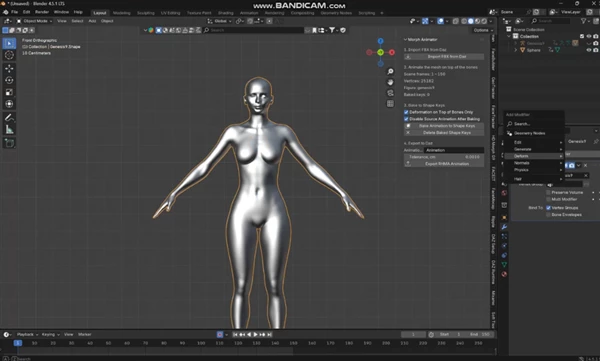
Open the RH Morph Animator add-on from Blender's sidebar by pressing N and selecting the RH Morph tab.
Use the Import FBX from Daz button to load the exported character. Blender's standard FBX import should not be used for this process because the Morph Animator import function reads the additional files created during export.
Once the character is loaded, animate its surface using shape keys, modifiers, or simulations. The skeleton continues to play its original animation.
The add-on includes several controls for preparing the mesh animation:
Control | Function |
|---|---|
Bake Animation to Shape Keys | Converts animated surface movements into shape keys. |
Deformation on Top of Bones Only | Records mesh deformation separately from bone movement. |
Export RHMA Animation | Saves the recorded animation as a |
Centimeter Tolerance | Removes vertex changes that are too small to keep. |
The animation name entered during export becomes the morph group name in Daz Studio.
3. Import the Animation into Daz Studio
Return to Daz Studio and select Import RHMA and Key Each Frame.
The plugin generates one morph for each frame and automatically places the necessary keyframes on the timeline. One morph is active at each frame, with a linear blend between neighboring frames.
The imported morphs are stored in a parameter group of your choice. When importing another RHMA animation, you have the option to replace the previously imported morphs.
Where Morph Animator Is Useful
Some character movements involve changes in the surface or volume of the body rather than changes in its pose. Morph Animator is designed for these types of animations, including:
Breathing movements around the chest and belly.
Pulsing and rhythmic surface movements.
Waves traveling across a character's mesh.
Animated volume changes around the chest, belly, and hips.
Character animations that combine skeletal movement with simulated surface deformation.
For a character that remains in a fixed pose, the mesh itself can still move and change shape throughout the animation.

Files Password : gfxplugin.com OR 123456