Downloadable Files
You can download Compose for free from the bottom of this page.
Combine Layers Without Precomposing
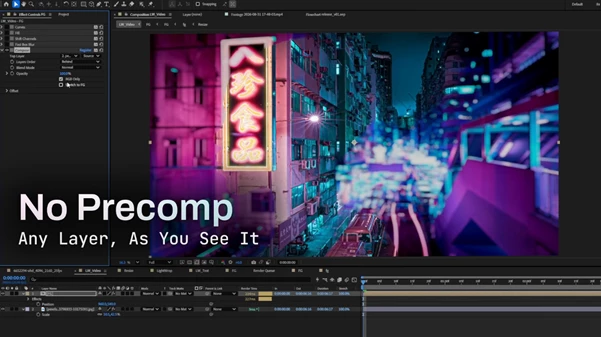
Compose is a compositing plugin for Adobe After Effects that brings another layer into your current layer without creating a precomposition. Unlike the standard CC Composite effect, Compose uses the source layer as it appears in the composition, preserving its movement, transformations, and motion blur.
The plugin works with both 2D and 3D layers. It includes 26 blend modes, layer order settings, opacity controls, and built-in transformation tools. Compositors can combine layers, build mattes, and reposition visual elements directly from the Effect Controls panel.
Working with Live Source Layers
The Top Layer dropdown lets you select any layer in your composition as the source. You can use the source as it is or include the effects already applied to it.
The connection between the source and the composited result remains live. When you move, scale, or rotate the source layer, Compose updates the result accordingly.
This behavior is particularly useful when working with animated elements and 3D layers. The original motion and motion blur remain visible in the composited result without placing the source inside a separate precomposition.
Layer Order Controls
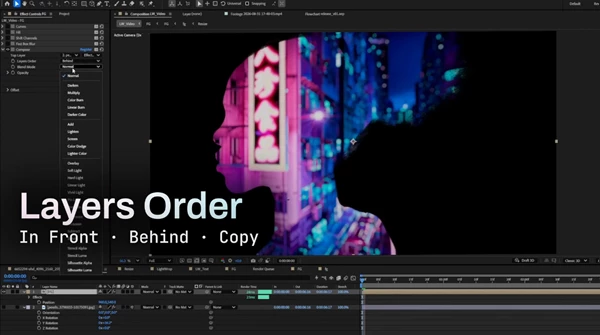
Compose provides three options for placing the source relative to the layer that receives the effect.
Mode | Function |
|---|---|
In Front | Places the source in front of the current layer. |
Behind | Places the source behind the current layer. |
Copy | Displays only the composited source layer. |
These settings are available directly inside the effect, so the position of the composited content can be managed without rearranging layers in the timeline.
Blend Modes and Alpha Controls
Compose includes 26 blend modes for combining the source with the current layer. Alongside standard blending options, the plugin supports Stencil and Silhouette modes based on Alpha and Luma.
These matte modes are useful when the transparency or brightness of another layer needs to control the visibility of composited elements.
Two additional settings help manage how the layers interact:
Opacity: Controls the visibility of the composited source.
RGB Only: Combines the color information while keeping the original alpha channel of the current layer.
RGB Only is particularly useful when you want to change the appearance of a layer without affecting its existing transparency.
Adjusting the Source with Offset
The Offset section provides transformation controls inside Compose. You can change the placement of the composited content without modifying the original source layer in the timeline.
The available settings include:
Position: Moves the composited source.
Scale: Changes its size.
Rotation: Adjusts its angle.
Parent to FG: Makes the composited source follow the foreground layer.
Reset: Returns the offset transformations to their original values.
Stretch to FG: Fits the source to the bounds of the foreground layer.
For instance, a compositor working with a background can adjust its position inside Compose while leaving the original background layer unchanged.
Rendering and Color Depth
Compose supports 8-bit, 16-bit, and 32-bit color depths, making it suitable for projects with different color processing requirements.
The plugin supports Smart Render and uses GPU acceleration through CUDA on Windows and Metal on macOS. CPU fallback is available when After Effects is set to Software Only rendering.
Where Compose Is Useful
Compose is designed for compositing tasks where the relationship between layers matters more than their arrangement in the timeline.
Some practical uses include:
Combining animated layers without creating additional precompositions.
Compositing moving 3D elements while preserving their motion blur.
Building matte and stencil effects using another layer.
Repositioning composited backgrounds without changing their original transformations.
Combining color information while preserving layer transparency.

Files Password : gfxplugin.com OR 123456