Downloadable Files
You can download Pushr for Blender for free from the bottom of this page.
From Illustrator Artwork to Editable 3D Designs
Pushr for Blender sends artwork directly from Adobe Illustrator to Blender. It transfers shapes, strokes, text, images, colors, and materials into an open Blender scene without exporting an SVG file.
Standard SVG imports often require extra work. Text may disappear, strokes may be missing, gradients may lose their colors, and object origins may need fixing. Pushr handles these problems during the transfer.
The tool works with selected artwork rather than the entire Illustrator document. You can send a single icon, a logo, or a complete design and continue working on it in Blender.
How Pushr for Blender Works
The transfer process consists of four simple steps:
Select your artwork in Adobe Illustrator.
Click the Push button.
Find your editable artwork in Blender.
Start animating or continue adding new design elements.
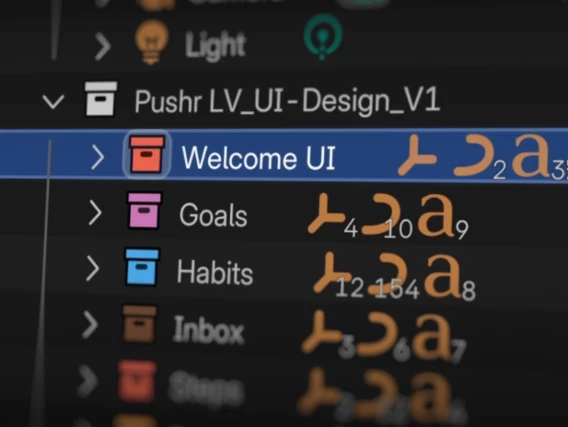
Each separate push creates its own collection in Blender.
Update and Replace Artwork
Pushr offers two ways to change artwork already inside your Blender scene.
Option | Function |
|---|---|
Update | Applies changes made to the original Illustrator artwork while keeping animation, materials, and 3D adjustments. |
Replace | Swaps an existing Blender object with different Illustrator artwork while keeping its position, animation, materials, and 3D settings. |
Supported Artwork and Elements
Editable Text
Illustrator text arrives as native Blender text objects with matching fonts, sizes, and line spacing. Vertical Type and Type on a Path are supported as well.
The text remains editable, so you can change the words or font directly in Blender.
Shapes and Strokes
Filled shapes become editable Blender curves with adjustable extrusion and rounded edges. Strokes arrive as separate curve objects connected to their fills.
Stroke properties include:
Width and roundness
Caps and corners
Dashed lines
Inside and outside strokes
Animatable strokes that grow along a path
Rectangles and rounded rectangles retain editable width, height, and corner radius settings.
Images and Transparent PNGs
Pushr transfers both linked and embedded images, including their masks. Images retain their original size and placement within the design.
Transparent PNG files can become solid objects based on their visible outlines, including any holes. Their depth, bevel, and roundness remain adjustable.
Symbols, Masks, and Effects
Illustrator symbols arrive as instances of a shared source. Editing that source changes all its instances.
Clipping masks preserve the visible parts of the artwork. With Preserve set to Appearance, Illustrator effects such as Warp and Round Corners are expanded on a copy of the artwork without changing the original document.
Five Different 3D Forms
Shapes can switch between five forms directly from the Pushr sidebar.
Form | Description |
|---|---|
Spline | Curve-based geometry |
Flat | Flat surfaces |
Solid | Shapes with physical depth |
Revolve | Rotational 3D forms |
Inflate | Rounded, inflated geometry |
The Splines Only option is available when you want to work with your own modifiers, sweeps, or motion paths.
Colors, Gradients, and Materials
Pushr generates Principled materials based on Illustrator colors. Objects with matching colors share the same material to avoid unnecessary duplicates.
Different fill types are handled in different ways:
Illustrator Fill | Blender Result |
|---|---|
Solid colors | Principled materials |
Linear gradients | Editable node-based materials |
Radial gradients | Editable node-based materials |
Freeform gradients | Textures |
Gradient meshes | Textures |
Pattern fills | Textures |
Gradient materials support Eevee and Cycles. Material names follow Illustrator swatch names, and opacity is transferred as transparency.
Automatic material creation is optional. Illustrator colors can remain as object colors until you need to generate materials.
Control Size, Layout, and Structure
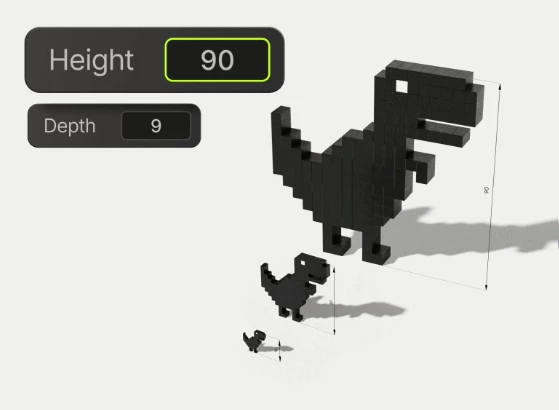
Before transferring artwork, you can enter its height and depth in Blender scene units and choose a front, top, or side orientation.
The Reference setting determines how artwork is positioned and scaled:
Artboard: Maintains the scale and position of elements relative to the full Illustrator artboard, even across separate pushes.
Selection: Provides independent sizing for each selected object or group.
Smart Offset automatically places overlapping elements at suitable depths. Stack and None are available as alternative offset modes.
Pushr can preserve the Illustrator layer hierarchy as Blender collections, including layer names, colors, order, and sublayers.
Three options control how grouped artwork is transferred:
Mode | Result |
|---|---|
Ungroup | Each element becomes an individual object. |
Keep | Groups become centered empty objects with editable contents and nested groups. |
Merge | Each group becomes a single object. |
Editing Through the Pushr Sidebar
Press N in Blender's 3D Viewport to access the Pushr tab. The sidebar provides tools for editing individual objects or entire designs without affecting unrelated scene objects.
Its additional controls include:
Pivot: Choose between nine reference points for object origins.
Arrange: Move objects forward or backward in 3D space.
Objects Tab: Search, sort, and group transferred objects by layer, type, material, or form.
Variation and Random Offset: Give objects different depths or positions using adjustable random seeds.
Asset Library: Save artwork, groups, or selections as reusable assets with materials, images, tags, and thumbnails.
Select in Illustrator: Find the original Illustrator artwork by selecting its corresponding Blender object.
When multiple Blender instances are open, the Illustrator panel provides a separate Push button for each one.
Where Pushr Fits Into a Design Workflow
Pushr is designed for projects where the artwork starts in Illustrator and the animation takes place in Blender. Common uses include 3D logos, animated typography, SaaS product visuals, brand graphics, motion design styleframes, explainer videos, and layered vector illustrations.
It is particularly helpful when clients request design changes after the 3D animation process has already started.

Files Password : gfxplugin.com OR 123456