Downloadable Files
You can download Composure for free from the bottom of this page.
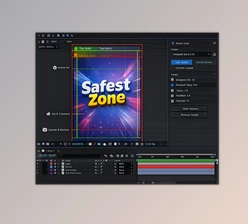
Keep Your Social Media Designs Inside the Safe Zones
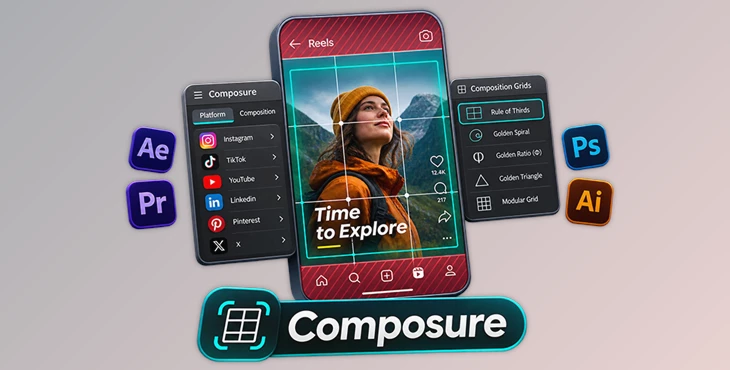
This tool adds social media safe zones and composition grids directly to your work in After Effects, Premiere Pro, Photoshop, and Illustrator.
A design may look fine in your editing software, but parts of it can disappear behind buttons, captions, or usernames when published. Composure shows which areas of the frame are covered by each platform's interface.
It supports Instagram, TikTok, YouTube, LinkedIn, Pinterest, and X. Each format has its own measurements, including separate safe zones for standard posts and ads.
Social Media Safe Zones for Different Formats
Composure includes 23 formats across four aspect ratios. The panel checks your open composition, sequence, or document and only shows formats that match its aspect ratio.
Aspect ratio | Type | Number of formats |
|---|---|---|
9:16 | Vertical | 16 |
4:5 | Portrait | 2 |
1:1 | Square | 2 |
16:9 | Landscape | 3 |
Of these 23 formats, 12 are standard formats and 11 are ad formats.
Even when two formats use the same dimensions, their safe zones may be different. For example, an Instagram Story, Reel, Reels ad with a call-to-action button, and Reels thumbnail can all use a 9:16 frame.
In a Reel, text near the bottom may sit behind the caption and username. In an ad, the call-to-action button can cover even more content. Composure provides a separate guide for each placement, showing where to keep important text and graphics.
Composition Grids and Layout Controls
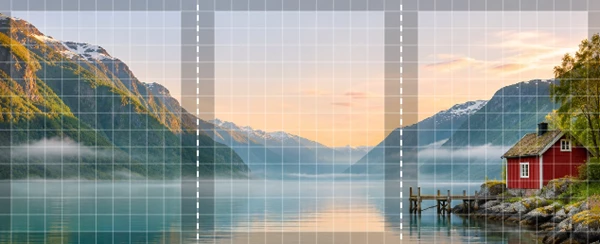
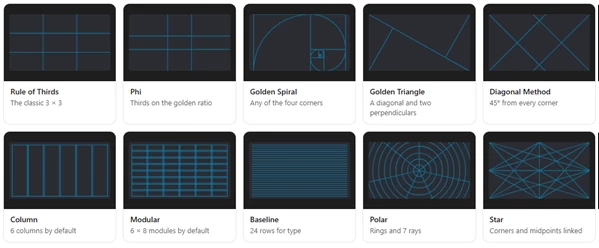
Alongside social media safe zones, Composure includes ten composition grids. These guides help position text, images, and other elements inside a frame.
Grid | Description |
|---|---|
Rule of Thirds | Divides the frame into a 3 × 3 grid |
Phi | Uses golden-ratio proportions |
Golden Spiral | Places a spiral from any of four corners |
Golden Triangle | Uses a diagonal with two perpendicular lines |
Diagonal Method | Draws 45-degree lines from the corners |
Column | Creates columns, with six as the default |
Modular | Creates a grid of modules, defaulting to 6 × 8 |
Baseline | Uses 24 rows by default for text alignment |
Polar | Creates rings and seven rays |
Star | Connects corners and midpoints |
The Column, Modular, Baseline, and Polar grids include controls for their counts, margins, and gutters. The Golden Spiral and Golden Triangle let you choose their starting corner.
Custom Grids and Appearance Settings
The Manual Grid option supports custom columns and rows or a fixed cell size. You can set gutters, margins, and alignment using pixels or percentages.
Composure also includes appearance controls for grid lines:
Line width: Set the thickness in pixels.
Opacity: Change how visible the guide appears.
Color: Choose the grid line color.
Per-grid settings: Apply one appearance to all grids or save different settings for individual grids.
The separate Composure Quick panel keeps frequently used grids available as one-click shortcuts.
How Composure Works in Four Adobe Apps
Composure uses the same format catalogue and safe-zone measurements across its four supported applications. However, it creates a different type of guide depending on the software.
Software | How the guide is created |
|---|---|
After Effects | Shape layers inside a locked precomposition named after the format |
Premiere Pro | An image matching the sequence size, placed on a separate track above the clips |
Photoshop | Vector shapes inside one locked layer group |
Illustrator | Vector paths in a locked group, sized for each selected artboard |
These guides remain separate from the main design. You can hide them while working or delete them when they are no longer needed.
The basic process is simple:
Open your project
Choose a format
Add the guide
Position your content
Composure also checks the aspect ratio before adding a format guide. If the selected format does not match the current document or sequence ratio, the panel refuses it.
Carousel Layouts and Photoshop Slices
Composure includes a Carousel feature for Photoshop and Illustrator.
It divides a wide canvas into individual slides and places a grid on each one. This helps keep elements aligned across multiple slides in a swipe post.
For example, a 3240 × 1350 canvas can be divided into three 4:5 slides, with guides marking the boundaries between them.
Photoshop users also have access to the Slice feature, which adds a separate slice for each carousel slide, ready for export.

Files Password : gfxplugin.com OR 123456