Downloadable Files
You can download Motion Butter for free from the bottom of this page.
Give Your Keyframe Animation a More Natural Feel
This After Effects plugin improves the way your animation moves without changing the position or timing of your keyframes. It works with existing animation and helps remove the stiff movement often caused by linear keyframes or default Easy Ease.
Motion Butter has three main tools: Analyzer, Ease, and Principles. Analyzer checks your animation for movement problems, Ease gives each move a suitable speed curve, and Principles adds effects such as squash, anticipation, follow through, and overshoot.
The plugin is designed for motion designers working with UI elements, logos, text, characters, and animated scenes.
Analyzer: Find and Fix Unnatural Movement
Analyzer checks the movement between your keyframes and looks for problems in the speed and easing. It considers the distance, duration, speed, direction, and weight of each move before suggesting changes.
To use it, select a composition, layers, or keyframes and click Analyze. The panel explains what needs improvement and shows the suggested result.
Analyzer can identify several common problems:
Robotic: Replaces linear movement with suitable ease-in and ease-out curves.
Default Feel: Gives standard Easy Ease a more natural speed curve.
Monotone: Replaces repeated easing curves with curves suited to individual moves.
Floaty: Adds a clearer speed peak to movement that feels too flat.
Frozen Arrival: Helps objects settle more naturally when they reach a keyframe.
Teleport Spike: Smooths sudden changes in speed around a keyframe.
The Yours and New speed graph lets you compare the original animation with the suggested curve. Nothing changes until you click Apply.
Analyzer leaves manually adjusted curves and expression-driven properties untouched. It can also recognize existing anticipation or overshoot and suggest improvements through the Principles tool.

Ease: Choose from 37 Animation Curves
Ease gives you more control over the speed and feel of your animation. It includes 37 curves and adjusts the selected curve to each movement based on its distance, duration, and speed.
For instance, the same curve can be applied to a quick four-frame movement or a slower two-second animation. Motion Butter adapts it to each move rather than using identical timing everywhere.
Available Easing Styles
Style | Movement |
|---|---|
Smooth | A balanced S-shaped curve |
Snappy | Quick start with a firm stop |
Cinematic | Holds before completing the movement |
Magnetic | Snaps into its final position |
Heavy | Builds momentum and lands softly |
Stage | Opens, pauses, and closes |
Step | Creates mechanical, stepped movement |
Motion Butter also includes ten classic Penner easing families: Sine, Quad, Cubic, Quart, Quint, Expo, Circ, Back, Elastic, and Bounce. Each comes with In, Out, and In-Out variations.
You can apply a selected curve to multiple properties and layers at once.
The Bake option converts expression-based curves into real keyframes, which is useful when you need the easing stored directly in the animation.
Principles: Add More Life to Your Animation
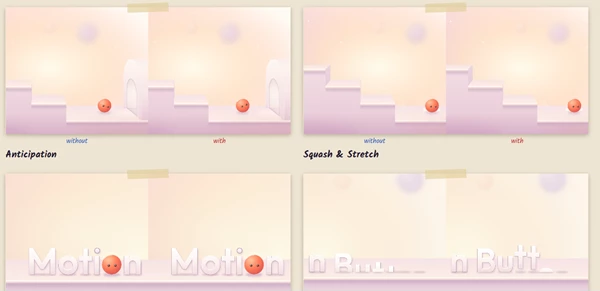
Principles adds movement based on four traditional animation techniques. Each effect uses your existing motion as its reference and stays within the original keyframe timing.
Anticipation
Anticipation adds a small movement in the opposite direction before the main action begins. It works with Position, Rotation, Scale, and Opacity.
If your animation already has a manually keyed wind-up, Motion Butter keeps the original pose.
Squash & Stretch
Squash & Stretch changes an object's shape based on its movement. Objects stretch as they move and squash when they land, while maintaining their volume.
The amount of squash depends on the landing speed. Motion Butter can also recognize a roughly animated bounce, find the floor, and build the flight movement around it.
Follow Through
Follow Through adds delayed secondary movement. Parts of an object can lean or drag behind the main motion before catching up.
For shape layers, the effect can bend the shape itself. This is useful for giving animated elements a less rigid appearance.
Overshoot
Overshoot moves an object beyond its target before bringing it back to the final keyframe.
You can choose between one and five swings. Each swing becomes smaller until the object settles exactly at its original destination.
Combine and Control Animation Principles
Motion Butter lets you apply several principles to the same keyframes. You can combine all four effects or use only the ones your animation needs.
The main controls include:
Overall Slider: Adjusts the combined effect from Subtle to Bold.
Automatic Settings: Starts with values based on the existing motion.
Presets: Choose Auto, Subtle, or Bouncy Pop.
Custom Presets: Save your own combination of settings.
Keep My Easing: Preserve your existing easing when adding principles.
Batch Application: Apply effects to multiple layers in one operation.
When processing several layers, Motion Butter skips any layer that cannot support a selected effect and identifies it.
The principles also follow your keyframes if you change their timing later. You do not need to rebuild the effects after retiming the animation.
Working with Existing After Effects Animations
Motion Butter does not require you to start an animation from scratch. Its tools are designed to work with keyframes that are already in place.
A typical workflow might look like this:
1. Analyze
Check the existing motion and review suggested easing fixes.
2. Ease
Choose a speed curve that matches the desired movement.
3. Add Principles
Apply anticipation, squash, follow through, or overshoot.
4. Adjust and Apply
Set the overall strength and apply the selected effects.
You can use these tools separately or together. For example, a UI animation may only need improved easing, while a bouncing character or animated logo may benefit from additional animation principles.
Analyzer can process an entire composition in one operation, and its changes can be undone with a single undo.

Files Password : gfxplugin.com OR 123456