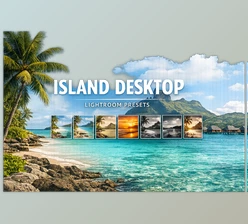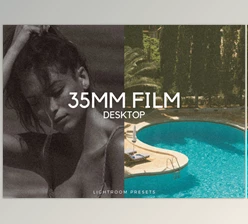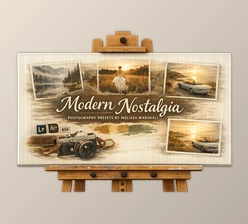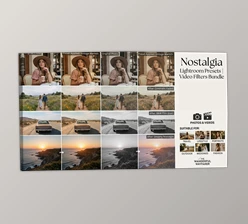
Downloadable Files
You can download Nostalgia Film for free from the bottom of this page.
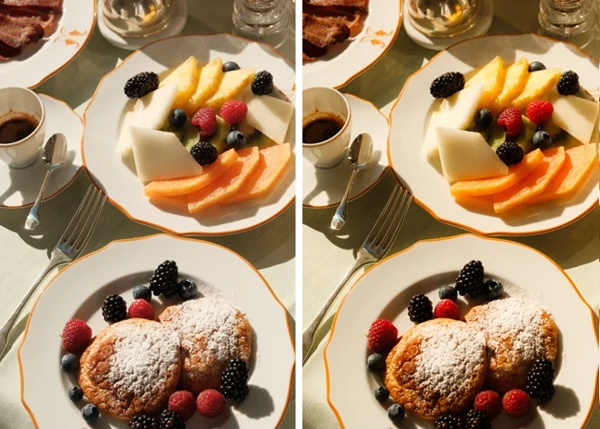
Bring a Soft, Vintage Film Look to Your Photos
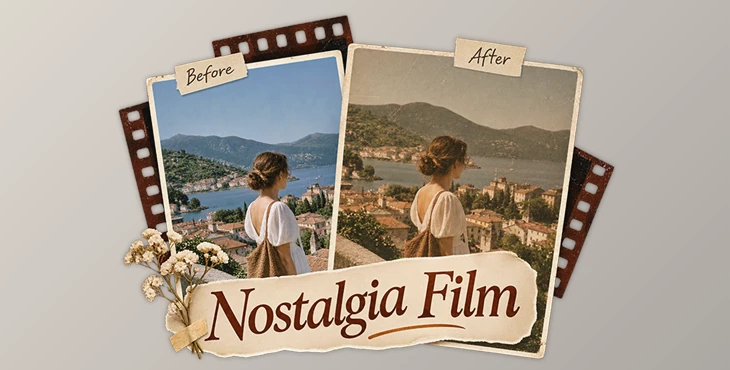
This preset pack by Carssun gives digital photos a soft film look with faded tones and visible grain. It includes 10 presets for Adobe Lightroom Desktop and also works with photos taken on film.
The edits are light and subtle. They add a nostalgic feel without making the photo look too heavily edited. The pack is designed for photographers who prefer a softer, film-inspired style.
Give Your Photos a Soft, Nostalgic Film Look
Nostalgia Film focuses on two main effects: fade and grain. The fade gives photos a softer appearance, while the grain adds texture similar to traditional film photography.
The presets work on digital images as well as film photos. They can be used as a starting point for editing, especially when you want a gentle, nostalgic look.
The final result depends on the original photo and its lighting. Some images may need a few extra changes after applying a preset.
What's Included in Nostalgia Film?
The pack contains 10 Lightroom presets, including nine numbered styles and one black-and-white option.
Nostalgia 01
Nostalgia 02
Nostalgia 03
Nostalgia 04
Nostalgia 05
Nostalgia 06
Nostalgia 07
Nostalgia 08
Nostalgia 09
Nostalgia BW
The numbered presets provide options within the pack's film-inspired style. Nostalgia BW is the black-and-white option for monochrome photography.
How to Install the Presets in Lightroom Classic
Carssun recommends Adobe Lightroom Classic for using these desktop presets.
Follow these steps to install them:
Open Adobe Lightroom Classic on your computer.
Click Lightroom Classic in the top-left menu.
Select Preferences.
Open the Presets tab.
Click Show All Other Lightroom Presets.
Open the CameraRaw folder.
Find and open the Settings folder.
Drag the downloaded preset folder into Settings.
Restart Lightroom Classic and open the Develop tab.
The presets should now appear on the left side of the Develop workspace.
Adjusting the Look After Applying a Preset
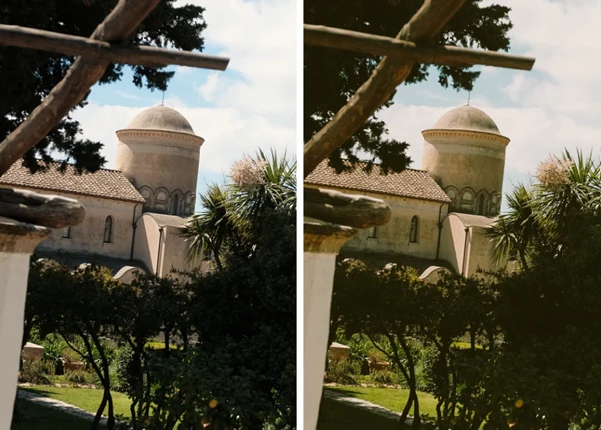
Nostalgia Film presets may not give every photo the exact look you want immediately. Different lighting conditions can affect the final result.
After selecting a preset, you may need to adjust:
Brightness: Make the photo lighter or darker.
Contrast: Change the difference between light and dark areas.
Saturation: Increase or reduce the strength of the colors.
Carssun recommends making these adjustments after applying a base preset, especially when working with photos taken in different lighting conditions.
This approach keeps the original film style while giving you room to adjust the final image to suit your photo.

Files Password : gfxplugin.com OR 123456