Downloadable Files
You can download BentoControl for free from the bottom of this page.
Build and Animate Responsive Bento Grids in After Effects
BentoControl is an After Effects extension for building and animating responsive bento grids. It lets you divide a layout into boxes of different sizes, merge cells, and animate the grid without adjusting every box separately.
Bento grids are often used in UI and SaaS animations, where several panels need to move and resize together. Managing these panels by hand can get complicated, especially when changing one box affects the others. BentoControl handles these relationships through shared edges and dividers.
Build Responsive Bento Grids in After Effects
The main idea behind BentoControl is simple: animate the lines between boxes rather than the boxes themselves.
When you move an outer edge, the grid stretches proportionally. Moving an internal divider changes the sizes of the connected boxes. The layout stays responsive as its lines move.
You can set the spacing and corner rounding for the whole grid, then make separate adjustments to individual boxes.
Design Your Own Grid Layout
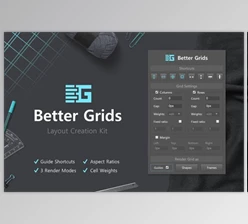
BentoControl includes a visual panel for building grids. You can choose up to 12 rows and 12 columns, set the grid dimensions in pixels, or match the size of your After Effects composition.
The layout editor supports several actions:
Drag across cells to merge them into larger boxes.
Double-click merged cells to split them.
Break divider intersections to create staggered layouts.
Choose fill and stroke settings before creating the grid.
The grid does not need to use equal-sized boxes. You can arrange larger and smaller panels within the same layout.
Three Tabs for Building, Editing, and Rigging
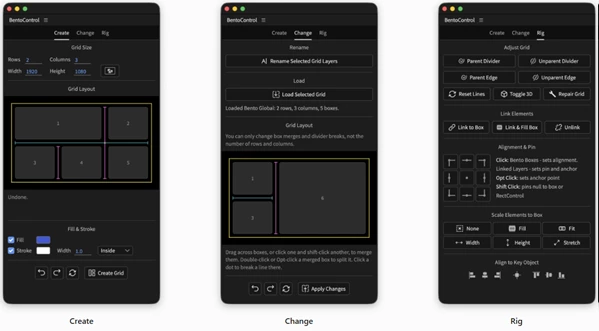
The BentoControl panel separates its tools into three tabs.
Tab | What it does |
|---|---|
Create | Builds a grid with custom rows, columns, merged cells, dividers, fills, and strokes. |
Change | Loads an existing grid so you can merge or split boxes and modify its layout. |
Rig | Manages linked layers, pinning, scaling, edge and divider parenting, alignment, and 3D layer settings. |
To edit a grid after creating it, select one of its layers and load it into the Change tab. You can apply a new layout while preserving existing animation as much as possible.
One important limitation: You cannot add or remove rows or columns from an existing grid. Their number must be decided when the grid is first created.
Global and Individual Box Controls
BentoControl provides two levels of customization. Global settings affect the entire grid, while individual settings change a specific box.
Global Grid Settings
Each grid includes a BentoGlobal control layer with options for:
Grid scaling: Adjust the overall scale, width, or height.
Padding: Set the spacing between internal dividers and outer edges.
Corner rounding: Control rounded corners together or individually.
Corner curvature: Choose convex or concave corners.
Squircle rounding: Create Apple-style rounded panels.
Fill: Control the visibility and color of box fills.
Stroke: Set stroke visibility, color, and alignment inside, outside, or centered.
You can also show or hide the grid's edges and dividers in the composition viewer. These lines are guide layers and do not appear in the final render.
Individual Box Settings
Each box has its own controls for alignment, width, height, corner rounding, fill color, and stroke appearance.
This means one panel can use a different color, size, or corner style without changing the rest of the grid.
Link Layers to Moving Boxes
BentoControl can link After Effects layers to individual grid boxes. Once linked, a layer follows its box as the layout moves or resizes.
Each linked layer has its own pin position and scaling behavior.
Nine pin positions
Layers can be pinned to a corner, the center, or the midpoint of any side of a box.
The available scaling modes are:
Mode | Behavior |
|---|---|
None | No automatic scaling |
Fill | Fill the linked box |
Fit | Fit the layer inside the box |
Width | Scale based on box width |
Height | Scale based on box height |
Stretch | Stretch to the box dimensions |
Multiple layers can be connected to the same box, each with different pinning and scaling settings.
Gradient Fill and Gradient Stroke start and end points can also be attached to any of the nine positions.
Use BentoControl with RectControl
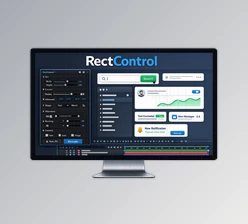
BentoControl supports linking layers created with the RectControl extension. This provides additional ways to control rectangles inside a grid.
A linked RectControl layer can:
Follow any of the nine pin positions inside a box.
Set its width or height as a percentage of the box dimensions.
Add pixel adjustments to those dimensions.
Match the box's corner rounding exactly or concentrically.
Use independent corner rounding instead.
Link to another RectControl layer.
Hold other pinned elements inside itself.
RectControl layers can also have their own animation while following the movement of a BentoControl box.
When a dimension or rounding link is disabled, the corresponding property returns to its normal RectControl settings.
Create Nested and Animated Grids
BentoControl supports grids inside other grids. You can place a BentoControl grid within a box of another BentoControl grid or inside a RectControl layer.
The nested grid automatically scales with its parent, but its dividers can still have independent animation.
Nested grids can contain their own linked elements, RectControl layers, and additional grids. Their corner rounding can match the outer box, use concentric rounding, or remain independent.
This setup is suitable for layouts with several levels of panels, such as detailed product interface animations or UI presentations.
Where BentoControl Fits into a Project
BentoControl is designed for After Effects projects that use moving panel layouts, especially UI and SaaS animations.
It is particularly relevant when a design contains boxes that must resize together, content that needs to follow moving panels, or several connected grids with separate animations.
The combination of responsive dividers, individual box settings, and nested layouts lets you manage these designs through the grid structure rather than maintaining each panel's movement independently.

Files Password : gfxplugin.com OR 123456