Downloadable Files
You can download Super Resolution for free from the bottom of this page.
Upscale Videos with AI-Generated Detail
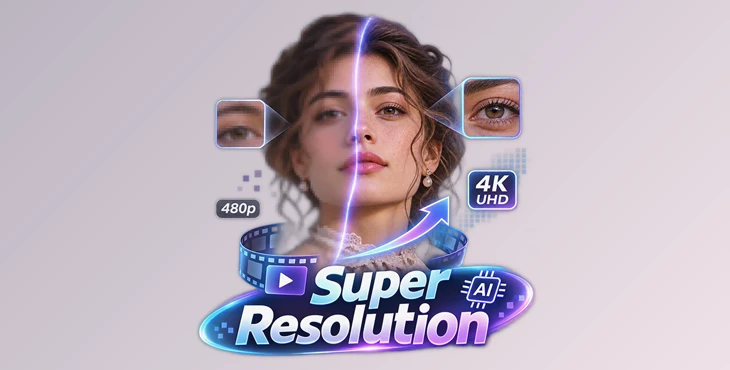
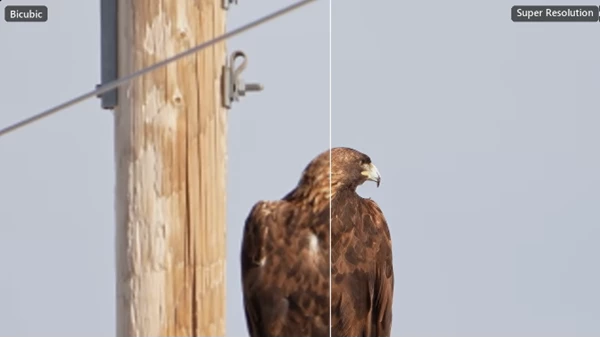
Super Resolution is an AI upscaling plugin that increases video resolution by 2x or 4x. It uses AI models to create new image details rather than simply stretching existing pixels. A 1080p video can become 4K or 8K, while lower-resolution footage can be enlarged to HD.
The plugin works with After Effects, Premiere Pro, DaVinci Resolve, and Nuke. It includes five AI models for different types of footage, from camera recordings to cartoons and animation.
Processing takes place on your computer, using the GPU when available. Your video files are not uploaded to an external server.

Five AI Models for Different Footage
Super Resolution includes five models with different strengths. Choosing the right one depends on the quality of the original video and the type of detail you want.
AI Model | Main Purpose |
|---|---|
RealPLKSR 4x | Default model for camera footage, including skin, hair, and fine details |
Real-ESRGAN 4x | Upscaling noisy or heavily compressed footage |
Real-ESRGAN 2x | Enlarging footage to twice its original resolution |
Real-ESRGAN Cartoon 4x | Upscaling cartoons and animated content |
4xNomos8kDAT | Producing detailed final renders, with slower processing |
RealPLKSR is the default option for most photographic footage. For videos with visible compression or noise, Real-ESRGAN may be a better choice.
The 4xNomos8kDAT model focuses on detailed output but takes longer to process each frame.
How Much Can You Increase Resolution?
The output resolution depends on the original frame size and the selected model.
Original Resolution | 2x Upscaling | 4x Upscaling |
|---|---|---|
960 × 540 | 1920 × 1080 | 3840 × 2160 |
1920 × 1080 | 3840 × 2160 (4K) | 7680 × 4320 (8K) |
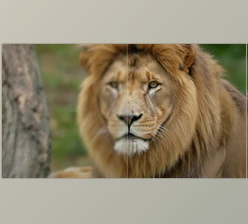
Unlike bicubic scaling, which enlarges existing pixels through interpolation, Super Resolution generates image details based on patterns learned by its AI models.
However, the generated details are estimates. The plugin cannot recover text or facial information that does not exist in the original footage. Close-up results should be checked carefully.
Different Controls for Each Editing Software
Super Resolution provides different controls to match how each supported application handles video resolution.
After Effects: Expand Output
In After Effects, Expand Output increases the actual dimensions of the processed layer.
A 1920 × 1080 layer can become:
3840 × 2160 with a 2x model.
7680 × 4320 with a 4x model.
The larger layer can then be placed inside a higher-resolution composition or used for reframing.
Turning off Expand Output keeps the layer at its original dimensions.
Premiere Pro: Zoom In
Premiere Pro sequences have fixed frame dimensions. Because of this, Super Resolution includes a Zoom In feature that enlarges a selected region of the video to fill the frame.
Two controls are available:
Zoom Amount: Sets the zoom level, up to the maximum scale of the selected AI model.
Zoom Center: Chooses which part of the image should be enlarged.
For instance, with a 4x model, a quarter of the frame's width and height can be enlarged to fill the output frame.
This is useful when an editor needs a closer view of a subject without relying on standard timeline scaling.
DaVinci Resolve: Source Size
DaVinci Resolve normally scales footage to match the timeline before applying effects.
Super Resolution includes a Source Size setting that tells the plugin the original size of the video relative to the timeline.
Available options include:
1/2 of the timeline size
1/3 of the timeline size
1/4 of the timeline size
The plugin uses this information to rebuild the image from its smaller source resolution.
DaVinci Resolve also supports the Zoom In controls for enlarging selected areas.
GPU Memory and Tile Processing
Upscaling large video frames requires memory, especially when using 4x models.
Super Resolution includes a Tile Size setting in Advanced Settings. It divides each frame into smaller sections, processes them separately, and joins them together.
For example, when a GPU runs out of memory, Tile Size can be reduced from 512 to 256.
The plugin uses overlapping regions between tiles to prevent visible lines where the sections meet.
Processing speed depends on the selected AI model and frame size. Frames that have already been rendered with the same settings can be reused without running the upscaling process again.
When to Use Super Resolution
Super Resolution is designed for projects where the source footage has a lower resolution than the required output.
Common uses include:
HD to 4K: Enlarging 1080p recordings for 4K video projects.
HD to 8K: Creating larger frames for high-resolution output or reframing.
SD to HD: Increasing the resolution of older, smaller video files.
Video cropping: Enlarging a specific area of footage with the Zoom In feature.
Cartoon upscaling: Processing animated footage with the dedicated Cartoon model.
Compressed footage: Using Real-ESRGAN on videos affected by noise or compression.
The main difference between Super Resolution and regular scaling is how the enlarged image is produced. Standard scaling calculates new pixels from existing ones, while Super Resolution uses AI to generate additional visual detail.

Files Password : gfxplugin.com OR 123456