Downloadable Files
You can download More Motion Blur for free from the bottom of this page.
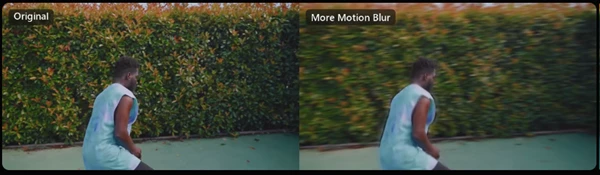
Add Realistic Motion Blur to Your Footage After Shooting
This AI-powered plugin adds motion blur to videos and animations after they have been recorded or rendered. It works with After Effects, Premiere Pro, DaVinci Resolve, and Nuke.
More Motion Blur studies how objects move between frames and adds blur in the same direction. It works on real footage, 3D renders, and stop-motion animation. You can control the blur strength, use motion from another layer, and keep transparent edges.
Add Natural Motion Blur After Recording
Videos recorded with a fast shutter often have very sharp frames, even when objects are moving quickly. More Motion Blur helps change this look without recording the footage again.
The plugin uses an AI model called RIFE to study movement between two frames. It tracks where pixels move from the previous frame to the current one. Then it creates positions between those frames and blends them to produce motion blur.
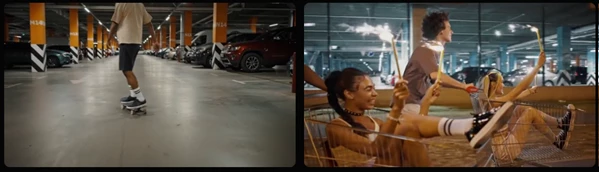
Different parts of the image receive blur based on their movement. A moving car gets a streak along the road, while the stationary background can remain sharp.
The plugin can also handle fast or overlapping movements, such as moving hair, hands, and crowds.
Motion Blur Settings and Controls
More Motion Blur has four main controls for adjusting the result.
Strength
Strength controls how long the motion streaks appear.
At 100%, the result is similar to a 360-degree camera shutter. Higher values produce longer streaks that go beyond what a physical camera shutter can create.
The maximum Strength is 500%, so you can create anything from light motion blur to a strong motion effect.
Blur Samples
Blur Samples controls how many positions are blended to create the blur.
You can choose between 3 and 50 samples.
3 samples: Produces visible steps or separate copies during long movements.
30 samples: The default setting, which produces smoother motion streaks.
50 samples: Uses more positions to build the blur.
Using fewer samples can make previews faster. You can increase the value when preparing the final render.
Motion Source
Motion Source lets you use movement information from another layer.
For example, you can take motion from a clean video layer and apply it to a color-graded copy, matte, or separate CG render pass. This keeps the blur consistent between layers that share the same movement.
Show Motion Vectors
Show Motion Vectors displays arrows showing the movement detected by the AI model.
The arrows help you check whether the plugin has understood the direction of movement correctly. You can also choose their color.
This setting is useful when the blur does not follow an object as expected.
Alpha Channel and Transparent Layers
More Motion Blur supports layers with transparency, including keyed subjects and separate render passes.
The plugin applies motion blur to both the color and alpha channel. This means transparent areas remain transparent while moving edges receive matching blur.
For projects with multiple layers, Motion Source can use the original footage to keep movement consistent across the different elements.
Where More Motion Blur Works Best
The plugin is designed for footage that needs additional motion blur after recording or rendering.
Some common uses include:
Sports and action footage: Add motion streaks to fast-moving subjects.
Phone and action camera videos: Add blur to footage recorded with a fast shutter.
3D animation: Apply motion blur to renders that were created without it.
Stop-motion animation: Add blur between sharp frames.
Compositing: Apply matching motion blur to keyed subjects, mattes, and separate CG passes.
More Motion Blur only adds blur. It cannot remove motion blur that is already present in the original footage.
Software Compatibility and Performance
More Motion Blur supports Windows and macOS, including Apple Silicon Macs.
| Software | Supported Version |
|---|---|
| Adobe After Effects | 2022 or later |
| Adobe Premiere Pro | 2022 or later |
| DaVinci Resolve | 18 or later |
| Nuke and NukeX | 14 or later |
The plugin processes motion locally on your computer. It can use GPU acceleration when a GPU is available, or run on the CPU.
It analyzes motion once per frame and then uses the calculated movement to create the blur samples. Lower sample settings can help speed up previews during editing.
The original footage is not uploaded to an external server.
More Motion Blur is useful when you want to change the appearance of movement after a video has already been shot or an animation has been rendered. Its AI motion tracking, adjustable Strength, and support for separate layers give you control over how moving objects appear in the final image.

Files Password : gfxplugin.com OR 123456