Downloadable Files
You can download AE Clouds for free from the bottom of this page.
Build Real 3D Clouds Inside After Effects
AE Clouds is an After Effects plugin for creating volumetric 3D clouds and ground fog. Unlike a flat cloud image or stock footage, each cloud has real volume. You can place it in 3D space, change its shape, add sunlight, and move your composition camera around it.
The plugin renders clouds directly inside After Effects using ray marching. You don't need a separate 3D application or cloud footage. It includes eight presets, from realistic cumulus clouds to anime-style clouds and low mist.
AE Clouds is made for sky replacement, VFX shots, matte paintings, fly-through animations, music videos, and motion graphics.
Eight Cloud and Fog Presets
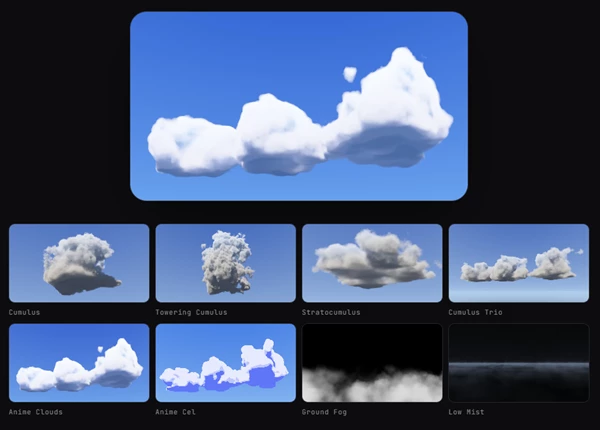
AE Clouds comes with eight presets. Each one gives you a different starting shape or style, and all settings remain editable.
| Preset | Description |
|---|---|
| Cumulus | A natural, rounded cloud shape |
| Towering Cumulus | A taller cumulus formation |
| Stratocumulus | A layered cloud formation |
| Cumulus Trio | A group of cumulus clouds |
| Anime Clouds | Stylized clouds for animated scenes |
| Anime Cel | Clouds with flat, cel-shaded lighting |
| Ground Fog | A bank of fog close to the ground |
| Low Mist | Soft mist for atmospheric scenes |
When you select a preset, the plugin places the cloud in front of your camera and applies its starting appearance. You can then edit its size, material, lighting, and position.
Shape and Control Your Clouds
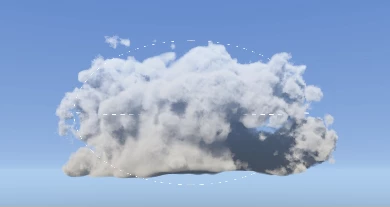
AE Clouds includes several controls for changing the cloud's volume and surface.
Coverage: Changes how much of the volume is filled with clouds.
Density: Controls how thick the cloud appears.
Scale: Changes the cloud's overall formation.
Detail: Adjusts the smaller details in its shape.
Edge Softness: Makes cloud edges softer or more defined.
Random Seed: Generates a different cloud formation.
Base Flatness: Changes the underside from round to flat.
Base Flatness is helpful when making cumulus clouds. At 100, the bottom is completely level. At 0, the cloud becomes rounded on all sides.
The Radius setting works differently from Random Seed. It changes the cloud's size while keeping its existing formation. The individual cloud shapes stay in place, and their evolution continues at the same speed.
Each layer can contain up to eight clouds or one fog bank. Wind and evolution controls add movement to the formation.
Camera Movement and Sunlight
Move Around Clouds with a 3D Camera
AE Clouds reads the camera in your After Effects composition, including its position, rotation, zoom, and keyframes.
You can place clouds in metres and move them through 3D space. The Create Camera and Create Null options provide layers that you can animate.
This setup supports camera movements around clouds, close-up shots, and fly-through sequences. The plugin also supports 3D motion blur.
Change the Time of Day with One Sun
The lighting system uses one sun, similar to a key light. You can change its direction and colour, then use two shadow colours to control the darker parts of the clouds.
Sun Elevation can be animated, so the lighting changes over time. The same cloud can appear under warm golden-hour sunlight, strong backlighting, an overcast sky, or dusk lighting.
The Lighting and Sky settings work together to control the overall appearance of the scene.
Switch Between Realistic and Anime Clouds
AE Clouds uses the same cloud volume for photographic and cel-shaded styles.
Two settings control the stylized appearance:
Shading Steps: Divides the lighting into flat bands instead of smooth shading.
Flat Colors: Lets you choose the colour of each shading band.
Shading Steps can be keyframed. This means a cloud can change from realistic shading to an anime cel look during a shot without replacing the cloud.
Add Clouds and Mist to Existing Footage
AE Clouds offers three output modes:
Sky + Clouds: Renders the clouds together with the sky.
Clouds Only: Renders clouds with transparency for compositing.
Composite on Original: Composites the effect over the original image.
The Clouds Only mode is particularly useful for placing fog or clouds over recorded footage.
The package also includes AE Clouds Sky Match, a separate effect that reads the sky, sun, and camera from a plate to help match the rendered cloud to the shot.
There is one important limitation: AE Clouds renders as a layer. It does not automatically key or mask your footage. Other layers appear in front of or behind the cloud, but they cannot be placed inside its volume.
Rendering and Compatibility
AE Clouds supports 8-bit, 16-bit, and 32-bit colour processing, along with Multi-Frame Rendering.
| Requirement | Details |
|---|---|
| Software | After Effects 2025 and later |
| macOS | macOS 12 or later |
| Windows GPU | NVIDIA CUDA |
| Mac GPU | Metal |
| Other GPUs | CPU fallback |
| Rendering quality | Draft, High, Ultra |
| Included guide | PDF documentation |
The plugin renders each frame as a volumetric 3D effect. GPU rendering can take under a second per frame at 1080p, although performance depends on the scene and hardware. CPU rendering is slower.
For editing, Draft quality reduces the rendering load. High and Ultra are available for final output.
AE Clouds should be applied to a composition-sized solid so its 3D clouds align correctly with the composition camera.
To begin, create a solid, apply AE Clouds, select a preset, and adjust the sun and cloud settings. From there, the cloud can be positioned and animated using the composition camera.

Files Password : gfxplugin.com OR 123456