Downloadable Files
You can download expressCode for free from the bottom of this page.
Write and Manage After Effects Expressions More Easily
Writing expressions in After Effects can become difficult when your project has many layers. Finding the right property, checking code for errors, and updating the same expression in different places can take a lot of time.
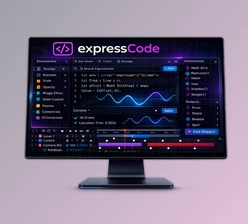
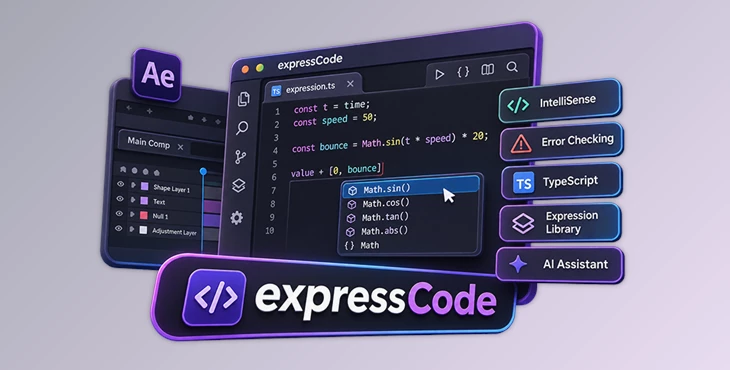
expressCode brings a VS Code-style editor directly into After Effects. It gives you code suggestions, real-time error checking, TypeScript support, and a library for saving expressions and scripts. You can work with expressions across your composition from one panel without searching through the timeline.
Write and Edit Expressions with VS Code Tools
expressCode uses the Monaco Editor, the same code editor technology used in Visual Studio Code. It offers several tools that make writing and managing code more convenient.
One of its main features is IntelliSense, which suggests code while you type. It provides autocomplete, parameter hints, and documentation when you hover over supported code.
The editor also includes:
Syntax highlighting: Makes different parts of your code easier to read.
Multi-cursor editing: Edit several parts of your code at the same time.
Find and replace: Search for code and replace it without checking every line.
Keyboard shortcuts: Use familiar editing shortcuts to work faster.
These features are available inside After Effects, so you can write and edit expressions without moving to a separate code editor.
Find and Fix Code Errors While Typing
Small mistakes in an expression can stop it from working correctly. Finding these problems in the After Effects timeline is not always easy.
expressCode uses TypeScript-powered error checking to identify problems as you write. Errors appear directly in the editor with messages that help you understand what needs fixing.
TypeScript Support
expressCode supports modern TypeScript, including type checking and IntelliSense.
After writing your code, the tool automatically converts TypeScript into ES3, the older JavaScript format used by the After Effects expression engine.
It also adds the necessary helper functions during conversion to support modern language features.
This means you can work with modern coding tools while keeping the resulting expressions compatible with After Effects.
Save Expressions and Scripts in Your Own Library
When you use the same expressions in different projects, rewriting or copying them each time is unnecessary.
expressCode includes a built-in library where you can save your expressions and scripts for later use.
You can organize your code, search through saved items, and apply an expression to multiple selected layers with one click.
Libraries can also be shared with other team members. This helps people working on the same project use consistent expressions and scripts.
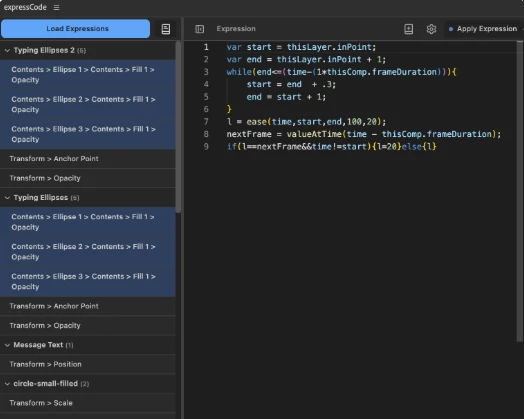
Manage Multiple Expressions at Once
A composition may contain several layers that use identical or related expressions. Updating each one separately can become repetitive.
expressCode includes batch editing tools for working with multiple expressions at the same time.
Its main navigation and batch tools include:
Tool | What it does |
|---|---|
Batch Operations | Edit multiple selected expressions simultaneously. |
Select Identical Expressions | Find and select expressions matching the currently loaded expression. |
Expression Search | Search expressions across your composition. |
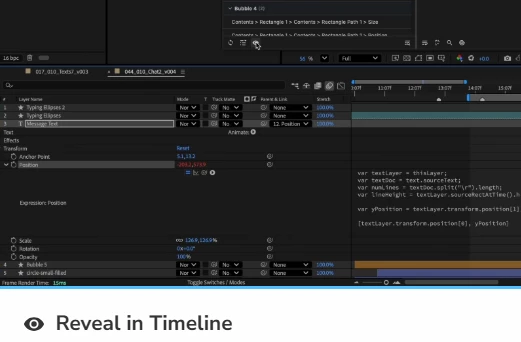
Reveal in Timeline | Jump to an expression's location in the After Effects timeline. |
Auto-Highlight Layers | Scroll to and highlight expressions related to layers selected in the timeline. |
Auto-Highlight Layers can be disabled in the settings if you prefer to navigate manually.
These tools are particularly helpful when several layers need the same code change or when you need to locate an expression in a large composition.
Connect AI Assistants to Write and Fix Code
expressCode supports optional connections to external AI assistants. You can describe what you need in plain language and ask the assistant to write expressions, create scripts, or help fix code.
Supported options include Claude, ChatGPT Codex, Gemini CLI, and local models through LM Studio.
expressCode provides one-click configuration for supported AI apps, connecting them directly to the panel.
Once connected, an AI assistant can:
Read project information and layers.
Access expression and scripting references.
Write and apply expressions.
Run scripts when permission is enabled.
Render a frame to check the result.
The panel includes an activity log showing AI tool calls and rendered frame previews.
AI is optional. expressCode does not include its own AI model or send data to an AI service by default. You decide whether to connect an external assistant and whether it can run scripts or apply expressions.
Is expressCode Useful for Your Workflow?
expressCode is designed for After Effects users who work with expressions and scripts frequently. Its main advantage is bringing code editing, error checking, expression management, and timeline navigation together in one panel.
For projects with many expressions, the library and batch editing tools are especially valuable. TypeScript and IntelliSense provide additional support when writing code, while the optional AI connection offers another way to create and troubleshoot expressions using natural language.

Files Password : gfxplugin.com OR 123456