Downloadable Files
You can download EdgeForm for Photoshop for free from the bottom of this page.
Clean Up and Reshape Layer Edges in Photoshop
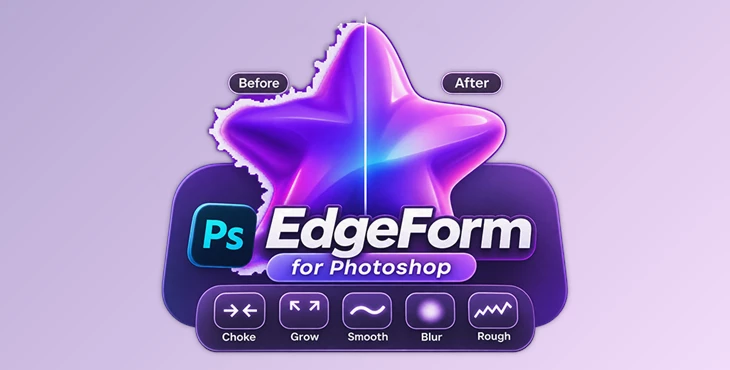
Cleaning up the edges of an image in Photoshop can take extra work, especially when a cut-out has unwanted borders or rough outlines. EdgeForm is a Photoshop plugin by Pixel Dept that helps you fix these problems directly on a layer.
It works with the layer's transparency and gives you a live preview of every change. You can shrink, extend, smooth, blur, or roughen edges without creating selections, masks, or long filter chains. It's useful for cleaning up product photos, stickers, text, and other graphics.
Five Ways to Edit Layer Edges
EdgeForm has five editing modes. Each one handles a different type of edge adjustment.
1. Choke – Remove Unwanted Borders
Choke pulls the edge of a layer inward. It helps remove light or dark halos and small pieces of background left around a cut-out.
The Amount setting controls how many pixels are removed from the edge. Usually, one to three pixels is enough, but you can enter a custom value beyond the slider range.
2. Grow – Extend Layer Edges
Grow moves the edge outward and fills the new area using colors from the object's outer edge. This helps the extended area blend with the original image.
The mode includes three controls:
Amount: Sets how far the edge extends.
Grow Fill: Choose between Solid and Soft Edge.
Feather: Adds softness to the new outer edge.
3. Smooth Edge – Fix Jagged Outlines
Some selections leave edges that look rough or stair-stepped. Smooth Edge cleans up these outlines while keeping them sharp.
Smoothness controls how much the edge is smoothed, while Edge Sharpness determines whether the result has a crisp one-pixel edge or a softer outline.
For images with hair or small details, lower smoothness values are recommended.
4. Blur Edge – Soften the Outline
Blur Edge softens the outside of an object without making the entire layer blurry. The blur gradually fades toward the center, keeping the main part of the image sharp.
Three settings control the result:
Blur Level: Adjusts the blur strength.
Blur Depth: Sets how far the blur reaches inside the object.
Falloff: Controls how gradually the blur fades inward.
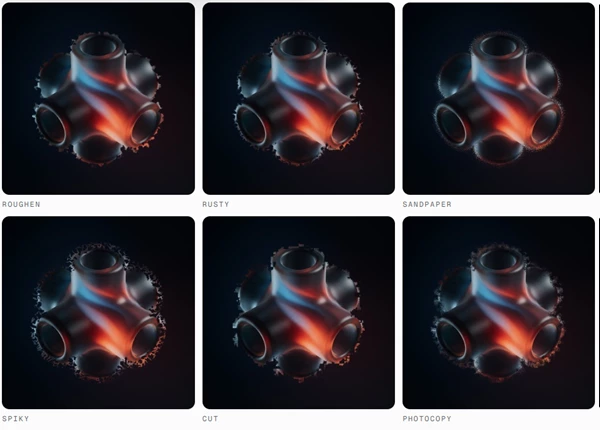
5. Rough Edges – Create Uneven Borders
Rough Edges changes a clean outline into an uneven or textured one. It works in a similar way to the Roughen Edges effect in After Effects.
There are six edge styles:
| Style | Edge appearance |
|---|---|
| Roughen | Irregular, rough outline |
| Rusty | Rust-like edges |
| Sandpaper | Grainy, sandpaper-like border |
| Spiky | Sharp, pointed edges |
| Cut | Uneven cut-style outline |
| Photocopy | Photocopy-style edges |
You can change the result with settings such as Border, Edge Sharpness, Fractal Influence, Scale, Stretch, and Complexity.
If the selected layer has a layer mask, this mode roughens the mask's edge instead.
How to Use EdgeForm in Photoshop
EdgeForm uses a simple three-step process:
Select a layer: Choose a layer with transparency and click Start EdgeForm on Active Layer.
Choose a mode: Pick an edge effect and adjust the settings. The result updates directly on your layer as you move the sliders or enter values.
Finish or Cancel: Click Finish to keep your changes, or Cancel to restore the original layer exactly.
The plugin has a compact panel with exact pixel and percentage values. Every setting also has a reset option.
If a layer is locked, EdgeForm unlocks it during the editing session and restores its original locks afterward. The panel follows Photoshop's light or dark interface theme.

Files Password : gfxplugin.com OR 123456