Downloadable Files
You can download Timeline Memory for free from the bottom of this page.
Bring Back Your Original Cuts After Dynamic Link
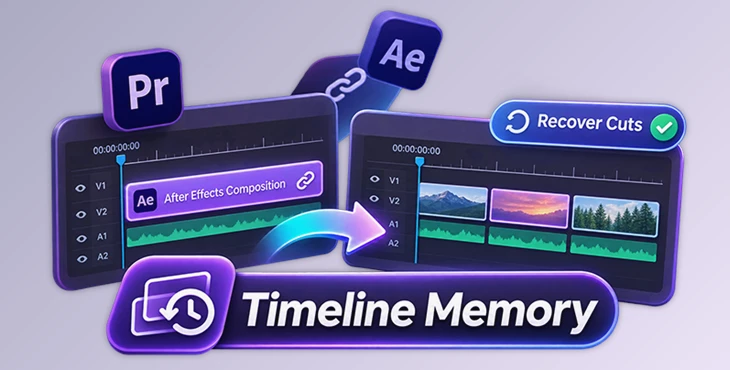
This Premiere Pro panel helps you recover available source clips and cuts after using Dynamic Link with After Effects. It lets you save a copy of your timeline before replacing clips with an After Effects composition. Later, you can review the detected source clips and restore the available parts of your original edit.
Recover Your Original Cuts After Dynamic Link
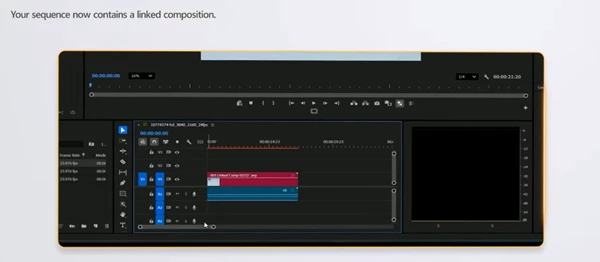
When you use Replace With After Effects Composition in Premiere Pro, selected clips are replaced by a linked After Effects composition. This can make it difficult to return to the original clips and edit points.
Timeline Memory helps with this problem by recording your timeline before you send clips to After Effects. It keeps information about the original edit, including available source segments and their positions.
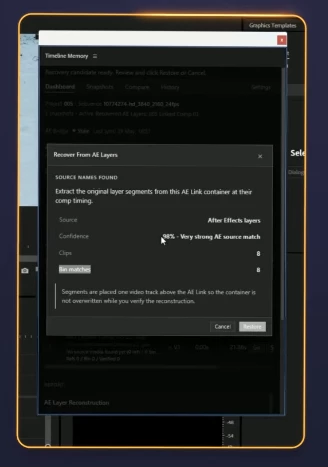
When you need to recover your cuts, the panel checks the available project data and looks for matching source clips. You can review the results before restoring anything to your sequence.
Recovery is not always complete. The result depends on the project information and media that are still available.
How Timeline Memory Recovery Works
Timeline Memory uses a three-step process to protect and recover your edit.
1. Save a Recovery Point
Before sending clips to After Effects, save a recovery point in Timeline Memory. This records the timeline information you may need later.
2. Review Source Matches
After working with the linked composition, open Timeline Memory and inspect the detected source clips. The review window shows the available matches and recovery details.
3. Restore Available Cuts
Confirm the recovery to restore the available clip segments and their timeline positions. Once the process is complete, check the recovered clips in your Premiere Pro sequence.
The review step is important because Timeline Memory only restores the source segments it can find from the available data. You can inspect the matches before making changes to your edit.
Timeline Snapshots and Comparison Tools
Besides recovering cuts, Timeline Memory includes tools for keeping track of your timeline.
Timeline Snapshots: Save and manage records of your edit at different points.
Snapshot Comparison: Compare a saved snapshot with the current timeline to review changes.
Operation History: Look through recorded operations.
AE Link Detection: Review detected After Effects links in your project.
JSON Backup: Export saved Timeline Memory data to a JSON file for backup.
These tools are helpful when your Premiere Pro project contains several edits or linked After Effects compositions. You can keep records of your timeline and check how the current sequence compares with an earlier snapshot.
Important Recovery Limitations
Timeline Memory is designed to recover available timeline information, but it cannot guarantee that every original clip or cut will be restored.
There are a few important points to keep in mind:
Recovery depends on the project data and source media available.
Some original segments may not be recoverable.
Detected source matches should be reviewed before restoration.
Recovered clips should be checked in the Premiere Pro sequence.
A separate copy of your Premiere Pro project should be kept before recovery.
Saving a recovery point before using Dynamic Link gives Timeline Memory a record of the original edit to work with.
When Should You Use Timeline Memory?
Timeline Memory is mainly for Premiere Pro editors who send clips to After Effects through Dynamic Link.
It is particularly helpful when you replace several edited clips with one After Effects composition and later need access to their original cuts.
The snapshot and comparison tools are also useful for reviewing timeline changes during editing. You can keep a record of your work, compare earlier edits with the current sequence, and inspect detected AE links.
The main purpose of Timeline Memory is to help you return from a linked After Effects composition to the available parts of your original Premiere Pro edit, while giving you a chance to review the recovery results before applying them.

Files Password : gfxplugin.com OR 123456