Downloadable Files
You can download Disintegration Pro for free from the bottom of this page.
Turn Objects into Cinematic Particle Effects
This GPU-accelerated plugin for Adobe After Effects creates particle disintegration effects, making objects appear to break apart into small pieces. It uses a 2.5D particle system with physics controls, so you can decide how particles move, spread, and react to different forces.
Disintegration Pro gives you control over the entire breakup effect. You can change particle textures, adjust wind and gravity, guide particles along a path, and add depth blur. It also supports 32 bits per channel (32 BPC) and Multi-Frame Rendering (MFR).
Create Realistic Particle Breakups with Physics
A disintegration effect looks more natural when particles move with different forces rather than simply spreading in one direction.
Disintegration Pro includes several physics controls that affect how particles behave after they break away from the source layer.
Wind: Pushes particles in a chosen direction and changes how they move through the scene.
Gravity: Adds a downward force to particle movement.
Drag: Controls resistance as particles travel.
Turbulence: Adds irregular movement to make the breakup less uniform.
Velocity: Controls particle movement speed.
Directional Force: Changes the direction and strength of particle movement.
You can combine these settings to create different breakup styles. A gentle disintegration might use slower movement and lighter forces, while a stronger effect can send particles away from the object more quickly.
Create Stronger Bursts with Explode
The Explode option gives the breakup more force without requiring you to build a separate particle setup.
Switching it on creates a stronger burst, making the disintegration more energetic. This works well when you want an object to break apart suddenly rather than slowly disappear.
Customize Particle Textures and Edge Colors
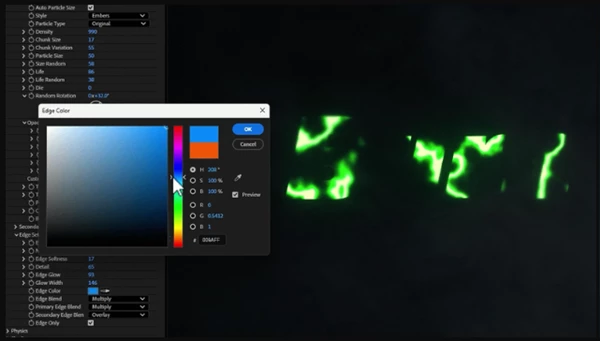
Particle appearance is another important part of the effect. Disintegration Pro supports custom textures, allowing you to use your own image or texture to define how the particles look.
This means the particle design does not have to stay the same for every project. You can choose a texture that fits the visual style you want.
The plugin also provides two controls for the breakup boundary:
Edge Color: Changes the color of the disintegration edge.
Edge Only: Isolates the breakup boundary so you can work with the edge separately.
These options are helpful when the edge of the disappearing object needs a specific color or visual treatment.

Control Particle Direction with Path Flow
Mask-based particle animation
Path Flow lets you guide particles along a path instead of relying only on physics forces.
You can draw a mask in After Effects and use it as a path for particle movement. The plugin then drives particles along that path while supporting your custom particle texture.
This gives you a way to create more controlled disintegration animations. For instance, particles can follow a curved path rather than spreading randomly across the frame.
Path Flow is particularly helpful when particle movement needs to match a specific direction or shape in your composition.
Add Depth with Z-Space Wind and Focus
Although Disintegration Pro uses a 2.5D particle system, it includes controls that create a stronger sense of depth.
Two features handle different parts of this effect.
Feature | What it does |
|---|---|
Z-Space Wind | Moves particles forward and backward along the Z-axis to create depth in their movement. |
Depth Blur | Softens particles based on their distance. |
Focus | Controls which parts of the particle field stay sharp. |
Z-Space Wind adds another direction to particle movement. Instead of staying within a flat plane, particles can travel toward or away from the viewer.
Depth Blur and Focus change how the particle field appears. Distant particles can become softer, while selected areas remain sharp.
Together, these settings help create a more cinematic look with visible separation between particles.

Files Password : gfxplugin.com OR 123456