Downloadable Files
You can download Layer Thief for free at the bottom of this page.
Copy and Transfer Layer Properties in After Effects
Moving properties between layers in After Effects often involves more than copying and pasting a few values. A layer may contain multiple effects, animated transforms, expressions, masks, text animators, and other settings that all need to be transferred without losing their original behavior. Repeating this process across several layers or compositions can quickly become tedious.
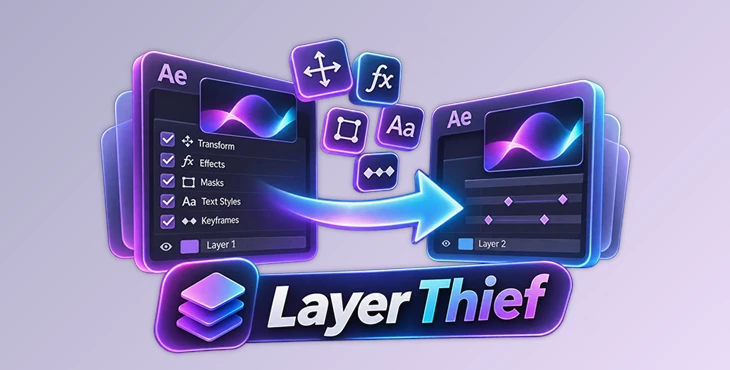
Layer Thief by Aescripts provides a centralized way to copy, transfer, and adjust almost any layer property. It can handle everything from individual transform values to complete effect stacks, text formatting, animation data, camera settings, and even 3D material properties.
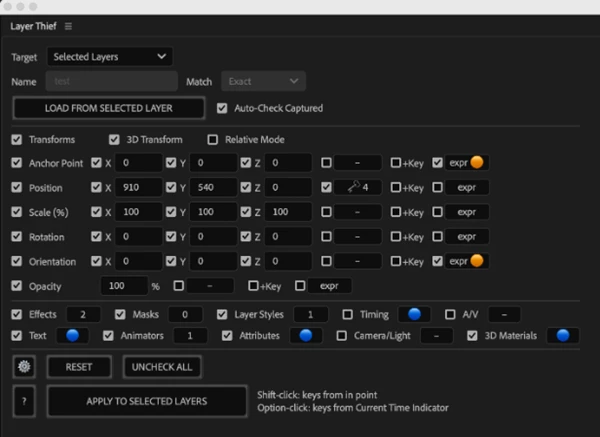
Copy Almost Any Property Between Layers
Layer Thief gives you direct access to the properties of a source layer through its dedicated interface. After loading a layer's information, you can choose exactly which attributes to transfer to one or more target layers.
Supported properties include:
Transform values such as Anchor Point, Position, Scale, Rotation, Orientation, and Opacity.
Effects, including third-party plugins and their settings.
Masks and Layer Styles.
Text Styles, Source Text, and Text Animators.
Expressions and Keyframes.
Parenting relationships, Track Mattes, Blending Modes, and layer switches.
Camera, Light, and 3D material settings.
The interface also displays indicators showing how many keyframes, effects, masks, Layer Styles, and animators have been captured. Additional indicators identify expressions, 3D materials, and text information.
You can apply all selected properties together or use individual pop-up controls to manage each category separately. This is particularly useful when you want to transfer only a few attributes without changing the rest of the target layer.
Precise Transform Transfers Across Different Layers
Layer Thief provides individual controls for the main transform properties, including Anchor Point, Position, Scale, Rotation, Orientation, and Opacity.
One useful detail is its independent X, Y, and Z controls. You can choose which coordinates to transfer and leave the others untouched. For instance, you can copy only the X and Y Position values while keeping the target layer's existing Z coordinate.
The tool also supports 3D rotations, Orientation, and Point of Interest for 3D layers, cameras, and lights.
Another important feature is Auto-Separation. After Effects can separate Position into individual X, Y, and Z dimensions. Layer Thief automatically detects whether the target layer uses Separate Dimensions and handles the coordinate transfer accordingly.
You can also choose between applying properties through expressions or keyframes. Individual transform properties support creating new keyframes or editing and applying expressions directly through the interface.
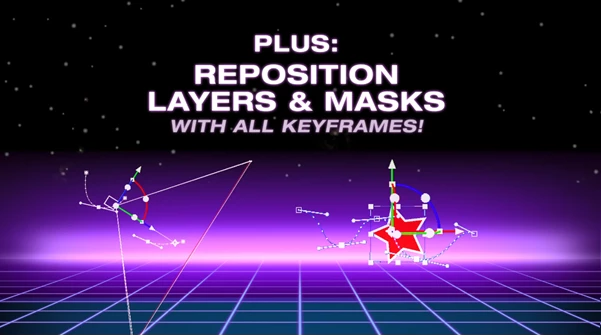
Preserve Original Keyframe Animation and Timing
Copying keyframes isn't always enough to reproduce an animation accurately. Their timing, interpolation, and motion characteristics also determine how the animation behaves.
Layer Thief captures the underlying animation information, including:
Keyframe speed and influence.
Continuous Temporal Ease.
Spatial Bezier handles.
Roving keyframes.
Original keyframe timing.
This means transferred animations retain their original motion characteristics rather than simply copying numerical values.
There are also two useful alignment options:
Shift-Click: Offsets the pasted keyframes so the animation starts at the target layer's In-point.
Alt/Option-Click: Aligns the first keyframe with the current playhead position (CTI).
Time Remapping properties are supported as well, with their original keyframe timing and animation behavior preserved during transfer.
Transfer Text Formatting Without Replacing the Original Content
Layer Thief has dedicated controls for transferring typography settings between text layers. One of its most useful capabilities is separating text formatting from the actual words.
For example, when working with multiple lower thirds, you might need to change the font family, tracking, vertical scale, or stroke-over-fill settings across dozens of titles. Normally, copying an entire text setup could also replace the names or other wording in those layers.
Layer Thief can transfer Character, Paragraph, and Layout parameters while keeping the destination layer's original text intact.
Its text-related controls also include:
Text Animators: Transfer complete animator groups, including Range Selectors, Wiggly Selectors, and Tracking Animators. Some animator types may require additional manual adjustments.
Source Text Animation: Copy animated text changes and keyframed word sequences, including individual character attributes.
Variable Fonts: Transfer formatting while maintaining Variable Font support.
Font Changes: Change fonts across multiple selected text layers and compositions.
Additional Controls: Access Anchor Point Grouping, Character Blending, and Mask Path attachments.
If you do want to replace the original wording, you can also transfer the source text itself, including its individual character attributes.
Reuse Effects, Masks, and Layer Styles
Complex effect setups can contain multiple plugins, interconnected parameters, expressions, and keyframes. Rebuilding these configurations on another layer can take considerable time.
Layer Thief can transfer entire effect chains while maintaining their settings, connections, and relationships. You can copy all effects or select specific ones, with optional support for their keyframes and expressions.
It also provides several ways to manage existing effects on the destination layer:
Update Same-Named Effects: Update effects with matching names while keeping other custom effects and their original stack positions.
Replace All: Clear the existing effect stack before transferring the new effects.
Append: Add transferred effects below the target layer's existing effect stack.
The same level of control is available for masks. You can transfer all masks or select individual ones, update masks with matching names, or replace the entire mask collection.
Layer Styles and their Blending Options can also be copied, including associated expressions and keyframes when enabled.
Transfer Layer Attributes, Cameras, and Lights
Beyond visual properties, Layer Thief can copy general layer settings and organizational attributes.
You can independently transfer settings such as:
3D Layer and Motion Blur.
Shy, Solo, and Locked.
Quality and Frame Blending.
Adjustment Layer and Preserve Transparency.
Blending Modes and Track Mattes.
Parenting relationships and label colors.
Locked layers can also be accessed and modified. After the changes are applied, Layer Thief automatically locks them again.
For projects containing multiple compositions, the tool can update matching layers across selected comps. This is useful when you need to apply a setting, such as Continuous Rasterization, to corresponding layers without opening and editing each composition individually.
Dedicated controls are also available for cameras and lights. Layer Thief transfers their properties along with keyframes, expressions, and Point of Interest (POI).
For cameras, you can switch between 1-Node and 2-Node configurations. The interface automatically adapts to expose Point of Interest controls when working with 2-Node cameras.
Light settings can also be transferred, including switching between different Light Types. The available controls adjust according to the selected light configuration.
Copy 3D Material Settings Between Layers
Layer Thief also supports transferring material properties from 3D Layers and Mesh Layers.
You can copy detailed 3D material settings, including:
Material properties and their assignments.
Compositing Options.
Associated expressions and keyframes.
Animated material properties.
This makes it possible to reuse material configurations across compatible 3D layers and meshes without recreating their settings individually.
One current limitation is that Substance Materials are not supported yet.
Relative Mode: Adjust Multiple Layers Without Replacing Their Values
Unlike the regular copy-and-transfer workflow, Relative Mode works as a numerical adjustment tool. Instead of taking properties from a source layer, it modifies the existing values on selected target layers and masks.
You simply enter an offset for the property you want to change. For instance, entering +50 for X Position adds 50 to the existing value, while entering -10 for Scale subtracts 10. Holding Option/Alt lets you subtract the entered values.
Its keyframe handling is particularly useful. When a property contains animation, Relative Mode shifts all existing keyframe values while preserving their original curves, speed, influence, easing, and spatial motion path tangents.
There is also a +Key checkbox that adds a keyframe at the current CTI using the specified adjustment. Static properties are automatically keyframed, while animated properties receive a new offset keyframe without changing the remaining animation.
Relative Mode also works with cameras and lights, including their existing keyframes. Light Intensity can be adjusted directly through the Opacity input.
Another useful capability is adjusting layers inside precompositions directly through the Project panel. Layer Thief can target these layers programmatically, so you don't need to open their composition windows to make relative adjustments.
A More Flexible Way to Manage After Effects Layers
Layer Thief brings a wide range of layer properties into one interface, from basic transforms and typography to complex effects, animation data, and 3D settings. Its detailed transfer controls and Relative Mode also give you different ways to manage existing layers without unnecessarily replacing their original setups.
For projects involving repeated layer configurations, multiple compositions, animated titles, or complex effects, it provides a more direct way to reuse and adjust existing work in After Effects.

Files Password : gfxplugin.com OR 123456