Downloadable Files
You can download Bindu for free at the bottom of this page.
Create Animated Mandalas Ring by Ring in After Effects
To create a detailed mandala in After Effects, one typically creates multiple shapes, places them in a circle, and adjusts them until they are symmetrically and evenly placed. Creating multiple rings can be a lengthy task, not to mention individually animating each shape.
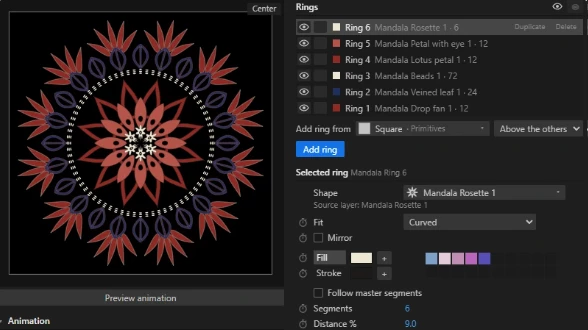
Bindu is a panel to create and animate mandalas. Using this panel, users can create a mandala ring by ring using either pre-loaded shapes, their own drawing, or any custom shape they have created within the panel. Users can also apply preset animations to see their work in real time. With this tool, all elements can still be edited.
Create Mandalas Using Individual Shapes
Using Bindu is fairly straightforward: select a shape, copy and paste that shape around a circle to make a ring, and use multiple rings to create a full mandala.
By being able to edit one ring at a time, users are not stuck with one preset mandala layout. Each ring can be customized to use any shape and have any settings to better create the desired final product.
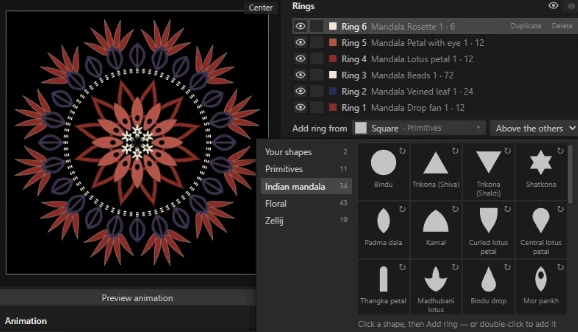
Using this panel, users can select from four different shape categories totaling more than 100 shapes:
Primitives: Use this to create simple or more complex mandalas using basic geometric shapes.
Indian: For those looking to create culturally inspired or decorative mandalas, this feature offers patterns inspired by India.
Floral: Those who would like to create a flower-inspired mandala can use this to select blossoms and petals.
Zellij: For individuals interested in creating symmetrical or geometric mandalas, this feature provides shapes based on Moroccan tile-inspired patterns.
Each option provides users with the ability to choose between simple or more decorative options.
Start with a Template or Create Your Own Design
If you don't want to build a mandala from scratch, Bindu includes 12 ready-made templates. You can create a complete design with one click and then customize its individual rings.
Some of the included templates are:
Ajrakh Lotus
Tanjore Peacock
Pichwai Blossom
Mughal Lily
Phad Sun
Kalamkari Flame
Madhubani Crown
Boteh Garden
Each template provides a starting arrangement, but the rings aren't locked into their original appearance. You can change their shapes and adjust the design to suit your project.
Bindu also lets you save your own mandalas as templates. This is particularly useful when you've created a design that you want to reuse in other projects without rebuilding its structure.
Use Your Own Shapes and Draw Directly in the Panel
The built-in libraries aren't your only option. Bindu supports custom artwork, so you can bring your own shapes into the mandala.
There are two ways to work with custom shapes:
Draw inside Bindu: Use the Pen tool directly in the panel to create your own shapes. Mirroring is also available to help you maintain symmetry while drawing.
Use your own shape layers: Bring existing shape layers into the workflow, including animated ones. Bindu can repeat your custom shape around the ring, so every repeated element follows its source.
The second option is particularly useful when you already have a custom animated element in After Effects and want to turn it into a repeating circular pattern.
Animate Your Mandalas with 33 Presets
Bindu includes 33 animation presets organized around three stages of animation:
Entrance: Controls how the mandala elements appear.
Loop: Adds repeating motion to the design.
Exit: Determines how the elements leave the composition.
You can choose an entrance, a loop, and an exit independently, combining them to create different animation sequences.
The panel also provides a live preview, so you can see how the selected animations look before applying them. Once you're happy with the combination, simply click Apply.
This gives you a straightforward way to create animated mandalas without having to build every motion sequence from scratch.
A Panel That Works with Your After Effects Timeline
Bindu runs directly inside After Effects as an extension panel, so you can create and adjust your designs without moving to a separate application.
Several workflow features are built into the panel:
Live Preview: See your mandala and animation choices while working.
Multiple Ring Selection: Select several rings at the same time when you need to make adjustments to more than one part of the design.
Timeline Selection: Click any shape in the panel preview to select its corresponding layer in the After Effects timeline.
Keyframe Controls: Use the stopwatch next to settings to animate individual properties.
Undo and Redo: Reverse or restore changes while editing your design.
The connection between the preview and the timeline is particularly helpful when working with complex mandalas. You can identify a specific shape visually and jump directly to its corresponding layer instead of searching through multiple layers manually.
Your Designs Stay Fully Editable
One important aspect of Bindu is that it doesn't turn the finished mandala into a single flattened image.
Every ring is created as a real After Effects shape layer. This means you can open the layers and make changes to individual parts of the design even after building the complete mandala.
The animations also use regular After Effects keyframes. You can adjust their timing, retime existing motion, and modify the animation directly in your timeline.
This gives you more flexibility when a project requires changes after the initial design is complete. You're not limited to the original template or animation settings.

Files Password : gfxplugin.com OR 123456