Downloadable Files
You can download Fleshy for free from the bottom of this page.
Make Flesh React Naturally to Contact in Blender
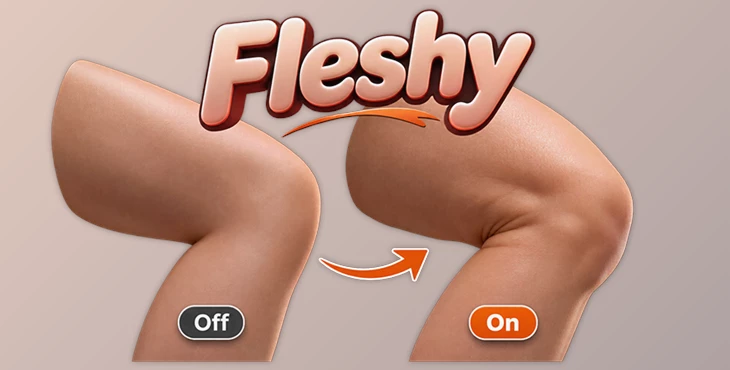
Fleshy is a Blender add-on that deforms soft meshes when they contact other meshes or themselves. Where two surfaces touch, Fleshy creates a dent. Around the touching area, it adds a soft bump.
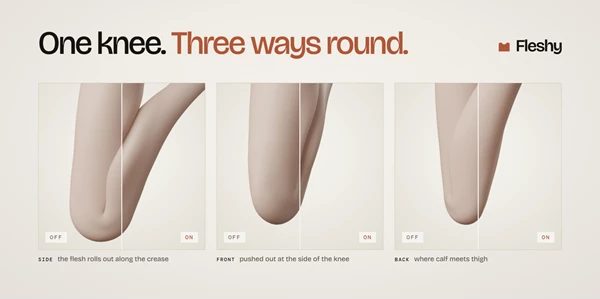
Imagina a character bending their knee. Due to the fold, some flesh moves around and gets compressed behind the knee. Depending on the character’s pose, Fleshy will handle this effect.
Fleshy can be used on any mesh or rig - there is no need for additional weight painting or bones - and it can both live and be baked, so it can be used for character animation or any other project featuring soft meshes.
Automatic Self-Contact Deformation
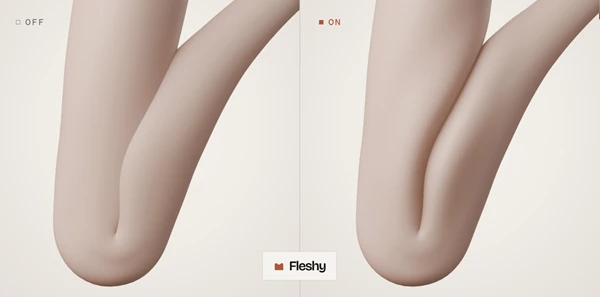
Fleshy can automatically detect when a mesh is contacting itself by identifying the touching area and deforming the surface around it.
This can be used to handle multiple poses:
Bent elbows: When an elbow bends, the inside of the elbow folds and deforms
Bent knees: When a knee bends, flesh dents behind it
Arms contacting the body: When an arm contacts the ribs, the surface deforms
Body folds: When the stomach contacts the thigh, flesh deforms
Once configured, self-contact will always be active and can be used to jump to any frame without first computing all prior ones.
Control Joint Folds with Corner Taper
A normal bulge does not always look right around joints. At the closed end of a knee or elbow fold, flesh should crease rather than swell outward.
Fleshy uses Corner Taper to handle these areas. It automatically detects the closed end of a fold and reduces the bulge near that point.
Three settings control the effect:
Setting | Function |
|---|---|
Amount | Controls how much bulging is removed near the fold. |
Reach | Sets how far the reduction extends from the fold. |
Falloff | Controls how gradually the bulge returns. |
Corner Taper can affect the entire mesh or be enabled and disabled for individual regions. Preview colors show where the effect is working.
Deformation from External Colliders
Fleshy can also be used to deform meshes by having other objects press against them.
A single object or group can be a collider. You can use your hand, a chair, a strap, or having another character make contact deformation.
Each object has a Firmness value from 0% to 100%. Additionally, if you have already used Fleshy on a character, that character can be used as a collider with its own firmness.
Enabling Exact Collider Edges will avoid a jump in deformation when the collider’s edge touches the surface. This is enabled by default.
Create Dents Without Bulging
Not all soft objects should be able to act like flesh.
For example, a cushion can go into itself when pressed against without having a bulge around the dent.
With Fleshy, this can be set by putting Bulge to 0 as the surface will still be pushed into, but there will not be a bulge. This can also be used for animals, toys, soft props, and characters.
Control Different Areas with Regions
You don’t necessarily need to have the same deformation for every part of the mesh. Some parts might need to be softer while others should be firmer.
Regions Fleshy supports controlling different parts of a mesh using existing vertex groups. There is no need to paint weights specifically for this add-on.
Finally, you also have the option to combine multiple meshes as if they were one instead of every piece being a separate character.
Additionally, beyond Regions and Corner Taper, you can also adjust five primary options in the Deformation panel.
Live Deformation and Baked Animation
Fleshy offers two ways to work with deformation: Live and Baked.
Mode | How it works |
|---|---|
Live | Shows the deformation while you change the character's pose. |
Baked | Stores the deformation for selected animation frames. |
Both modes use the same deformation system. A baked result can match what appears in Live mode, although the default Smooth Pops setting may slightly change the animation over time.
Smooth Pops and Animation Baking
Sudden contact changes can sometimes cause the flesh to jump between frames.
Smooth Pops reduces these jumps by spreading the change across several frames. It is enabled by default, while cuts and fast contact remain unaffected.
You can disable Smooth Pops when you need the baked result to match Live mode exactly.
Fleshy also includes several controls for managing baked animation:
Custom frame ranges: Bake separate ranges, such as frames 20–50 and 70–100, in one operation.
Incremental baking: Bake a frame again without replacing the other stored frames.
Cancel baking: Stop the process while keeping the completed frames.
Bake All: Bake every configured character in the scene, each with its own settings and frame ranges.
Cache validation: Check the pose, mesh, settings, and colliders to detect changes that may affect stored frames.
Baked animation supports motion blur and rendering frames in any order.
How to Use Fleshy in Blender
In the 3D Viewport, you can find all of the main tools by looking at the sidebar and clicking on the Fleshy tab.
There are five main steps to using Fleshy:
Make sure that the viewport subdivision level is equal to the render subdivision level
Set Up by clicking Set Up after selecting the body mesh (not the rig)
Adjust the deformation either by using Bake This Frame to see if the deformation is correct or by switching to Live as you shape your character
Bake the frames by selecting the needed frames and clicking to begin. If you cancel after baking, the baked frames will be saved
Continue to shape your character. Even though the deformation can be hidden in the viewport, it will still look the same when rendered
One big note: Make sure to bake using the same subdivision level that you want to render at using Fleshy.
Cache Management and Production Features
Fleshy also offers the following for handling larger Blender files:
A cache is stored next to the .blend file to store the deformation data. Using Fleshy, this data can be found even if both the blend file and cache are moved to a new location or computer.
Each copied character is given its own cache to avoid issues with multiple copies of a character.
Fleshy also handles library overrides by maintaining character preferences even if the character file is reopened or resynchronized.
Like many other functions in Blender, Fleshy provides the ability to Undo and Redo changes to Set Up, Bake, Remove, and more.
Finally, Close Openings can be used to ignore open mesh edges being treated as contact, which can be useful for any mesh that has an opening: a neck without a head, a cut mask, an open edge on a garment, and more.

Files Password : gfxplugin.com OR 123456