Downloadable Files
You can download Adobe Speech to Text for Premiere Pro for free from the bottom of this page.
Turn Video Dialogue into Text and Captions
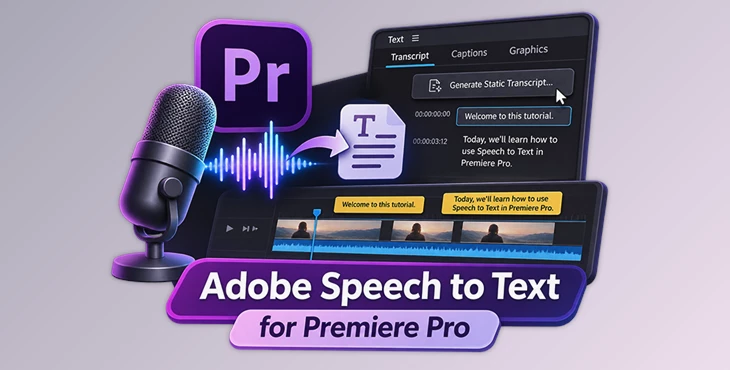
Within Adobe Premiere Pro, Speech to Text is a feature that automatically turns spoken speech into text. Video editors can use this to generate captions and transcripts (without having to type each word themselves).
Using Speech to Text in Premiere Pro, users can use the Text panel to select what they want to transcribe, specify the language being spoken, and whether to distinguish between multiple speakers.
Videos with dialogue, such as presentations, tutorials, and interviews, can benefit from using Speech to Text to become more accessible to individuals who are hard of hearing or are deaf using captions.
How to Generate a Transcript in Premiere Pro
Premiere Pro includes transcription settings in its Text panel. To create a transcript, follow these steps:
Open your project in Premiere Pro.
Go to Window > Text.
Open the Transcript tab and select its menu icon.
Choose Generate Static Transcript to open the transcription settings.
Select your preferred language, speaker labeling, and audio analysis options.
Click Transcribe to start generating the transcript.
Once the transcription is complete, the spoken audio is available as text. This gives you a written version of the dialogue that can be used when preparing captions.
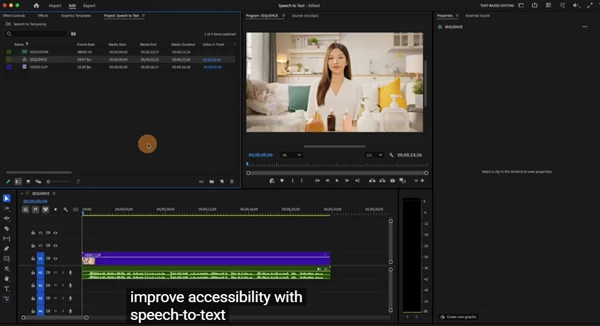
Transcription Settings and Audio Selection
Before starting transcription, you can choose how Premiere Pro processes the audio. These settings are particularly important when a sequence contains several audio tracks or multiple speakers.
| Setting | What It Does |
|---|---|
| Language | Sets the spoken language of the video. A language pack may need to be downloaded. |
| Speaker Labeling | Determines whether different speakers are separated in the transcript. |
| Audio Analysis | Uses clips tagged as Dialogue in the Properties panel or audio from a selected track. |
| In and Out Points | Limits transcription to the audio between marked In and Out points. |
| Merge Output | Adds newly transcribed text to an existing transcript when working within a marked range. |
Choose Which Audio to Transcribe
A Premiere Pro sequence may contain dialogue, music, and other sounds across different tracks. Speech to Text provides options for selecting the audio used during transcription.
One method is to work with clips marked as Dialogue in the Properties panel. Another is to select a specific audio track.
This helps you focus the transcription on the dialogue you need, rather than processing audio from an unwanted track.
Transcribe Only Part of a Video
You don't always need a transcript of the entire sequence. Premiere Pro can transcribe a selected section using the In and Out points.
Mark the beginning and end of the section you want, then enable Transcribe In Point to Out Point Only.
There is also a Merge Output with Existing Transcription option. When selected, the new transcription is inserted into the existing one, keeping the text together rather than creating a separate transcript for that section.
This is helpful when you need to transcribe an additional part of a project that already has a transcript.
Creating Captions from Spoken Audio
Speech to Text is part of Premiere Pro's captioning workflow. It provides a way to turn spoken dialogue into written text that can be used to add captions to a video.
Captions are important for accessibility, particularly for viewers who cannot hear the audio. They also help communicate spoken content in a readable format.
For projects with several speakers, the speaker labeling option can help keep their dialogue separated in the transcript.
When Speech to Text Is Useful
Using Speech to Text is best for any video project that includes important spoken dialogue
Interviews- Want to have a written transcript of what was said, separate people
Video tutorials- Want to have captions based on explained instructions
Presentations- Want to be able to caption based on spoken content
Long videos- Only want to transcribe a specific section, use In and Out points instead of transcribing the whole video
Already have a transcript- Want to add another section’s transcript by using Merge Output
Using Adobe Speech to Text, the primary benefit is that the transcription takes place directly within Premiere Pro. Choose which audio to use, who speaks (if needed), what language, and what portion of the video you would like to transcribe before beginning. Those who need to work with a lot of spoken dialogue can directly create transcripts using this tool to make additional content more accessible themselves.
 Adobe Speech to Text for Premiere Pro 2027 (v2.2.part3.rar (Size: 4.0 GB - Date: 11/16/2026 2:33:47 PM)
- Adobe Speech to Text for Premiere Pro 2027 (v2.2.part2.rar (Size: 5.0 GB - Date: 11/16/2026 2:33:37 PM)
- Adobe Speech to Text for Premiere Pro 2027 (v2.2.part1.rar (Size: 5.0 GB - Date: 11/16/2026 2:33:25 PM)
Files Password : gfxplugin.com OR 123456