Downloadable Files
You can download MO3D for free from the bottom of this page.
Create and Render Real 3D Text and Objects Inside After Effects
MO3D is a 3D rendering plugin for Adobe After Effects. With this plugin, users can render objects within a composition, create 3D text, and use imported models. MO3D features GPU rendering, including the ability to animate, use glass materials, reflections, and realistic lighting.
A primary benefit of using MO3D is the ability to use 3D objects entirely within After Effects. Using this plugin, users can turn shapes and text into 3D objects, apply materials, and control them using the camera within the composition. Additionally, this plugin can use many common 3D file formats to include models from other programs into a project.
Turn Text and Shapes into Real 3D Objects
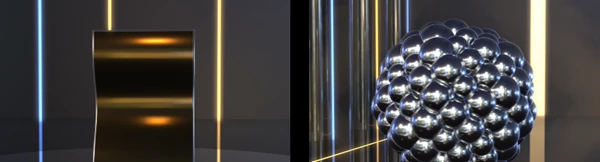
MO3D works with After Effects text layers, shape layers, and masks. Apply the plugin to a layer, and it turns the content into 3D geometry.
The text stays editable, even after you add materials, bevels, or animations. You can change a word, and MO3D updates the 3D model automatically without losing your settings. It also supports Latin, Cyrillic, Greek, and CJK characters.
There are several ways to change the appearance of your 3D text:
Bevels: Choose a bevel preset or draw your own custom bevel curve.
Face Shape: Use Inflate, Arc, Dome, or Chisel to change the front surface of letters.
Side Profiles: Add shapes such as Barrel, Waist, Ribs, Wave, Groove, or Lip to the sides.
Separate Materials: Apply different materials to the front, bevel, sides, and back of each letter.
You can save custom bevels and materials as files and use them in other projects.
Import 3D Models and Set Up Lighting
MO3D can open FBX, glTF, USD, OBJ, STL, and PLY models. Mac users can also import Alembic files.
You can drag a model into Scene Setup, and MO3D keeps its materials and textures. The imported object appears in your composition and works with your After Effects camera and lights.
For lighting, MO3D supports HDRI images. When you load an HDRI, the plugin can detect the sun in the image and use it as a light that casts shadows.
Even without lights in your composition, MO3D can light the scene using the HDRI or a soft studio setup. It also includes a shadow catcher to help place 3D objects on real footage or an HDRI ground.
Shadows, ambient occlusion, reflections, and glass effects use ray tracing for more realistic results.
Materials and Surface Effects
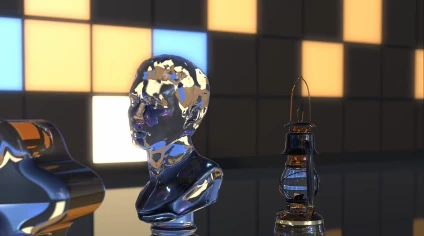
MO3D includes 87 material presets, including metals, glass, and glowing neon materials. You can select a part of a model or text object and apply a material directly.
For more control, the node-based Material Editor lets you build materials using noise, cells, bricks, gradients, images, and texture sets. It also supports MaterialX.
Materials created in the editor are baked once, so they don't add extra work to every rendered frame.
Other surface effects include:
Glass: Create transparent materials with refraction.
Glow: Add glow to individual materials, including neon surfaces.
Depth Fog: Add fog based on scene depth.
Bevel Copies: Create extra copies around object edges, such as glowing tubes around solid letters.
Animate 3D Text and Objects
MO3D supports After Effects' native Text Animators, including range selectors. You can use them to animate individual 3D letters.
The plugin also has its own Letter Animators for moving, rotating, scaling, tinting, and adding glow to letters. You can divide text into up to five groups and stagger the animation between words.
For other types of movement, MO3D includes several tools:
| Tool | What it does |
|---|---|
| Deformers | Bend, twist, taper, wave, or add noise to geometry |
| Replicator | Arrange copies in grids, rings, spheres, and spirals, with transitions between layouts |
| Follow Path | Move text along a 3D path using masks or shapes, with letters bending around the curve |
| Data | Change text using expressions or data files, such as names, scores, and prices |
These tools can be animated with keyframes inside After Effects.
MO3D also renders through the composition camera. It follows the camera's depth of field and the composition's motion blur settings.
Add Flares Directly to 3D Letters
MO3D includes built-in flares that attach to the letters themselves.
You can place them along the top edges, on illuminated bevels, around outlines, or across the front surfaces. The available styles include stars, glints, and anamorphic streaks.
Flares can stay in one position or slide along the edges. They also respond to the movement of the letters, fading when a surface turns away from the camera.
Because the flares are attached to the text, they automatically move into the correct positions when you change the words. They also follow depth of field and motion blur.
Render Passes and Color Management
MO3D creates the following passes: Color and Compositing
You can select one or more passes and create a layer stack by using the Create Pass Layers command. These will be imported into your After Effects composition.
The following passes can be created:
Diffuse and Specular
Reflection and Shadow
Ambient Occlusion (AO)
Normals and Z-Depth
World Position and Object IDs
Albedo and Emission
Color Management
MO3D can render using 32-bit floating-point. Based on your project’s color space, it can use the following using OpenColorIO 2.5:
ACEScg
ACES2065-1
ACEScct
Linear color
Custom
MO3D also features Multi-Frame Rendering and tiled rendering to handle large frames. To ensure that neon and chrome objects are not jagged, highlights in HDR are anti-aliased.
Other Tools
MO3D also offers the following tools to help handle 3D scenes:
You can export an OBJ to use in other 3D programs
MO3D can find a missing model, HDRI, or texture within a project folder based on naming if the project is moved to a new location
On both Windows and macOS, MO3D renders using Vulkan and Metal, respectively. Both versions produce identical output.

Files Password : gfxplugin.com OR 123456