Downloadable Files
You can download Shutter for free from the bottom of this page.
Add Motion Blur to Your Video to Create Smooth, Cinematic Looks
Shutter is a motion blur plugin for Adobe Premiere Pro. This plugin adds motion blur to camera and object movement using AI to analyze your video to understand how things are moving within the frame. Shutter can be used to add motion blur to transitions, graphics, and animated titles.
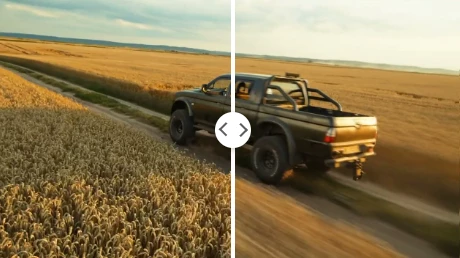
Because some videos captured with certain cameras may have minimal motion blur when capturing fast movement, they can appear crisp, but somewhat jagged or rough. To solve this, Shutter can add a natural 180° shutter look to your videos. This is helpful for action camera videos, FPV videos, timelapses, and speed-ramped videos.
Add Natural Motion Blur to Your Footage
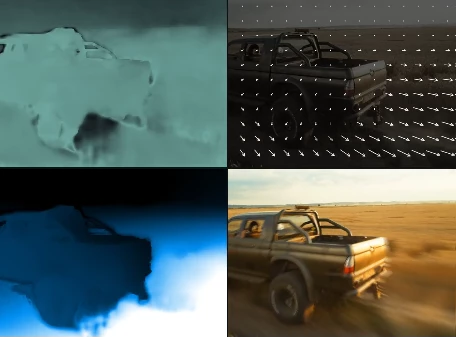
Shutter analyzes each image to determine what needs to be blurred. Things that move more will be blurred more and items that do not move will remain clear.
Additionally, Shutter can also maintain a focused main subject while blurring the background near the subject. This is great for capturing a subject as they move around with the camera.
Shutter can also be helpful when working with a high shutter speed as it can help to restore the previously mentioned smoother video by using a 180° shutter angle when shooting.
With Shutter, there is no need to remake the scene or adjust the original camera settings because the blurring is performed in Premiere Pro.
Four Motion Blur Modes
Shutter comes with four modes. Each one handles a different type of movement.
Mode | What it does |
|---|---|
AI Motion | Detects movement in real footage and adds blur that follows it. |
Zoom | Creates radial blur for zoom movements, punch-ins, and transitions. |
Linear | Adds blur in a straight direction for moving graphics and transitions. |
Spin | Creates rotational blur for spinning graphics and effects. |
AI Motion is designed for complex movement in real video. The other three modes give you more options when working with titles, graphics, or stylized transitions.
You can let each mode measure the movement automatically or adjust its settings yourself.
More Control Over Motion Blur
Shutter has several controls for changing how the blur looks.
Manual Controls: Adjust the blur in each mode instead of using automatic settings.
Flow Smoothing: Smooths the detected movement so the blur follows it more evenly.
Keep Subject Sharp: Keeps the tracked subject clear while adding blur to the surrounding scene.
Zoom Boost: Changes the strength of radial blur in Zoom mode, from a small zoom effect to a strong crash zoom.
These controls help you choose how much blur to add and which parts of the image should stay clear.
How to Use Shutter in Premiere Pro
Shutter works as a native Premiere Pro effect, so you can apply it directly from the Effects panel.
The basic process is simple:
Open your project in Adobe Premiere Pro.
Find Shutter in the Effects panel.
Drag the effect onto your clip.
Choose one of the four motion blur modes.
Use the automatic settings or adjust the controls to get the blur you want.
Shutter uses GPU acceleration to process the effect. According to the developer, it can render at around 20 fps on an M4 Max, which allows near real-time playback on supported hardware.
If playback starts buffering, you can test the effect on a short preview range and then render the selected section for smoother playback.
Where Shutter Works Best
Depending on the content, Shutter can be used to apply blur to the following:
Action and FPV footage: Used to apply motion blur to quickly moving cameras, particularly if the footage is too sharp initially
Timelapse footage: Used to smooth out the movement between frames
Speed ramps: Used to apply blur to the faster portions of the footage to make movement appear more natural as speed changes
Animated titles: Used to give moving text a clean motion streak without appearing to ghost
Zoom transitions: Use Zoom mode and Zoom Boost to create a crash zoom and punch-in effect

Files Password : gfxplugin.com OR 123456