Downloadable Files
You can download MIRЯA for free from the bottom of this page.
Mirror Polygons in Cinema 4D with Just One Click
MIRЯA is a Cinema 4D plugin that allows the user to mirror selected polygons with a single click. The user simply needs to select the portion of the model to be mirrored and choose a symmetry mode. The user can mirror along the X, Y, or Z axes. Additionally, MIRЯA can automatically identify a symmetry plane based on an open hole in the mesh, which will be helpful if the user is working with a section that does not align with the standard axes.
Mirror Polygons Without Extra Setup
There are many ways to use MIRЯA to create symmetry in Cinema 4D. You can mirror the whole selection or only a few polygons. Additionally, you can use MIRЯA to mirror multiple objects or polygon islands within the same object.
Depending on the mode used, the primary difference is determining the symmetry plane.
World Axis Symmetry
This is the most straightforward method to use MIRЯA. After selecting your polygons, you can pick between the X, Y, or Z axis. Your selection will be mirrored along this axis.
With MIRЯA, you do not have to mirror the entire object. Only the selected polygons can be used to modify only one section of a object while leaving others unchanged.
Anchor Object Mode
There are times when you may want to mirror the polygons around your own object’s center instead of using the world axes.
In Anchor Object mode, the local coordinates of the object are used to determine the symmetry. This can be useful if your object is not at the center of the scene.
Automatic Symmetry with Loop Modes
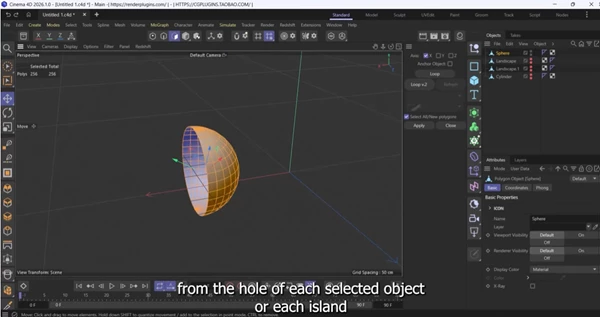
MIRЯA also has two Loop modes that can find a symmetry plane from an opening in your polygon selection.
These modes are different from normal axis mirroring because you don't have to choose the symmetry plane yourself.
Mode | How it works |
|---|---|
Loop | Finds the symmetry plane automatically from a hole at the edge of your selection. |
Loop v.2 | Shows the detected plane with green outlines and lets you switch between different holes. |
Loop Mode
Loop mode looks at the hole along the edge of your selected polygons and uses it to find the symmetry plane.
This is useful when you are working with an open mesh and want to mirror its geometry without choosing an axis manually.
Loop v.2 Mode
Loop v.2 gives you more control over the detected symmetry plane.
Green outlines show where the plane is located, so you can see what the plugin has found before finishing the operation.
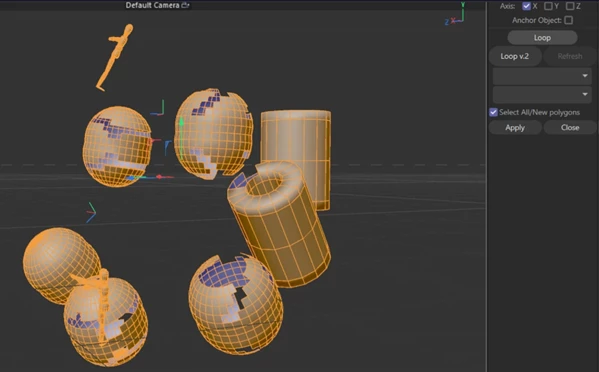
You can also use the Holes List to switch between different openings in real time. A cylinder without caps is one example of a model with more than one hole.
Another feature of Loop v.2 is that you can set symmetry separately for each polygon island. This matters when a single object contains several disconnected parts that need different symmetry settings.
How to Use MIRЯA in Cinema 4D
The basic process is short:
Select polygons: Choose the polygons you want to mirror.
Choose a mode: Select X, Y, Z, or Anchor Object and click Apply. You can also choose Loop or Loop v.2 to detect the symmetry plane automatically.
Finish the operation: Click Refresh to complete the process.
The MIRЯA panel includes the axis controls, Anchor Object, Loop, Loop v.2, and Apply. There are also controls for working with holes and groups.
Control Your Polygon Selection
After mirroring, you can choose which polygons remain selected.
MIRЯA offers two selection options:
All polygons: Keep all polygons selected.
New polygons: Keep only the newly created polygons selected.
Keeping only the new polygons selected is handy when you want to continue editing the mirrored geometry.
Working with Multiple Objects and Polygon Islands
MIRЯA is not only for a mesh connected to one another. It can be used for one object, multiple objects or even multiple polygon islands in one object.
For selected polygons, one can use the usual symmetry modes. For individual islands that require their own symmetry plane, one can use Loop v.2.
Overall, I feel that MIRЯA can be useful for any situation in which various pieces of the mesh need to be mirrored differently.
Overall, primarily, I feel that MIRЯA is primarily about being able to control how polygons are mirrored in Cinema 4D by either using a fixed axis, the object’s center or letting the plugin determine a symmetry plane based on the mesh.

Files Password : gfxplugin.com OR 123456