Downloadable Files
You can download AiBow Impact Burst for free from the bottom of this page.
Bring Powerful Anime Impact Effects to Your Videos
Anime action scenes often use a quick flash of colors, lines, and sharp shapes to make a hit feel stronger. These effects may last only a few frames, but they can change how the whole scene looks. AiBow Impact Burst is an After Effects plugin that creates this type of anime impact effect without having to build each frame separately.
The plugin combines radial spikes, color flashes, and dark frames into one effect. You can place it over your footage, choose when the impact happens, and change its colors and shapes to match your scene.
Add Anime-Style Impact Frames to Your Videos
AiBow Impact Burst uses a ten-frame sequence based on the timing of a 30 fps anime opening. Each part has its own visual style and duration.
The standard sequence includes:
Flat Frame (1 frame): A simple frame made from lines.
Burst (6 frames): Sharp radial spikes with three color tones.
Flash (2 frames): A short pastel-colored zoom flash.
Dark Frame (1 frame): A dark frame that ends the impact.
You can change the number of frames used for each stage. Setting a stage to zero removes it from the sequence.
There is also a Burst Hold option that keeps each spike shape visible for two frames or longer. This gives the burst a heavier appearance.
Change Colors and Spike Shapes
You don't have to use the same impact design for every shot. The plugin has a feature called Gacha! that changes the colors and spike pattern each time you press it.
You can keep pressing the button until you find a design that fits your footage.
There are also 11 color presets:
Magenta Neon
Blood Red
Electric Blue
Toxic Green
Solar Gold
Inferno
Ice White
Cyber Pink
Sepia Print
Mono Ink
Abyss Teal
If you want more control, you can set the Shadow, Mid, and Highlight colors yourself. You can also adjust both flash colors and the tint of the dark frame.
Control the Burst Shape
AiBow Impact Burst includes several settings for changing how the spikes appear.
| Setting | What it controls |
|---|---|
| Center | The center of the burst |
| Streak Length | The length of the spikes |
| Spikiness | How sharp the spikes look |
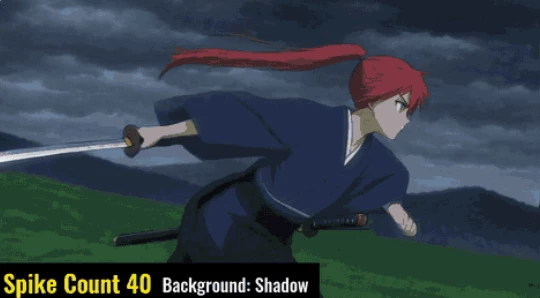
| Spike Count | The number of spikes |
| Thresholds | The separation between the three color tones |
| Background | The background appearance |
| Ring Frame | The ring element |
| Center Jitter | Variation in the burst center |
| Zoom Punch | The zoom effect during the impact |
| Seed | The spike pattern without changing other settings |
These controls let you make different impact designs while keeping the same basic animation.
Choose When the Impact Happens
Timing matters when adding an impact effect to an action scene. AiBow Impact Burst offers several ways to decide when the animation starts.
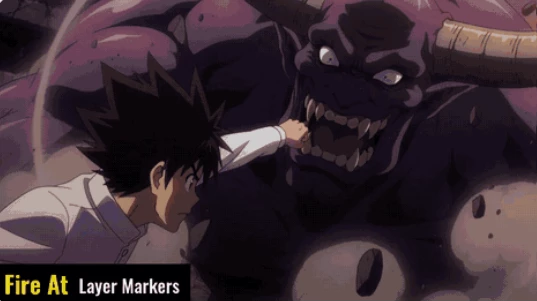
One option is to use layer markers. You can place a marker exactly where a character lands a punch or another action reaches its point of contact.
You can add several markers to the same layer, and each marker will trigger a separate impact. If you move a marker, the impact moves with it.
Other timing options include:
Layer Start: Start the effect from the beginning of the layer.
Trigger: Start it using a trigger control.
Every N Frames: Repeat the impact at a chosen frame interval.
BPM: Set the timing based on beats per minute.
Comp Markers: Use composition markers to trigger the effect.
The plugin also provides four timing presets: Magenta Hit 10f, Short Hit 6f, Mono Ink 10f, and Burst Only 6f.
Apply the Effect to Footage, Text, and Shapes
You can apply AiBow Impact Burst to an adjustment layer above your footage. The effect then covers all the layers below it.
It also works directly with text and shape layers. When applied to these layers, transparent areas remain transparent.
For text, this means the spikes can grow from the letters themselves rather than covering the entire screen. You can place the result over footage while keeping the original letter shapes visible.
How to Use AiBow Impact Burst
Open your composition in After Effects and create a new adjustment layer above your footage.
Go to Effect > AiBow Tools > AiBow Impact Burst to apply the plugin.
Under Timing, set Fire At to Layer Markers.
Add a marker at the frame where the impact should happen.
Choose a timing preset and color preset, or press Gacha! to get a random look.
Render your composition. Each marker will produce its own impact animation.

Files Password : gfxplugin.com OR 123456