Downloadable Files
You can download AiBow Grid for free from the bottom of this page.
Turn Layer Guides into Rendered Graphics
This After Effects plugin creates visible construction lines that extend from your layer to the edges of the composition. Unlike normal view guides, these lines appear in the final render and can become part of your design.
The lines stay connected to your layer when you move, scale, or rotate it. They also adjust when the text changes, so you don't need to rebuild the grid every time you edit your design.
AiBow Grid works directly with text, images, solids, and shape layers without needing a precomposition. You can also add rows, columns, intersection marks, and animated lines to create different grid styles.
Control the Grid with Bounds and Padding
AiBow Grid gives you two ways to measure the area around your layer:
Content (Alpha): Finds the edges of visible, opaque pixels. For text layers, it measures the actual letters rather than the entire layer rectangle.
Layer Bounds: Uses the full rectangular area of the layer.
You can also increase the Padding value to create more space between the content and the grid.
Once you apply the effect, the lines extend toward the composition edges. You can then adjust their position and size through the bounds settings.
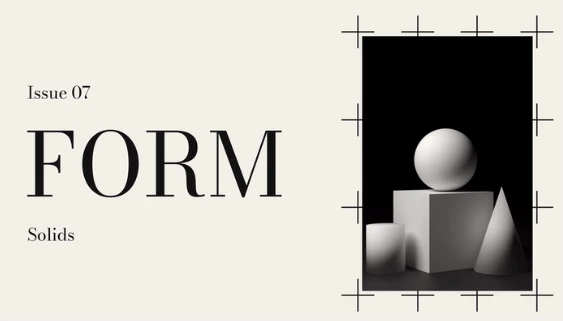
Create Rows, Columns, and Different Line Layouts
The Divide controls split the selected area into equal rows and columns. You can display only vertical lines, only horizontal lines, or both together.
The plugin also lets you choose how far the lines extend. They can reach the composition edges or stop at a fixed length.
Another important feature is how the grid responds to layer transformations. It follows position, scale, rotation, and parenting changes automatically.
You can enable Keep Width When Scaled to maintain a constant stroke width in the composition, even when the layer becomes larger or smaller.
For layering, AiBow Grid provides three Composite modes:
Behind the Layer: Places the grid behind the original content.
In Front of the Layer: Displays the grid over the content.
Grid Only: Shows the grid without the original layer content.
These options give you control over how the lines appear in your final composition.
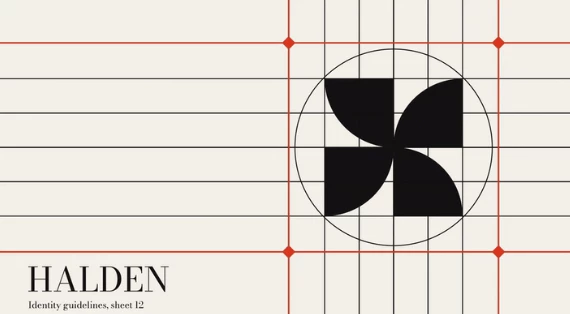
Add Intersection Marks and Corner Details
AiBow Grid can place marks wherever the grid lines cross. You can choose different shapes and styles depending on your design.
| Mark type | Appearance |
|---|---|
| Circle | Round marks at line intersections |
| Square | Square marks at line intersections |
| Diamond | Diamond-shaped marks at line intersections |
| Corner Marks | Cross-style registration marks at intersections |
Circle, square, and diamond marks can be filled or outlined. You can use the same color as the grid lines or choose a separate color for the marks.
You can also hide the lines and keep only the intersection marks to create a dot grid.
For a lighter technical look, change Style > Type to Corner Marks. These marks appear at the intersections and can be animated using the same Draw On control.
Animate Grid Lines with One Slider
AiBow Grid includes a Draw On feature for animating the appearance of grid lines.
You only need to keyframe the Draw On slider from 0 to 100 to create the animation.
There are three drawing directions:
Center: Lines draw outward from the center.
Ends: Lines draw from their ends.
Sweep: Lines appear with a sweeping motion.
You can adjust the animation further using Stagger, Order, and Ease Out. These controls change the timing and sequence of the lines.
Intersection marks also grow into view as their connected lines arrive. Corner Marks use the same Draw On animation system.
How to Use AiBow Grid in After Effects
The plugin has a simple setup process:
Select a layer and apply Effect > AiBow Tools > AiBow Grid.
Adjust Bounds and Padding to define the grid area.
Set the number of Columns and Rows.
Choose a Composite mode to control how the grid appears with your layer.
Enable Intersections > Intersection Marks if you want marks at the crossings.
Animate Animation > Draw On from 0 to 100 to reveal the grid.
You can use these controls to create construction-line designs around titles, logos, images, and other visual elements.
Because the effect follows the layer, you can continue editing its position, rotation, or scale without manually moving the grid lines.

Files Password : gfxplugin.com OR 123456