Downloadable Files
You can download PiP Layout for free from the bottom of this page.
Create Picture-in-Picture and Split-Screen Videos with Ease
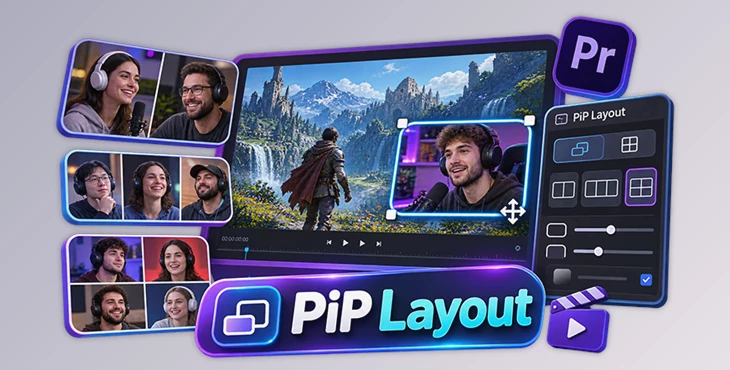
This plugin helps you create picture-in-picture (PiP) and split-screen videos directly in Adobe Premiere Pro. You can place multiple clips on the screen, change their size, crop the content, and add borders or shadows from a single panel.
PiP Layout also shows your changes in the Program Monitor as you work. It is designed for podcasts, interviews, gaming videos, reaction content, tutorials, and vertical social media videos.
Control Picture-in-Picture Clips from One Panel
Creating a picture-in-picture layout in Premiere Pro usually involves several controls. Position and scale are adjusted in Effect Controls, while cropping and other visual effects require separate settings.
PiP Layout brings these controls together in one place. You can adjust the position, size, crop, and appearance of a clip without moving between different panels.
Position and Resize Your Clips
The plugin offers several ways to control where a clip appears on the screen:
3×3 Anchor Grid: Choose one of nine positions to place your clip.
Arrow Controls: Move the clip in small steps for more accurate placement.
Drag Preview: Move the box directly inside the panel preview.
Corner Handles: Resize the clip by dragging its corners.
Width and Height: Enter size values as percentages and keep the aspect ratio linked.
These controls help you arrange a smaller video over the main footage, such as placing a speaker's camera feed in the corner of a podcast video.
Crop and Zoom Without Changing the Layout
PiP Layout lets you crop and reframe the video inside its box. You can zoom into the source footage and move its center point using the center pad.
The important detail is that cropping does not change the position of the box. You can adjust what appears inside a picture-in-picture window while keeping the window in the same place.
Add Borders, Rounded Corners, and Shadows
PiP Layout includes styling controls for changing the appearance of individual clips.
You can add up to two borders to each clip. Each border has separate settings for color, thickness, and opacity.
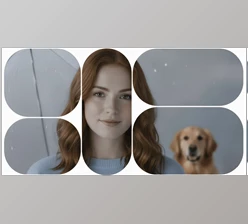
The corner radius can be adjusted from 0% to 100%, allowing you to create rectangular, rounded, or circular picture-in-picture windows.
The plugin also includes a drop shadow with controls for:
Direction
Distance
Softness
Opacity
All these settings are available in the same panel as the positioning and cropping tools.
Create Split-Screen Videos
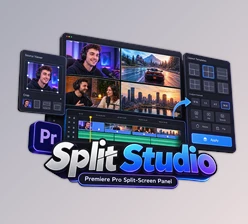
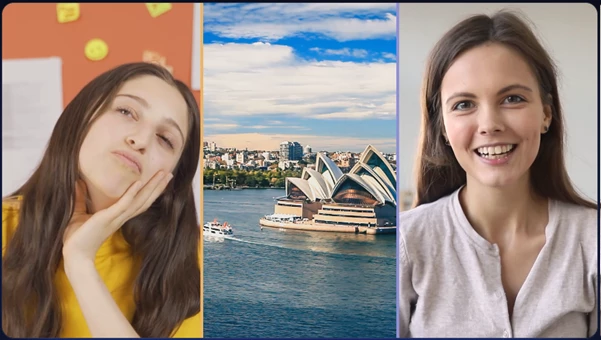
PiP Layout is not limited to placing one small video over another. It also includes ready-made split-screen layouts for displaying multiple clips together.
You can choose from the following arrangements:
| Layout | Description |
|---|---|
| 2-Way Split | Displays two clips in separate areas |
| 3-Way Split | Arranges three clips on the screen |
| 4-Way Split | Divides the screen into four sections |
| Vertical 9:16 | Provides split-screen layouts for vertical videos |
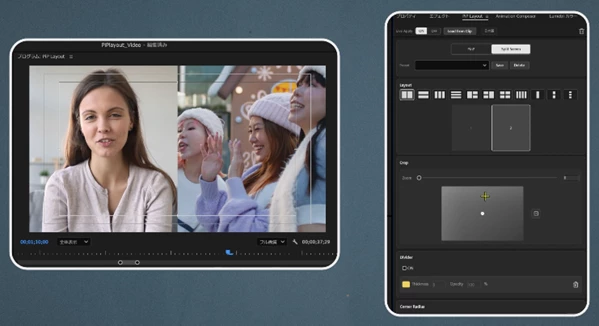
To use a layout, select the desired arrangement and click a cell to place the selected clip.
Each cell has its own cropping controls, so you can reframe the footage inside it without changing the entire layout.
Customize Split-Screen Cells
The plugin includes two additional controls for split-screen designs.
Dividers: Add lines between the cells and adjust their color and thickness.
Shrink: Reduce the size of the cells so that the background becomes visible between or around them.
These options give you more control over how multiple videos appear together.
Save and Reuse Your Layout Settings
PiP Layout includes several workflow tools for managing layouts and returning to previous edits.
Live Apply: Changes appear on the selected clip as you adjust the settings.
Presets: Save your layout and styling settings to use again on other clips.
Load from Clip: Open the settings of a clip you have already edited and continue making changes.
One-Click Removal: Remove the plugin's effect from the selected clip.
The preset feature is particularly helpful when several clips need the same picture-in-picture position, border style, or other settings.
Where Can You Use PiP Layout?
PiP Layout supports different video formats and editing situations.
For podcasts and interviews, you can arrange speakers in two-way or multi-person split screens.
In gaming and reaction videos, a smaller camera window can appear over the main footage. You can crop the camera view, change its position, and add a border.
For tutorials, picture-in-picture layouts can display a presenter alongside the main video.
The vertical 9:16 layouts are also suitable for social media content where multiple clips need to fit inside a portrait frame.
Compatibility and Rendering
PiP Layout works with Adobe Premiere Pro 25.6 or later on Windows and macOS.
| Requirement | Details |
|---|---|
| Software | Adobe Premiere Pro 25.6+ |
| Operating Systems | Windows and macOS |
| GPU Acceleration | CUDA on NVIDIA GPUs (Windows), Metal (macOS) |
| CPU Rendering | Available when GPU acceleration is unavailable |
| Panel Languages | English and Japanese |
Supported operating system versions follow Adobe's requirements for the installed Premiere Pro version.
PiP Layout keeps picture-in-picture positioning, cropping, split-screen arrangements, and visual styling in one panel. Its main advantage is the ability to build and adjust these layouts while viewing the results directly in Premiere Pro.

Files Password : gfxplugin.com OR 123456