Downloadable Files
You can download Falloff for free from the bottom of this page.
Create Realistic Blur with Pixel-Level Control
Falloff is a blur plugin for Adobe After Effects. It lets you control how much blur you add to different parts of an image. Instead of making the whole image blurry, you can keep some areas clear and make others soft. This helps you create a more natural look, like the focus you see in photos taken with a real camera.
The plugin also works in linear light, allowing bright areas to bloom more naturally. You can control the blur using masks, mattes, brightness, transparency, or distance from an edge.
Create Natural Blur Transitions
A common way to create a soft transition is to place a blurred copy of an image over the original and change its opacity. However, this only mixes two versions of the image.
Falloff uses a different method. It changes the actual blur radius across the image, so some pixels can remain sharp while others become gradually softer.
You can also create a custom falloff curve to control how quickly the blur increases or decreases. This gives you more control over the transition between focused and unfocused areas.
For instance, you can keep the center of an image sharp while gradually increasing the blur toward its edges. The change can be smooth or more noticeable, depending on the curve you choose.
Five Blur Types in Falloff
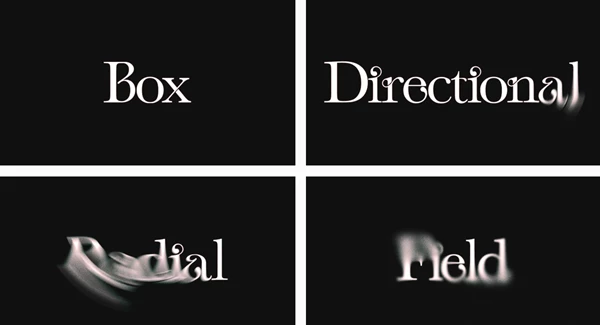
Falloff includes five blur types, each producing a different result.
Blur Type | Description |
|---|---|
Gaussian | Creates a smooth, soft blur. |
Box | Uses a box-shaped blur calculation. |
Directional | Blurs pixels along a direction. |
Radial | Creates blur with a radial pattern. |
Field | Provides another blur option for shaping the image. |
You can select the blur type that matches the effect you want to create. These options give you different ways to control softness and blur patterns within After Effects.
Control Where the Blur Appears
One of the main features of Falloff is its ability to use different sources to control the amount of blur.
The plugin supports several falloff sources:
Matte Layer: Use another layer as a matte to control the blur.
Layer Mask: Define the blur area with a mask.
Luma: Use the brightness values of the layer to control blur strength.
Alpha: Control the blur using the layer's transparency.
Edge Distance: Change the blur based on the distance from the layer's edge.
These controls let you connect the blur to the actual content or shape of your layer.
For example, Edge Distance can create a gradual change in blur as pixels move farther from an edge. A mask can give you more direct control over which parts of the image stay sharp.
Falloff Curves and Presets
After choosing a falloff source, you can control how its values affect the blur.
Falloff provides ready-made curve presets and a custom curve editor. The presets offer predefined transitions, while the custom curve lets you design your own relationship between the source values and blur radius.
This is helpful when a simple, even transition does not match the look you need.
Add Texture with Three Noise Types
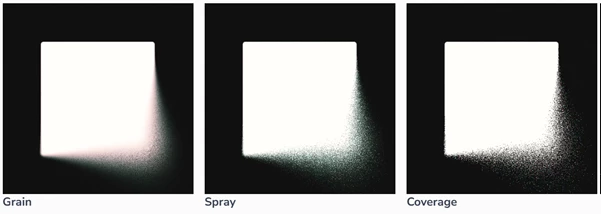
Falloff also includes three noise options that can change the appearance of the blur.
Grain
Spray
Coverage
These options add different noise looks to the blurred areas. You can use them when you want more texture rather than a completely smooth blur.
The noise settings are available alongside the plugin's blur and falloff controls in the Effect Controls panel.
Linear-Light Blur and Technical Support
Falloff uses a special way to blur images called linear light. This helps bright areas look more natural. When you add blur, the light can spread softly, just like it does with a real camera lens.
The plugin is built as a native C++ effect for Adobe After Effects and supports three color depths:
8-bit
16-bit
32-bit
This support allows Falloff to work with different color-depth settings in After Effects projects.

Files Password : gfxplugin.com OR 123456