Downloadable Files
You can download RS ID Manager for free from the bottom of this page.
Manage All Your Redshift IDs in One Place
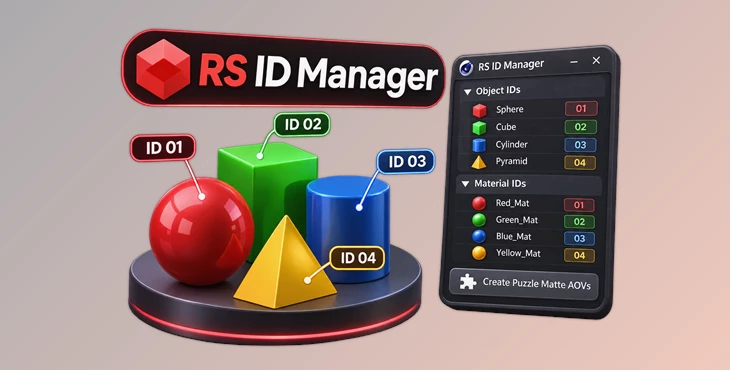
This Cinema 4D plugin helps you manage Redshift Object IDs and Material IDs from one panel. You can assign IDs, find duplicates, organize them by layer, and create Puzzle Matte AOVs without opening different tags and material settings.
Redshift IDs are important when you need to separate objects or materials during compositing. However, managing many IDs in a large scene can become difficult. RS ID Manager gives you a clear view of the IDs already in use and lets you make changes directly from its panel.
Manage Object and Material IDs in One Panel
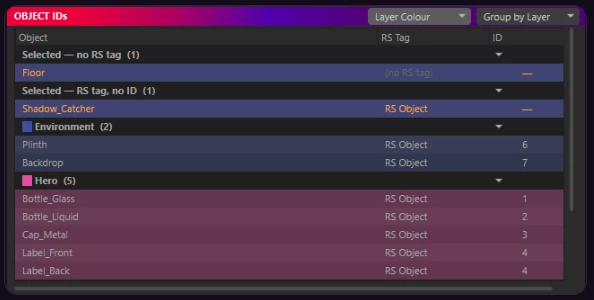
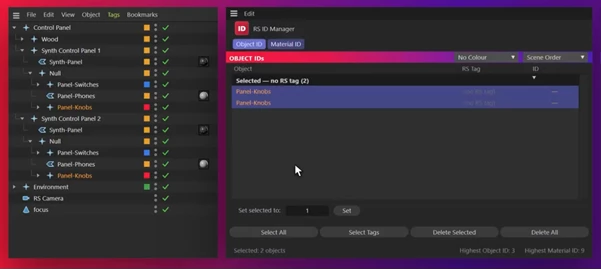
RS ID Manager uses a dockable panel inside Cinema 4D. It can display Object IDs, Material IDs, or both. You can resize the space between the two sections to focus on the IDs you are working with.
The panel follows your selection in Cinema 4D's Object Manager. When you select an object or its Redshift tag, the matching entry is highlighted. You can also click a row in the panel to select that object.
To assign an ID, select your objects, enter a number, and press Set. The plugin handles the required Redshift settings automatically.
For objects without an RS Object tag, it creates the missing tag. If the Object ID Override is disabled, it enables it when setting the ID.
The panel also shows objects that need attention under separate headings:
Selected — no RS tag: Objects that do not have a Redshift Object tag.
Selected — RS tag, no ID: Objects with a tag but no active Object ID.
You can double-click an existing ID to edit it directly. Setting an Object ID to 0 turns off its override.
Every ID change is handled as a single Cinema 4D undo step.
Assign the Same or Unique IDs to Multiple Objects
RS ID Manager supports assigning IDs to several objects or materials at once. When you select multiple items and press Set, you can choose between two methods.
| Mode | How it works |
|---|---|
| Same ID | Gives every selected item the same ID, so they can share one matte. |
| Unique IDs | Assigns separate IDs, counting upward from your chosen number and skipping IDs already in use. |
The Unique IDs option is helpful when you want to keep objects separate in compositing. It also prevents new IDs from accidentally matching existing ones.
Both methods work with Object IDs and Material IDs.
Set Material IDs Without Opening Node Graphs
Material IDs are usually stored in the output nodes of Redshift materials. Finding and editing them individually can take extra work, especially when a project contains many materials.
RS ID Manager displays these IDs in a separate Material IDs pane. It supports both Redshift node materials and legacy Xpresso materials.
You can select materials from the Material Manager or select their material tags in the Object Manager. The plugin then writes the chosen ID to the material's output node.
The Select Materials of Active Objects option connects object selection with material selection. When enabled, selecting an object also highlights the materials assigned to it.
Materials without an ID appear under Selected — no Material ID, making them easy to find.
Find Duplicate IDs and Organize Your Scene
Two objects can share an ID intentionally, but duplicate numbers can also cause problems when you need separate mattes.
RS ID Manager highlights duplicate IDs with matching colors. You can quickly identify which objects or materials use the same number.
The panel provides several ways to organize the information:
Scene Order: Displays objects in their scene order.
Sort by ID: Organizes entries by their ID numbers.
Group by Layer: Places objects into groups based on their Cinema 4D layers.
Row Colors: Shows duplicate ID colors or layer colors.
When grouping by layer, each group displays its layer color and item count. You can collapse groups to hide objects you do not currently need.
The panel uses Cinema 4D's native tree view and has no row limit. It also remembers the adjustable divider position between the Object ID and Material ID sections.
Create Redshift Puzzle Matte AOVs Automatically
One of the main features of RS ID Manager is its ability to generate Puzzle Matte AOVs from the IDs in your scene.
Normally, you need to organize IDs into Redshift Puzzle Matte passes yourself. Each pass can contain three IDs, assigned to the red, green, and blue channels.
The Create Puzzlematte AOVs command handles this process automatically.
The available output options include:
Object ID Mattes: Create Puzzle Mattes from Object IDs.
Material ID Mattes: Generate mattes using Material IDs.
Reflection and Refraction IDs: Include these IDs when needed.
Multi-pass Output: Add the generated mattes to your multi-pass render.
Direct Output: Set a separate file path and EXR compression for the output.
Direct output also supports Redshift path tokens such as $filepath and $prj.
If you change your IDs and run the command again, RS ID Manager updates the AOVs it previously created rather than adding another set. Existing AOVs created separately are left unchanged.
Create an ID List for Compositing
The Create ID AOV List command writes the scene's IDs into an annotated null object.
This provides a reference for the person working on the compositing stage. They can check the assigned IDs without having to identify every number manually.
The plugin only creates this list or the Puzzle Matte AOVs when you request them.
Compatibility and Technical Details
RS ID Manager is designed for Cinema 4D projects that use the Redshift renderer.
| Requirement | Details |
|---|---|
| Software | Cinema 4D 2024 and above |
| Renderer | Redshift |
| Windows | Supported |
| macOS | Apple silicon |
| Materials | Redshift node and Xpresso materials |
| Interface | Dockable Cinema 4D panel |
The plugin changes Redshift Object tags, their ID overrides, and Material IDs on Redshift materials. It does not modify unrelated scene properties.
RS ID Manager is particularly helpful in scenes containing many objects, materials, and render passes. It keeps ID management in one place, while giving you control over how IDs are assigned and how their Puzzle Matte AOVs are generated.

Files Password : gfxplugin.com OR 123456