Downloadable Files
You can download DeMult for free from the bottom of this page.
Remove Black and White Backgrounds with Clean Transparency
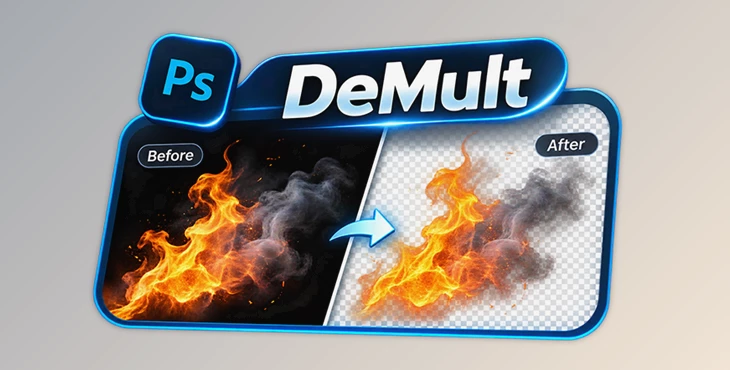
DeMult is a Photoshop plugin that removes black or white backgrounds from images while keeping soft, semi-transparent details. It is designed for visual effects such as smoke, fire, sparks, glows, and light leaks, where normal background removal tools may leave unwanted edges.
Remove Black and White Backgrounds Without Unwanted Halos
Removing a background from a photo is usually simple when the subject has clear edges. However, elements like smoke, fire, and glowing lights are more difficult because they contain many semi-transparent pixels.
Normal selection and masking tools may remove important details or leave dark and light outlines around the subject.
DeMult solves this problem by using an Unmult-style process. It converts the brightness of a black or white background into transparency while recovering the original colors of semi-transparent pixels.
This means you can place the extracted element over another background without the dark or white halos that often appear around its edges.
The plugin brings a workflow commonly used in After Effects directly into Photoshop, where there is no native equivalent of the Unmult effect.
Main Features of DeMult
DeMult focuses on background removal for visual effects and other elements with soft or complex edges.
Its main features include:
Black Background Removal: Removes black backgrounds and converts their brightness information into transparency.
White Background Removal: Supports elements created or photographed against white backgrounds.
Color Recovery: Restores the true foreground colors of semi-transparent pixels.
Clean Edges: Helps prevent unwanted dark or light halos around extracted elements.
Soft Detail Preservation: Keeps fine details in smoke, fog, glowing effects, and particles.
Native Photoshop Panel: Works directly inside Photoshop without requiring After Effects.
Unlike standard background removal methods, DeMult focuses on both transparency and color correction. This is important when working with effects that contain soft transitions between visible and transparent areas.
DeMult Controls and Workflow
DeMult works through a native Photoshop UXP panel with a small number of controls.
The main controls include:
| Control | Purpose |
|---|---|
| Black Level | Adjusts the black level during background removal. |
| White Level | Adjusts the white level during background removal. |
| Softness | Controls the softness of the result. |
| Shrink Edge | Adjusts the edges of the extracted element. |
| Remove Color Matting | Helps remove unwanted background color from the extracted element. |
The panel also includes Reset, Finish, and Cancel options for managing the process.
The basic workflow is straightforward:
Open the image containing a black or white background in Photoshop.
Open the DeMult panel.
Adjust the black and white levels as needed.
Use Softness, Shrink Edge, and Remove Color Matting to refine the result.
Finish the process when the extracted element looks correct.
The plugin is designed to produce results in seconds, without requiring several separate masking or channel-editing steps.
Visual Effects You Can Extract With DeMult
DeMult is particularly suitable for images containing transparent or glowing elements that are difficult to separate using traditional selection tools.
Supported types of visual elements include:
Fire and Sparks: Extract flames, sparks, and other bright effects from black backgrounds.
Smoke and Fog: Preserve soft, transparent areas when removing the original background.
Glows and Light Leaks: Separate lighting effects while keeping their smooth color transitions.
Lens Flares: Remove the background around bright optical effects.
Dust and Particles: Keep small details that may be lost during manual masking.
Water Splashes: Extract water elements with complex edges and transparent areas.
Neon Effects: Separate glowing neon graphics from their original backgrounds.
These elements can be used in posters, key art, social media graphics, and other Photoshop compositions.
For example, a stock smoke effect with a black background can be processed with DeMult and placed over a colorful poster design. The smoke keeps its soft edges without carrying an unwanted black outline into the new composition.
Why Use DeMult Instead of Manual Masking?
Photoshop offers several ways to remove backgrounds, including selections, masks, Blend If settings, and channel-based techniques.
However, these methods may require additional work when an image contains semi-transparent effects.
DeMult provides a more direct solution for this specific task.
One important difference is that it does not simply hide the black or white background. It also corrects the colors of pixels that were mixed with the original background.
Another advantage is its integration with Photoshop. Users can complete the process inside the application without exporting the image to After Effects and importing the result again.
This makes DeMult a practical tool for Photoshop artists who frequently combine stock visual effects with photographs, illustrations, and graphic designs.
Dear user, you must first login to your account to write your comment.
Please click here to Log in

Files Password : gfxplugin.com OR 123456