Downloadable Files
You can download Marbling for free from the bottom of this page.
Fluid Simulation for After Effects
Marbling is a fluid simulation plugin for Adobe After Effects that makes images, videos, text, and shapes move like paint on water. It uses a 2D fluid simulation to push, stretch, and mix pixels into flowing marble patterns.
You can control how the paint moves by using turbulence, mixing points, paths, and other layers. Marbling also lets objects interact with the fluid, so moving shapes or people can push the paint around them.
Turn Images and Videos into Flowing Paint
Marbling changes the way pixels move inside an After Effects composition. Rather than applying a fixed marble texture, it simulates moving water that carries the pixels along with it.
You can use it to create liquid text animations, flowing transitions, abstract patterns, and effects where footage appears to melt into paint.
The plugin provides several ways to control the movement, from automatic turbulence to paths that guide the flow in a specific direction.
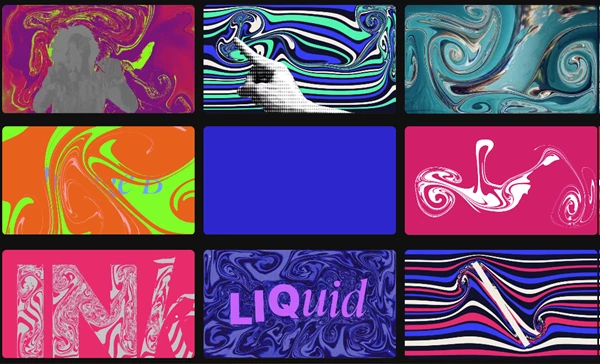
Control Fluid Movement with Marbling
Fluid Map – Make Paint Flow Around Objects
The Fluid Map feature uses another layer to control where the water can move.
Black areas of the selected map stop the water from moving, making the paint flow around those areas. You can use text, logos, or shapes as barriers inside the simulation.
Fluid Map also supports moving video layers through a feature called Map Push. When a subject moves, it pushes the surrounding fluid aside.
For example, a dancer can move through the frame while the paint flows around their body.
Turbulence – Create Different Flow Patterns
Marbling includes three turbulence modes that create different types of fluid movement:
Curl Noise: Creates flowing, curved motion in the paint.
Popping Swirls: Produces swirling movements that change the paint patterns.
Auto Stir: Automatically stirs the fluid to keep it moving.
You can adjust the speed, size, and random seed of these movements to control the final pattern.
Mixer – Stir Paint at a Specific Point
The Mixer tool lets you choose a position in the composition where the paint should mix.
You can place the Mixer anywhere in the frame and use it to create local swirling movements.
The Mix Detail setting controls how much small detail remains in the mixed patterns. It includes three options:
Low
Medium
High
Flow Path – Guide Paint Along a Custom Path
With Flow Path, you can draw a mask path and make the paint follow its shape.
There are two ways to control this movement:
| Mode | How it works |
|---|---|
| Along Path | Moves the paint along a drawn mask path. |
| Trace Path | Uses an animated stylus to follow the path and drag paint behind it. |
These controls are helpful when you want the liquid to move in a planned direction rather than flow randomly.
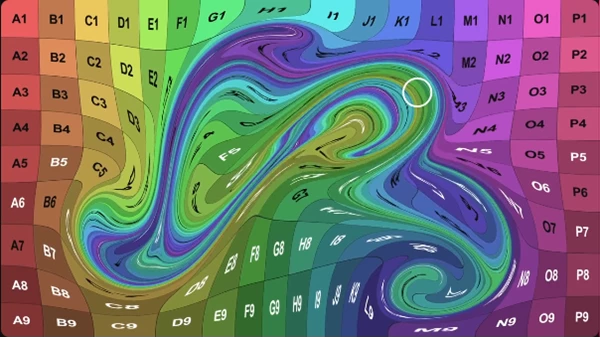
Creative Effects You Can Make with Marbling
Marbling supports different types of liquid animation in After Effects. Some examples include:
Liquid text: Make letters dissolve into flowing paint or use them as walls that change the fluid's direction.
Video marbling: Turn moving footage into swirling marble patterns.
Fluid transitions: Combine flowing paint with a built-in After Effects wipe to create transitions.
Object interactions: Make spinning shapes, moving people, or other objects push the water around them.
Paint mixing: Create the appearance of a fingertip stirring paint on water.
These effects can be used in motion graphics, video editing, abstract animations, and text-based designs.
Rendering Quality and After Effects Support
Marbling includes several technical features for working with fluid simulations.
| Feature | Details |
|---|---|
| Fluid Quality | Draft, Standard, High |
| Color Depth | 8, 16, and 32 bpc |
| 32-bit Support | Supports values above 1.0 |
| Rendering | CPU-based and multithreaded |
| Multi-Frame Rendering | Supported |
| Adjustment Layers | Supported |
| Effect Compatibility | Works with effects applied before Marbling, such as Drop Shadow and Glow |
The simulation is deterministic, meaning the same frame always produces the same result when the settings remain unchanged. This helps Marbling work with the After Effects cache.
Performance and Simulation Limitations
Marbling calculates fluid movement over time. Each frame depends on the frames before it.
When you jump to a later frame for the first time, the plugin must calculate the simulation from the beginning up to that frame. This can take time, especially when jumping far ahead in the timeline.
After a frame has been calculated, returning to it is faster as long as the result remains in the After Effects cache. However, changing a setting may require the simulation to start calculating again.
For faster previews, you can use Half resolution. This improves preview speed without changing the fluid motion.

Files Password : gfxplugin.com OR 123456