Downloadable Files
You can download Glasser for free from the bottom of this page.
Create Editable Liquid Glass Effects in After Effects
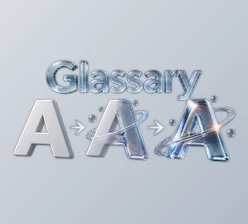
Glasser is a tool for Adobe After Effects that turns shapes, text, footage, and precomps into editable liquid glass elements. It creates the glass setup automatically, so you do not need to build the effect from scratch.
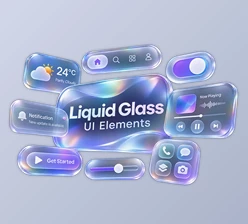
The tool is designed for UI motion graphics and animated designs. You can choose a built-in glass look, change its material settings, and animate the result. Each glass element has its own controls, allowing you to create different glass styles within the same project.
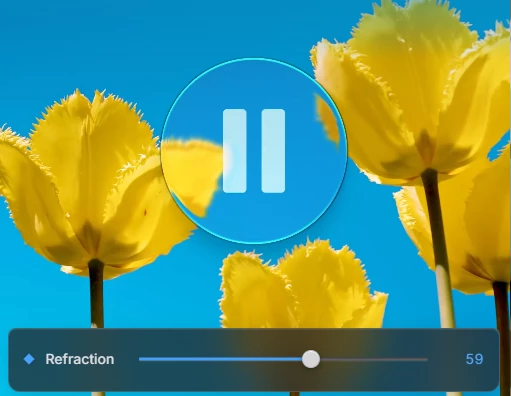
Create Liquid Glass Effects from Any Layer
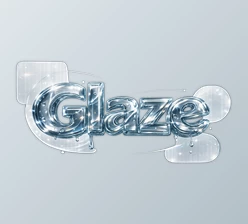
Glasser works with different types of visual layers in After Effects. You can apply a glass look to a simple square or circle, text, video footage, or an existing precomposition.
When you select a layer and apply a look, Glasser creates a separate glass setup using After Effects effects and precomps. The result remains editable, so you can change the material and adjust its appearance after applying it.
The built-in looks are included directly in the Glasser panel. You do not need to manage a separate folder of presets.
Customize the Glass Material
Glasser provides material controls through Essential Properties. The available settings depend on the selected glass look.
The main material adjustments include:
Refraction: Bends the background behind the glass to create a transparent, distorted appearance.
Blur: Softens the details visible through the glass material.
Light: Adjusts the lighting that defines the edges of the glass.
These settings help you create different glass appearances without rebuilding the effect. You can adjust how strongly the background bends, how soft the glass looks, and how its edges respond to light.
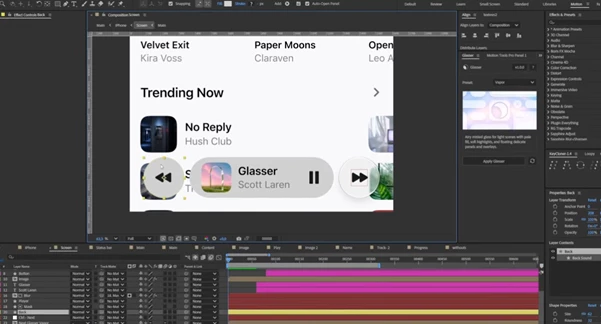
Animate Glass Elements with Control Null
Glasser includes a generated Control Null for working with animated glass elements.
You can use this control to move, scale, and rotate the glass while keeping the effect aligned with the design. This is particularly important for UI animations where glass buttons, panels, or other interface elements need to move.
For designs that do not require this animation control, Glasser provides Simple Glass. This option creates the glass material without generating a Control Null, making it suitable for static layouts.
Apply Glass to Multiple Layers
Glasser can process several selected visual layers in one operation.
When you apply a built-in look to multiple layers, the tool processes them separately, one after another. Every selected layer receives its own glass setup and independent material controls.
This means you can start with the same glass appearance across several elements and then customize each one individually.
For instance, a design containing multiple glass interface elements can use the same starting look while keeping different refraction, blur, or lighting settings for each element.
Edit Your Original Design After Applying Glass
One important feature of Glasser is that you can continue editing the original artwork after creating the glass effect.
The source layer is kept inside the generated precomposition. To change the design, open Edit Me and update the artwork inside it.
You can modify the source without having to create the entire glass material again.
However, there is one detail to consider: after applying Glasser, the original source may no longer appear in its previous parent timeline because it is placed inside the generated precomp.

Files Password : gfxplugin.com OR 123456