Downloadable Files
You can download Steereo 3D for free from the bottom of this page.
Take Full Control of Stereo 3D Depth
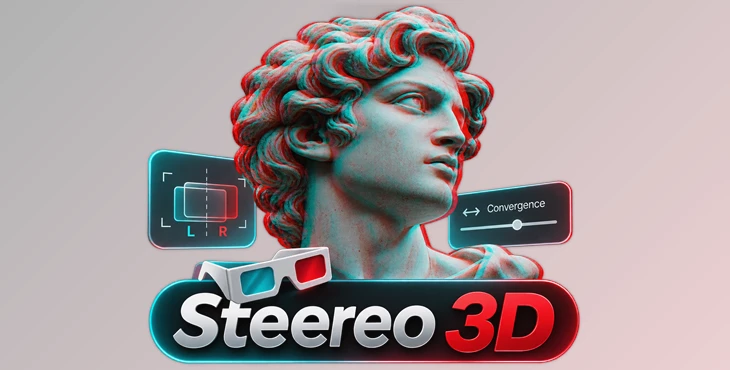
Steereo 3D is a stereoscopic 3D plugin for Adobe After Effects and Premiere Pro. It helps you align left-eye and right-eye footage, adjust depth, and prepare stereo videos for different viewing formats.
The plugin works directly in your editing timeline, so you don't need to open another program to fix your 3D videos. It uses your GPU to work faster and supports different 3D video formats. You can also preview your video in different ways to check if the left and right images are in the right position and the 3D depth looks good.
Control Stereo Depth with Convergence
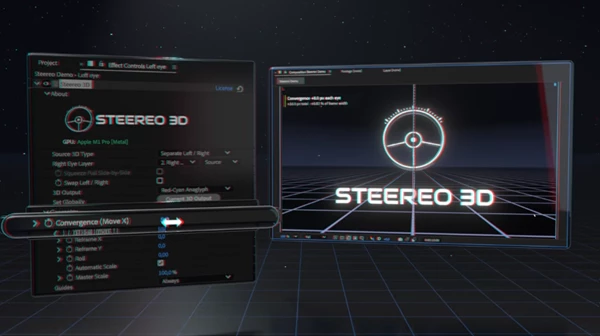
One of the main features of Steereo 3D is its Convergence control. This setting moves the left and right images horizontally to change where objects appear in 3D space.
You can place objects behind the screen or make them appear in front of it by adjusting the position of the two eyes.
The plugin also shows useful information directly in the viewer:
Eye Shift: Shows how far each eye moves horizontally.
Total Parallax: Displays the distance between the left and right images.
Frame Percentage: Shows the parallax as a percentage of the frame width.
The pixel values are based on one eye at full resolution. This means the measurements stay consistent even when you change the preview resolution.
These controls help you set the depth more accurately for the screen where your video will be displayed.
Align Left and Right Eye Footage
Stereo footage needs proper alignment between the two eyes. When the images have different vertical positions or rotation angles, the 3D result may not look correct.
Steereo 3D includes several tools for correcting these problems.
| Control | Function |
|---|---|
| Vertical Offset | Corrects vertical differences between the two eyes |
| Roll | Fixes rotation differences |
| Automatic Scale | Covers empty edges after alignment |
| Reframe X/Y | Changes the position of the composition |
| Master Scale | Adjusts the overall image size |
An important feature is how the plugin handles image edges. When one eye runs out of picture after correction, both eyes use the same crop. This prevents unwanted edges from appearing in only one eye.
Visual Alignment Guides
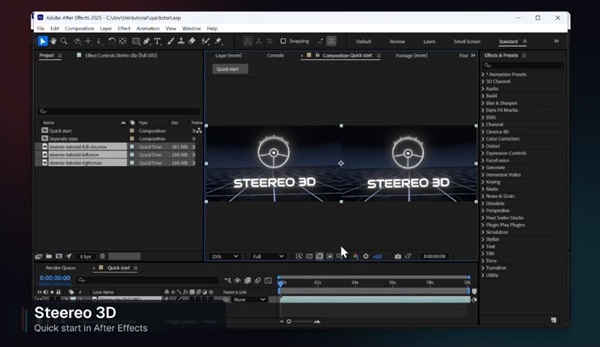
Steereo 3D also provides visual tools inside the viewer to help you check your footage.
Eye boundaries, pixel measurements, and adjustable parallax lines show how the two images are positioned.
You can control the visibility, spacing, and horizontal position of the parallax lines. Their spacing can be adjusted for the intended display rather than only the footage resolution.
These guides appear only in the viewer and are not included in exported videos.
In Premiere Pro, you need to select the effect heading to display them.
Stereo Preview and Output Modes
Steereo 3D provides several output modes for checking stereo footage and preparing it for different displays.
| Output Mode | Description |
|---|---|
| Red-Cyan Anaglyph | Combines the red channel from the left eye with the green and blue channels from the right eye |
| Gray Anaglyph | Provides another anaglyph viewing option |
| Side by Side | Places both eye images together for stereo viewing |
| Difference | Makes matching areas black to help identify alignment problems |
| Superimpose | Displays both eye images together for comparison |
| Left Only / Right Only | Shows one eye as a normal 2D image |
The Difference mode is particularly helpful when correcting vertical alignment and roll because matching areas become black.
For viewing stereo depth, Red-Cyan Anaglyph works with red-cyan glasses. Side by Side can be used to prepare footage for compatible 3D displays.
The plugin also supports squeezing full-width Side by Side footage into a half-width format for a half-SBS 3D TV.
Global Output Settings
Steereo 3D includes a Global option for clips that use a shared output setting.
This is helpful when working with multiple stereo clips because their output format can follow the same setting.
Supported Stereo Footage Formats
Steereo 3D can work with different types of stereo sources.
1. Full or Half Side by Side
You can use footage where both eyes are stored inside one video clip. Select the full-width or half-width format to match your source.
2. Separate Left and Right Footage
The plugin also supports separate left-eye and right-eye sources.
In After Effects, you can select the right-eye layer. In Premiere Pro, you can choose the right-eye video track.
3. 2D Flat
The 2D Flat mode lets you place flat video, titles, and graphics at a selected depth in a stereo composition.
It also supports clean transparent edges, which is important when working with titles and graphic elements.
However, this mode does not turn ordinary 2D footage into a fully stereoscopic scene with real depth between objects.
Where Steereo 3D Fits into Your Workflow
Steereo 3D is designed for finishing footage that already contains separate left-eye and right-eye views.
You can use it to correct stereo camera footage, adjust how far objects appear from the screen, and check the result before exporting.
It also provides a way to combine flat titles or graphics with stereoscopic footage using the 2D Flat mode.
The main advantage is having alignment controls, depth adjustments, visual measurement tools, and stereo output modes together inside After Effects or Premiere Pro. This keeps the stereo finishing process within the same timeline where you edit your footage.

Files Password : gfxplugin.com OR 123456