Downloadable Files
You can download Brand Manager for free from the bottom of this page.
Keep Your Brand Colors and Fonts Organized Across Adobe Apps
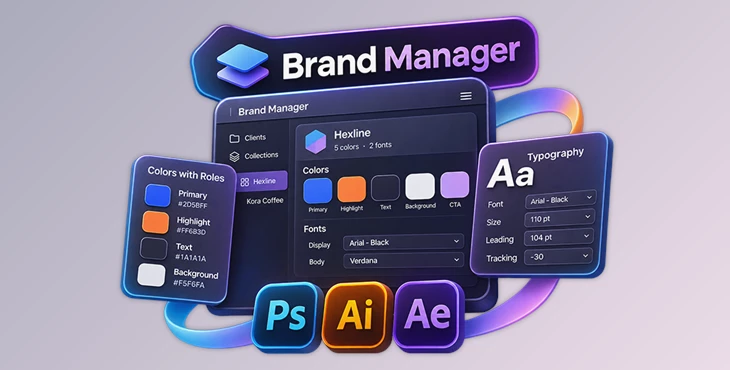
Brand Manager is an Adobe panel that keeps your brand colors, fonts, text sizes, and spacing settings in one place. It works with Photoshop, Illustrator, and After Effects, using the same shared library across all three applications.
Instead of opening a brand guide every time you need a color or font, you can select a layer and apply the correct value directly from the panel. Each brand has its own kit, so you can switch between clients without searching for their design settings.
Organize Your Brand Identity with Brand Kits
A Brand Kit stores the design settings used for a particular brand. It includes more than a basic color palette.
Each kit can contain:
Colors: HEX colors organized by roles such as Primary, Text, Background, and CTA.
Fonts: Font families and weights for different text styles.
Type Sizes: Saved sizes for Display, Body, Caption, and other text roles.
Line Height: Leading values for text.
Letter Spacing: Tracking values for consistent typography.
Colors can use nine ready-made roles or custom names. This helps you understand what each color is meant for, rather than choosing from a collection of unnamed swatches.
You can also create separate kits for different brands and organize them into collections by client, project, or campaign. A single kit can belong to multiple collections.
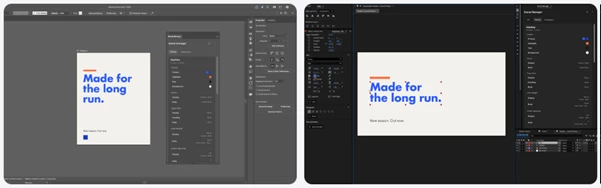
Apply Brand Settings Directly to Your Layers
Brand Manager applies saved values to selected layers without requiring you to copy and paste settings manually.
The process is simple:
Open the Brand Manager panel in your Adobe application.
Choose the Brand Kit you want to use.
Select one or more layers.
Click a color, font, size, or spacing value to apply it.
You can apply settings to several selected layers at once. The action is also recorded as a single Undo step.
How Brand Manager Works in After Effects
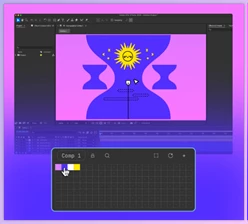
Brand Manager can apply colors to different layer types and properties in After Effects, including text layers, solids, and shape layers.
It also supports animated color properties. When you apply a color to a property with keyframes, the color changes at the current playhead position while the existing keyframes remain in place.
This is particularly helpful when you need to keep animated graphics consistent with a client's brand colors.
Using Brand Colors in Photoshop and Illustrator
In Photoshop, you can apply brand settings to selected artwork and text. You can also Alt-click a saved color to set it as Photoshop's background color.
Illustrator uses the same Brand Kits, so you can continue working with the colors and typography already saved in Photoshop.
Changes made to the shared library become available across all three supported applications without importing the kits again.
Create Brand Kits from Existing Designs
You do not have to enter every brand setting manually. Brand Manager includes several ways to collect values from existing artwork.
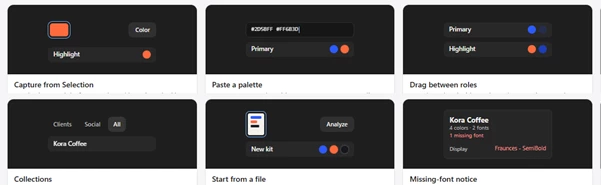
| Tool | What it does |
|---|---|
| Capture from Selection | Reads values from a selected layer and saves them to a kit, individually or together. |
| Paste a Palette | Imports multiple HEX colors separated by spaces, commas, or new lines. |
| Analyze Document | Reads text and fill colors from an open Photoshop document to create a starter kit. |
| Duplicate Kit | Creates a copy for a sub-brand or seasonal design variation. |
| Drag Between Roles | Moves or reorders colors within and between color roles. |
The Analyze Document feature is specific to Photoshop. It can help when you already have a finished design but have not created a separate Brand Kit for it.
Brand Manager also shows a warning when a font saved in a kit is not installed on your computer. The missing font does not remove or damage the kit.
Share Brand Kits Between Team Members
Brand Manager supports JSON import and export, making it possible to share brand settings with colleagues or move them to another computer.
There are three export options:
Brand Kit: Export one brand's settings. Importing it adds the kit to the existing library.
Collection: Export a group of related kits. Importing adds the collection without deleting existing kits.
Entire Library: Export all saved kits for backup or transfer. Before replacing a library, Brand Manager shows what will change and creates a backup.
The panel also supports working in two Adobe applications at the same time. If you edit a kit in Photoshop and After Effects, Brand Manager merges the changes. Anything that cannot be merged is preserved in a Recovery folder.
Find and Manage Your Brand Settings
Brand Manager includes a search tool for finding kit names, collections, color roles, HEX codes, fonts, and sizes.
You can also customize the panel to fit your workspace.
It offers three sizes: Small, Medium, and Large. Its light or dark appearance follows the Adobe application's theme.
The interface supports eight languages:
English, French, Spanish, and German
Turkish, Japanese, Korean, and Simplified Chinese
The panel initially uses the language of the Adobe application.
Where Brand Manager Fits into Your Work
Brand Manager is designed for projects where the same brand identity needs to appear across different designs and applications.
Motion designers can carry colors and typography from Photoshop or Illustrator into After Effects, including line height and letter spacing.
Social media designers can use saved settings for posts, banners, and other branded content without checking a style guide for every design.
Agencies and studios can organize multiple clients into separate kits and share the same settings with their team members.
Freelancers can switch between client identities while keeping each client's colors, fonts, and typography settings separate.
The main advantage of Brand Manager is its combination of role-based brand settings and a shared library across Photoshop, Illustrator, and After Effects. It keeps brand values accessible inside the applications where they are used, rather than in separate reference documents.

Files Password : gfxplugin.com OR 123456